Campaigns in Signi

Modified on Tue, 15 Sep at 11:47 AM

NOTICE: Campaigns are a paid feature. For more information, please contact: care@signi.com

Campaigns allow you to send documents in bulk – either the same file to all recipients, or using templates with personalized data based on an uploaded CSV file. Unlike simple bulk sending, in campaigns you can combine both templates and your own documents.


Guide: Creating a new campaign

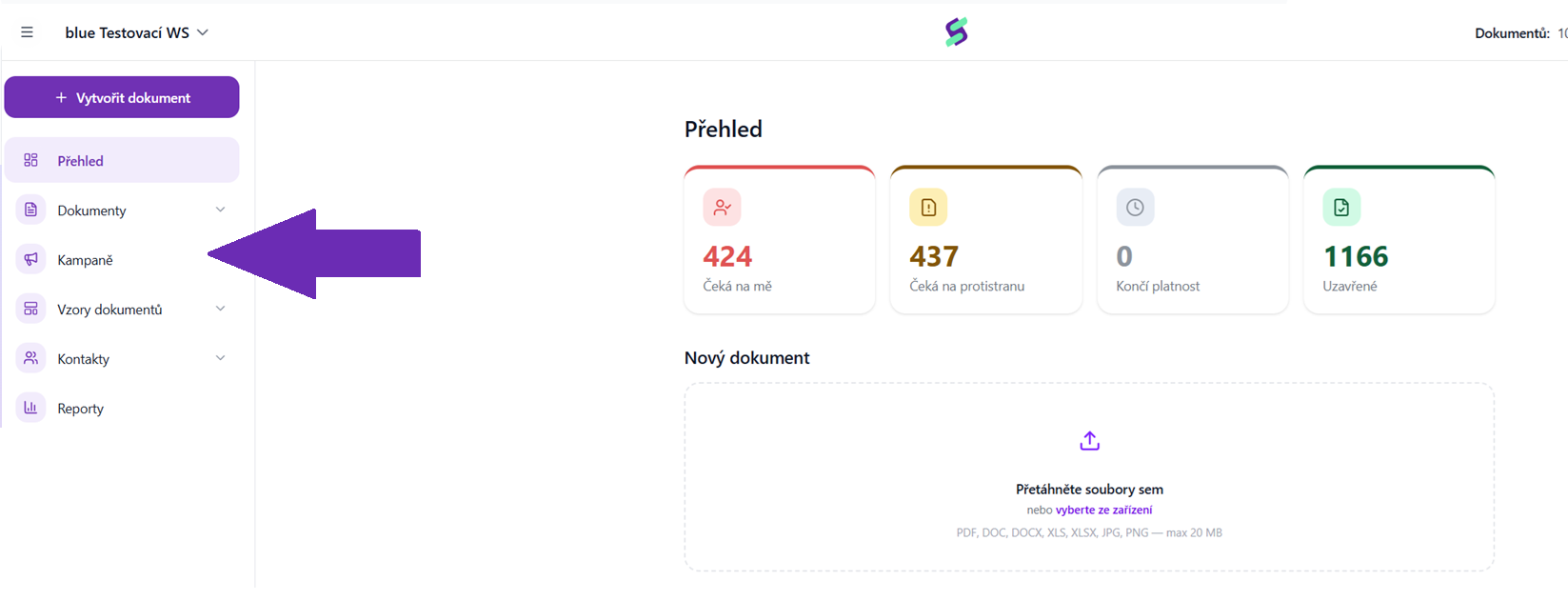
  1. On the SIGNI main page, click the Campaigns button in the menu on the left.
![image](https://dev.signi.com/prototypes/knowledge-base/api/img/up-1786431052234-image.png) 2. In the **top right** corner, click the **Create new campaign** button.
![](https://s3-eu-central-1.amazonaws.com/euc-cdn.freshdesk.com/data/helpdesk/attachments/production/201053531925/original/GbRtExmcoUTHCJb59kNX-boTmpdpVDh5nQ.png?1745577830) 3. Either upload a **finished document** that will be sent to all recipients, or use one of our **templates** and fill in the data **dynamically using a CSV file**. You can also use a combination of an uploaded document and templates.
![](https://s3-eu-central-1.amazonaws.com/euc-cdn.freshdesk.com/data/helpdesk/attachments/production/201053532860/original/uJbLY_HFT9QhTOCnZ_gEocIjiWe8Jpbx-Q.png?1745578157) 4. Choose a template or upload your own document and click **Continue** at the bottom. 5. Select contacts: * **manually** using the **+** buttons next to individual contacts, * or **in bulk** by clicking the **Upload contacts in bulk (CSV)** button.
![](https://s3-eu-central-1.amazonaws.com/euc-cdn.freshdesk.com/data/helpdesk/attachments/production/201053533213/original/R8hzWaGrFNVyEZVu7z4-6axwP_ao6qgwxA.png?1745578298)
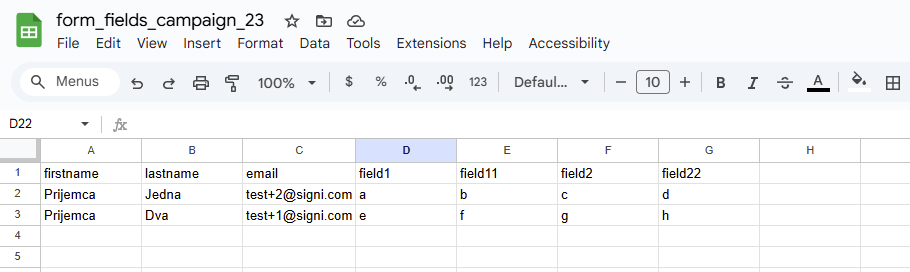
![](https://s3-eu-central-1.amazonaws.com/euc-cdn.freshdesk.com/data/helpdesk/attachments/production/201053536111/original/B24NhRyNKYluoXbDpgobKueXdXosFYLLLQ.png?1745579197) 6. When uploading a CSV file, you can download a **sample CSV file** that contains all the variables from your selected template. Just open it in Excel / Google Sheets and fill in the data. Then upload the completed CSV file back into the Signi app.
![](https://s3-eu-central-1.amazonaws.com/euc-cdn.freshdesk.com/data/helpdesk/attachments/production/201053533660/original/xA92_KN5n4hoP9uSGc6iK_Eni3QNE-0sLg.png?1745578441) 7. After the CSV is successfully uploaded, you will see the number of selected contacts. Click **Check signers** if you want to review the list.
![](https://s3-eu-central-1.amazonaws.com/euc-cdn.freshdesk.com/data/helpdesk/attachments/production/201053536307/original/oiISyxKVwIgBKso_x8wXKAgMlG9C7blmtQ.png?1745579255)
![](https://s3-eu-central-1.amazonaws.com/euc-cdn.freshdesk.com/data/helpdesk/attachments/production/201053533885/original/cYpcV1oPhFvz0lciAGKIl49wtNXnE-lZOQ.png?1745578523) 8. Once everything is ready, click the **Continue** button.
![](https://s3-eu-central-1.amazonaws.com/euc-cdn.freshdesk.com/data/helpdesk/attachments/production/201053533950/original/nUZCkv8r4I8dues2BfbDhzoKO4lY7wKLiQ.png?1745578542) 9. Now set up the **signing scenario** – notification language, internal notes, etc.
![](https://s3-eu-central-1.amazonaws.com/euc-cdn.freshdesk.com/data/helpdesk/attachments/production/201053534057/original/Cod5jXkmlGIynfTePds6gKXpszJqmRw6HQ.png?1745578565) 10. Review the list of recipients and continue. 11. In the next step you will see the documents: * For templates, the data will be filled in automatically, * For uploaded documents, **drag the signature field** to the desired location and click **Finish**.![](https://s3-eu-central-1.amazonaws.com/euc-cdn.freshdesk.com/data/helpdesk/attachments/production/201053534435/original/dcDL9PriI_j-5CmdZix1Y7jPhVXsn4WfEA.png?1745578687)
![](https://s3-eu-central-1.amazonaws.com/euc-cdn.freshdesk.com/data/helpdesk/attachments/production/201053534539/original/BNAvtd0oCxu8PSzUIDIV3a1yHL_W27xG1w.png?1745578719) 12. You will see a **campaign overview**: * Undelivered * To be sent * Sent * Delivered * Signed * Awaiting signature
![](https://s3-eu-central-1.amazonaws.com/euc-cdn.freshdesk.com/data/helpdesk/attachments/production/201053534815/original/HgVr9ALH7m11Mqzmd5pLB7kmeOxi95yd7w.png?1745578799) 13. **If you have purchased** the **Bulk overview** module, you can click the More button to view the contents of all documents in bulk.
![](https://s3-eu-central-1.amazonaws.com/euc-cdn.freshdesk.com/data/helpdesk/attachments/production/201053535032/original/NH6nPV3bv0E6WjsrRV6fy3WmJx4jVVxHzg.png?1745578887) 14. You can then: * **send the campaign immediately**, or * **schedule it for a specific date** in the future.
![](https://s3-eu-central-1.amazonaws.com/euc-cdn.freshdesk.com/data/helpdesk/attachments/production/201053535338/original/QgHxZGbFWbZbjR6Q8f0gieN4jumF4IaFUQ.png?1745578966)
![](https://s3-eu-central-1.amazonaws.com/euc-cdn.freshdesk.com/data/helpdesk/attachments/production/201053535469/original/KXmKLBxt08zufKLTFuaycnqQeiZswVkbfA.png?1745578990) 15. After sending, a message will appear indicating that the campaign is being processed. This may take up to **5 minutes**.
![](https://s3-eu-central-1.amazonaws.com/euc-cdn.freshdesk.com/data/helpdesk/attachments/production/201053535553/original/pQk2gzNCpVUV9zk0XL-KKHWqiBtyfIb21g.png?1745579022) 16. ✅ **Done!** The campaign has been successfully sent, and you will see the current status of the documents in the document list.

Do you have any further questions? Contact our support or write to care@signi.com.

Was this article helpful?

That’s Great!

Thank you for your feedback

Sorry! We couldn't be helpful

Thank you for your feedback

Let us know how can we improve this article!

Select at least one of the reasons
CAPTCHA verification is required.

Feedback sent

We appreciate your effort and will try to fix the article