If the expiration of a document draft is approaching and someone hasn't managed to sign it yet, you can extend the document's validity. Once a document has expired, you can edit it and send it again.
The time set for signing has not yet elapsed
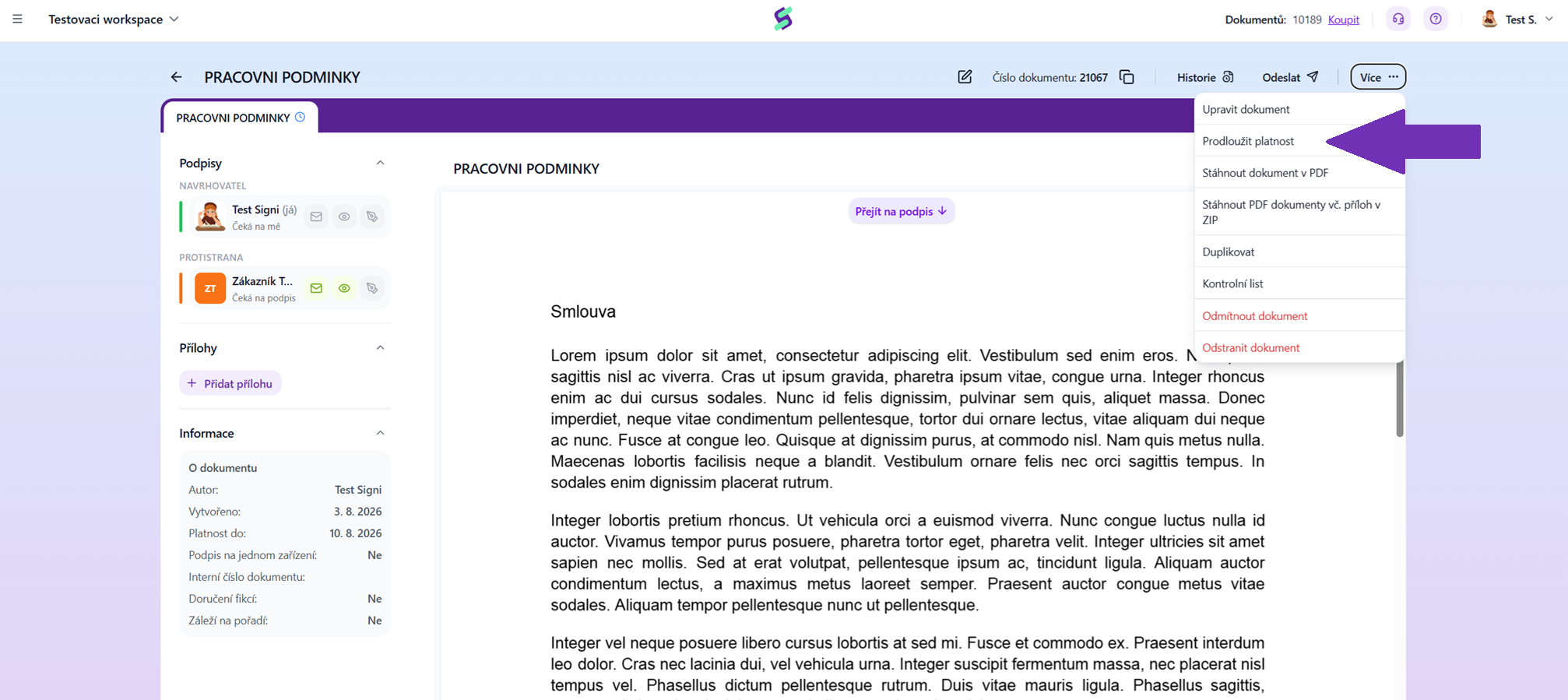
Simply extend the draft's validity: click on the document to display it in preview. Additional editing options are hidden under the three dots at the top right, next to the Send button — that's where you'll find the Extend validity option.
The document has already expired
What you can do with an expired document:
- Delete the document can only be done by its author. When an expired document is deleted, the credit is returned to the workspace owner's account (not necessarily the document's author).
- Edit the document and send it for signing again — in this case, no additional credit is deducted.
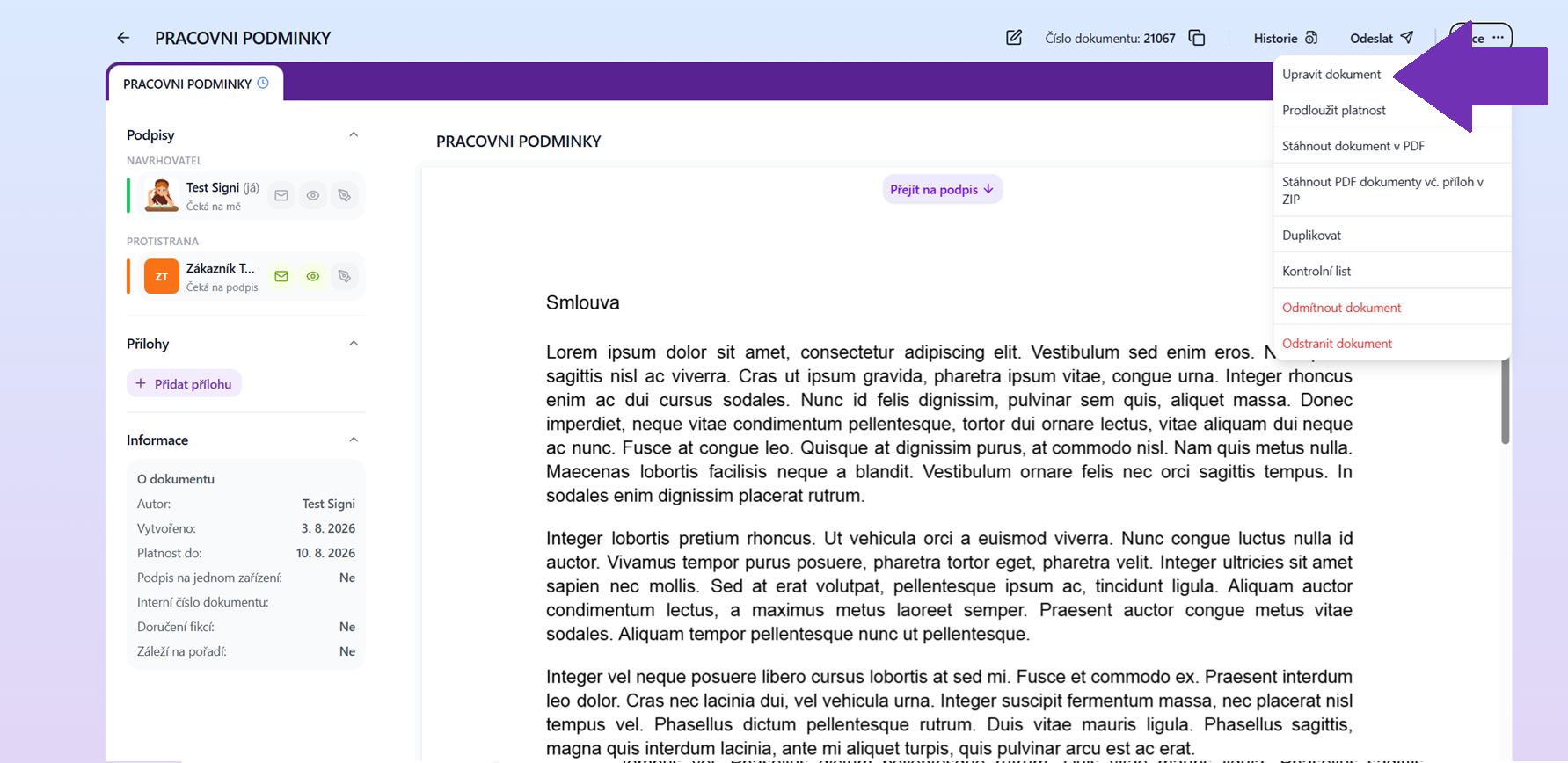
The option to delete or edit an expired document. Only the document's author has it.
Resending step by step
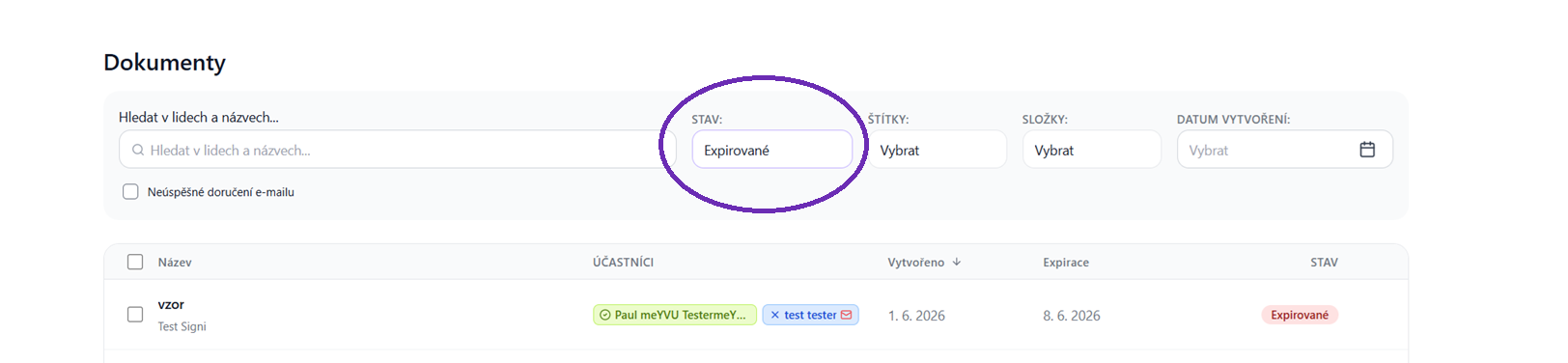
- In the Documents section, find the expired document and open it by clicking on its name.
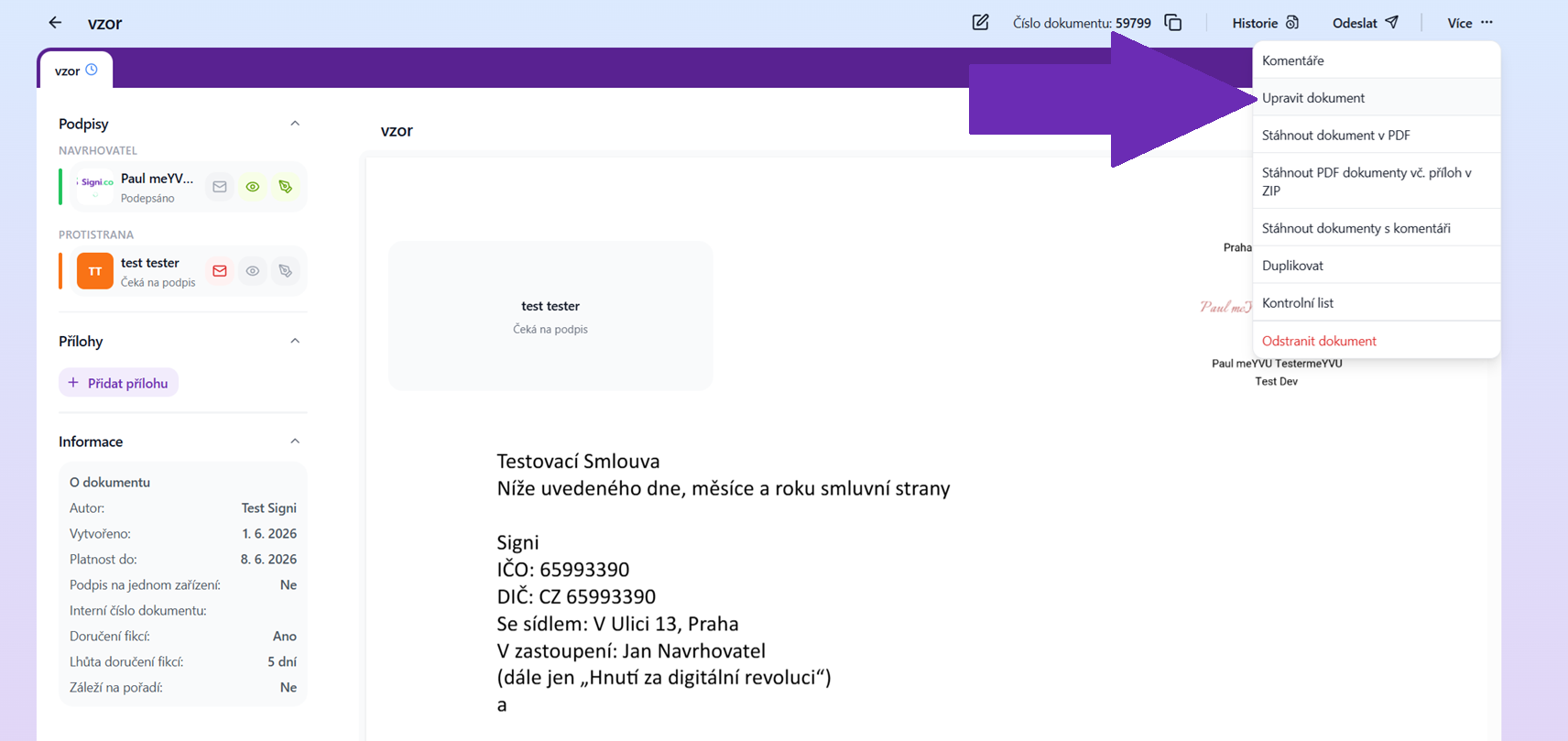
- Select the Edit option and confirm the removal of the original signatures.
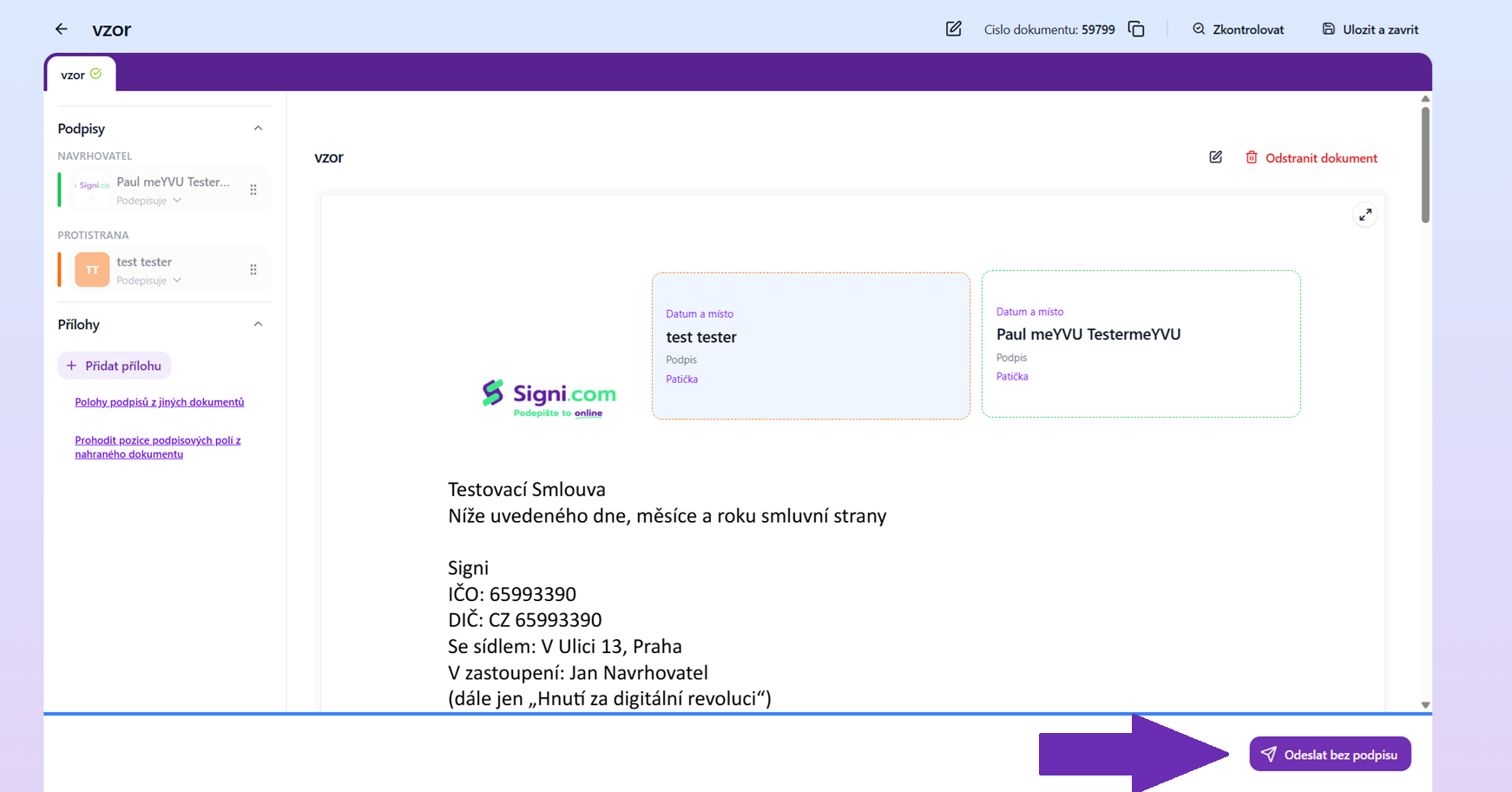
- The application will redirect you to the Document content step — make any changes, sign the document again, or send it to the counterparty for signing.
How to change the document draft expiration period
The expiration period for a document draft to be signed is set in Workspace settings, or when creating a document in the General settings section.
Was this article helpful?
That’s Great!
Thank you for your feedback
Sorry! We couldn't be helpful
Thank you for your feedback
Feedback sent
We appreciate your effort and will try to fix the article