If the document has not yet been signed by all parties, it can be edited. You can change the document header, the counterparties, and, in the case of template documents, the document text as well.
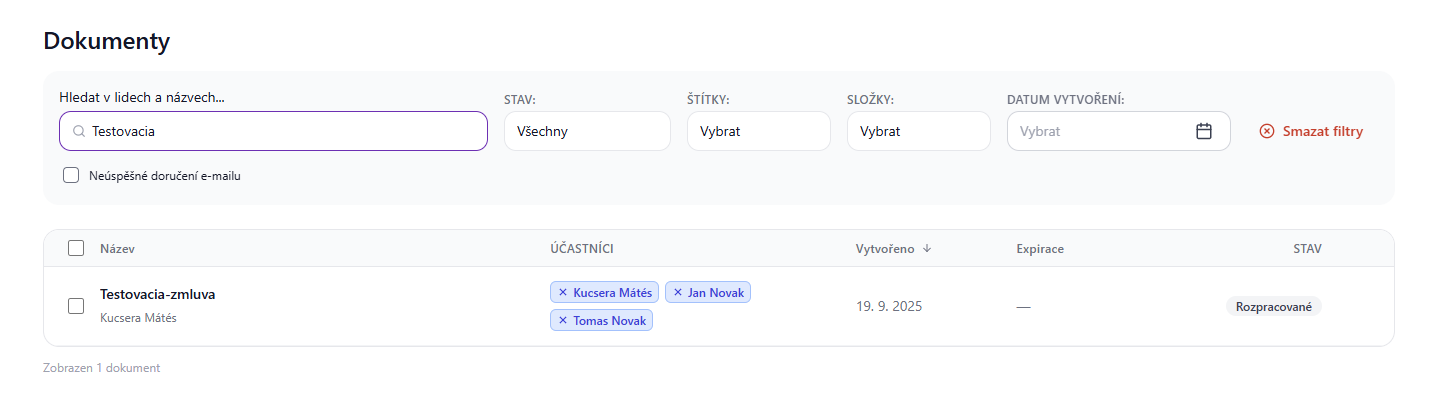
In the list of documents on the left, select the document you want to change and simply click on its name.
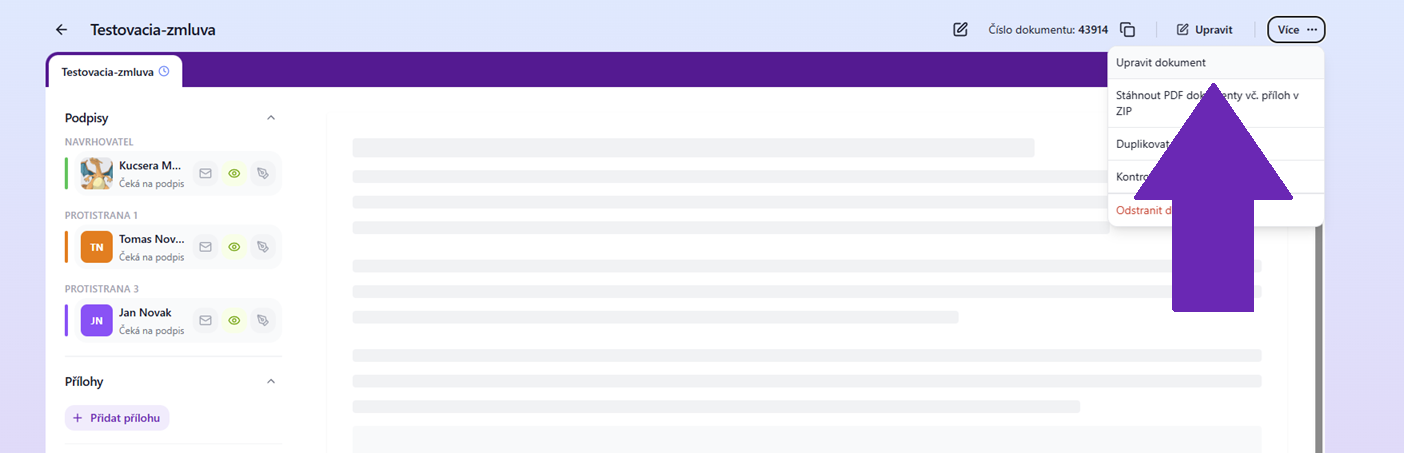
The document will appear in the preview, and in the top right above it you will see the available action options after clicking the More button.
Select the first available option in the list, namely Edit document.
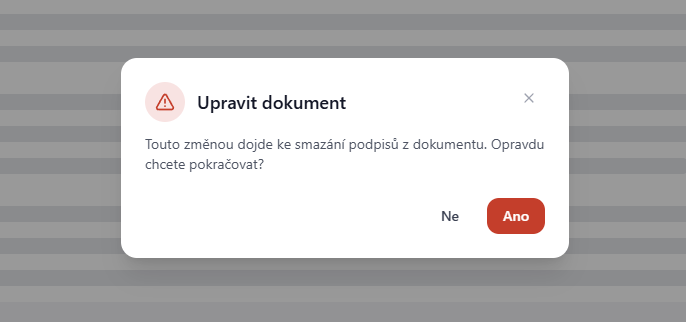
At Signi, we guarantee that the attached signatures belong only to the given document and no other, which is why any signatures already placed on the document must be removed in the event of a change. This is because it becomes a new document.
The system will notify you of this fact:
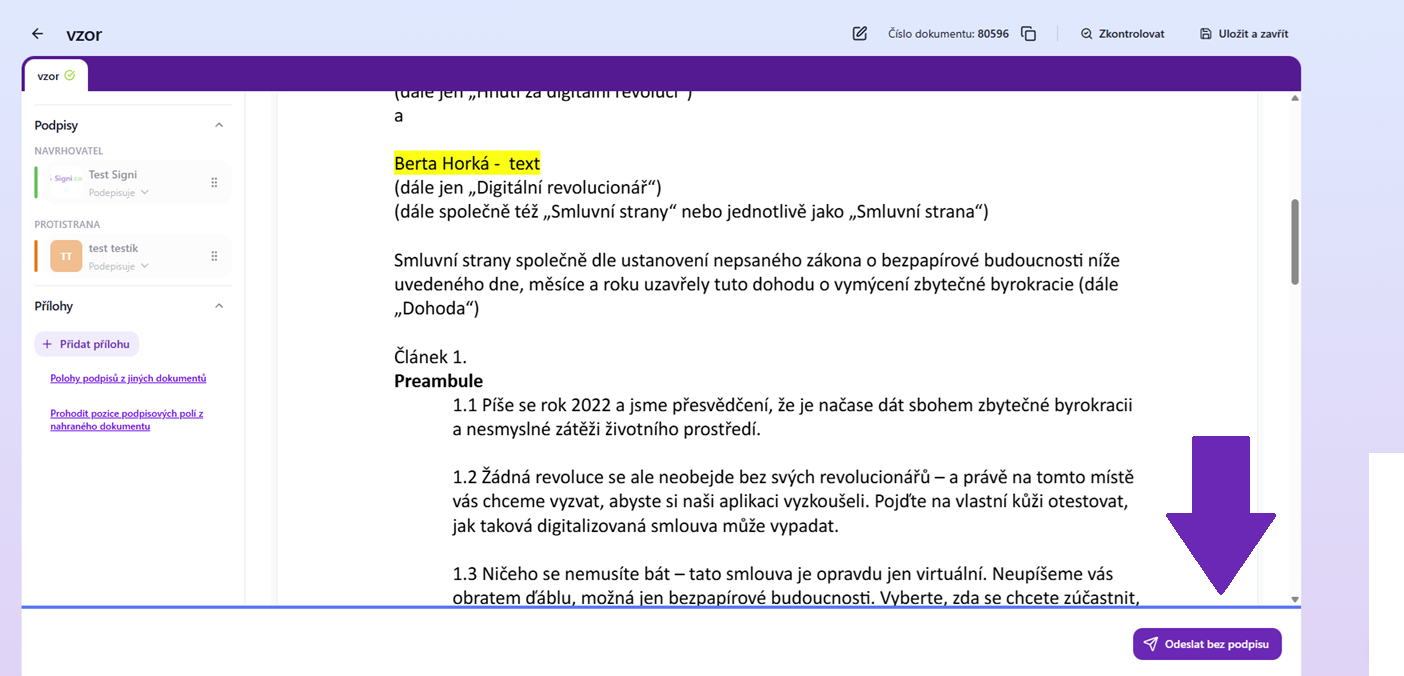
You will then be shown a preview of the document, where you can either send the document again or continue with the edits, which we explain below.
If you need to change the counterparties, someone's details, or the order of the document, you need to click the arrow in the top left next to the document name and continue to the signature scenario settings.
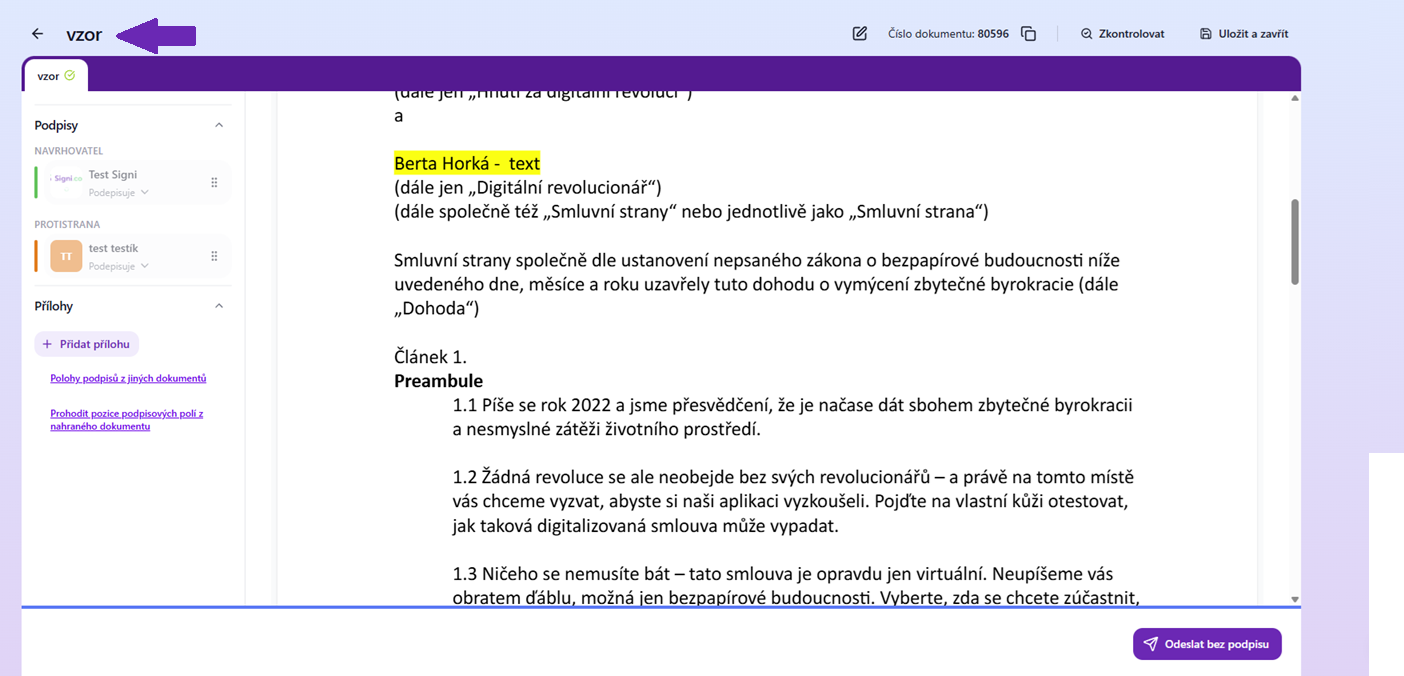
Then proceed in the standard way — save the signature fields and send the document for signing.
Was this article helpful?
That’s Great!
Thank you for your feedback
Sorry! We couldn't be helpful
Thank you for your feedback
Feedback sent
We appreciate your effort and will try to fix the article