Signing documents electronically makes sense even when the signers are present in one place:
- a salesperson in a store, showroom, or at the customer's location,
- a service technician right at the customer's site,
- a real estate agent in the office or during a property visit,
- an employee at the workplace, where employment documents are not only signed but also delivered,
- and so on.
Even though you meet in person, after signing you get a legally binding document in electronic form, which you can hand over immediately.
Important: In the case of signing on a single device, which takes place in person, this is not electronic delivery. It is personal delivery. So if you use Signing on a single device to sign negative employment documents that fall under the so-called strict delivery regime, you do not need the employee's prior written consent to sign the document electronically.
For more, see:
- Setting up the signing scenario
- Example of signing HR documents remotely and at the workplace
- Example of approving and signing HR documents at the workplace
- How signers are identified when signing on a single device
- How to make your work easier by saving a signing scenario
- Step-by-step guide
- Similar functionality with integrated Signi
Setting up the signing scenario
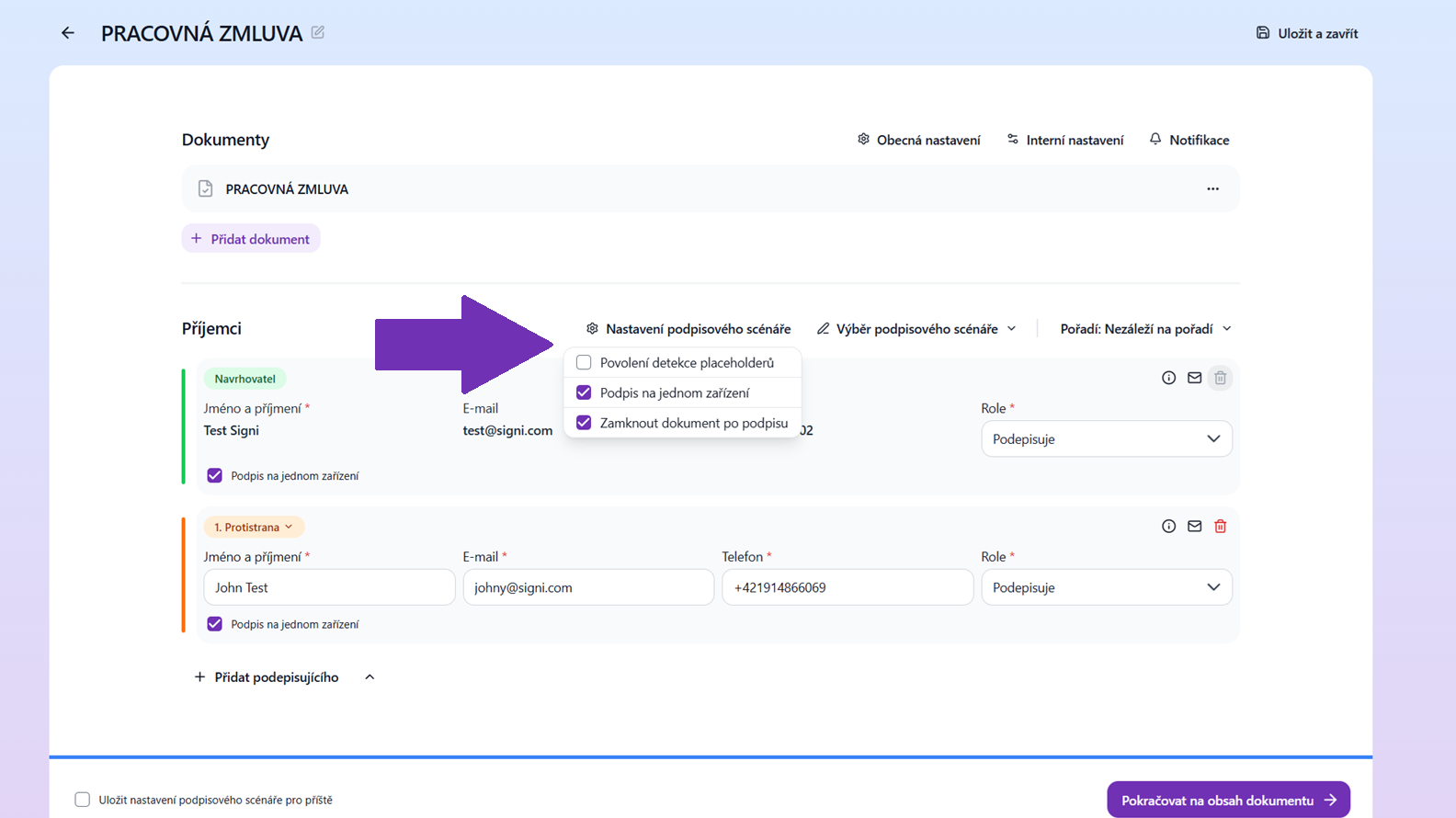
In the first step of creating a document, click the Signing scenario settings link and select Signing on a single device. If you have this functionality enabled, you choose it for each document individually. Alternatively, this option can be set as the default in the Workspace settings.
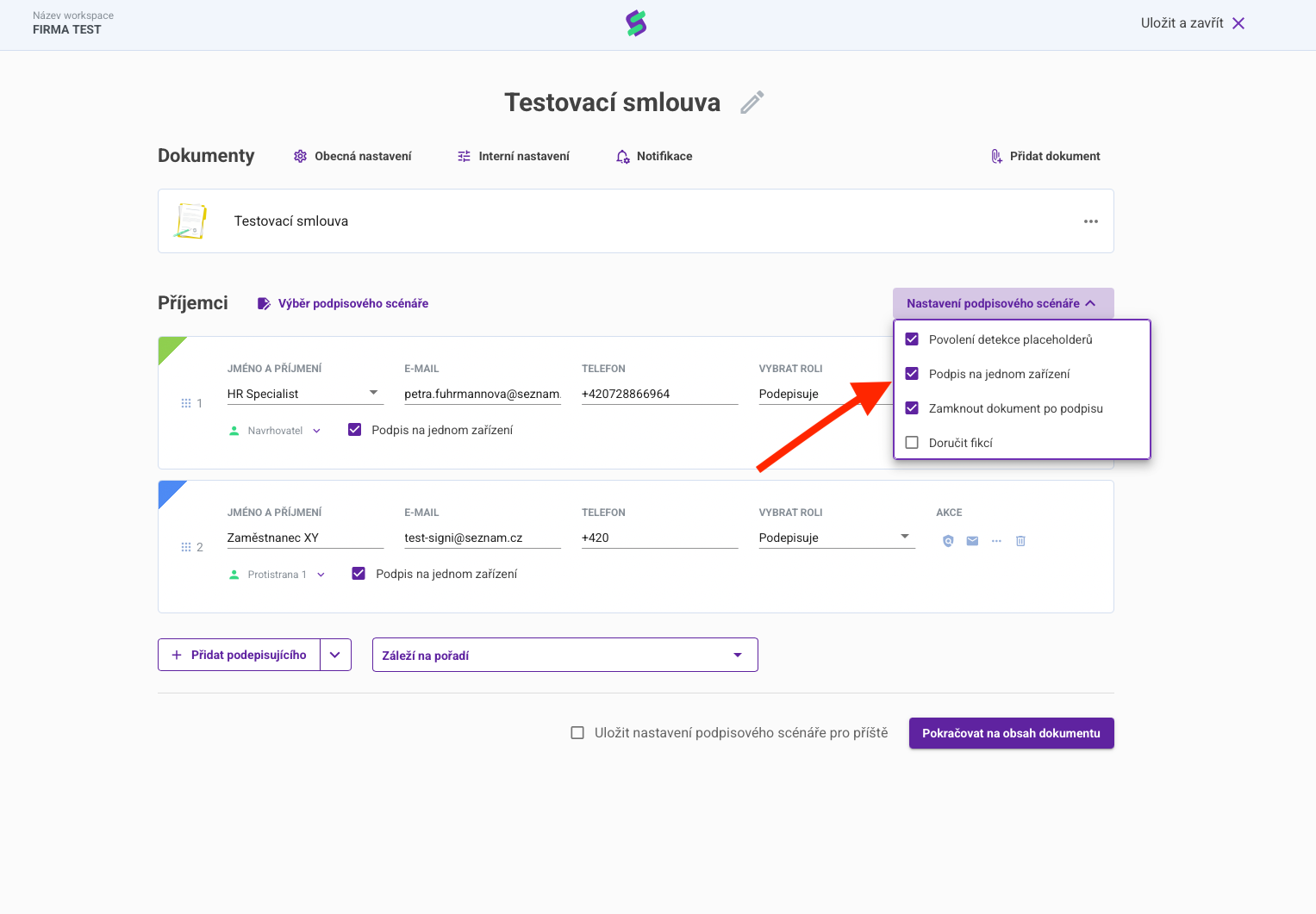
In the case of signing on a single device:
- at least one proposer who signs or approves is listed in the signing scenario,
- all signatures take place on the proposer's device,
- signers' email addresses are entered only for the purpose of finally sending the signed document,
- notifications, or signing invitations, are not sent,
- if 2FA verification is required, the signer enters it before signing.
Within the signing scenario, it is possible to combine remote approval and signing of a document with signing on a single device. In practice, the most common variant is that a signer on the proposer's side signs remotely, and then an authorized person hands a tablet to the signer, who adds their signature on this tablet (single device). Signing on a single device can be done with a simple signature, but other variants such as BankID Sign or signing with a qualified certificate are also possible.
Example of signing HR documents remotely and at the workplace
One of the typical situations for using signing on a single device is signing HR documents.
This is a situation similar to the one where:
- The draft contract is first signed remotely by the HR director at headquarters,
- Once the document is signed, it reaches the HR specialist,
- The HR specialist signs the document at the workplace together with the employee on a single device.
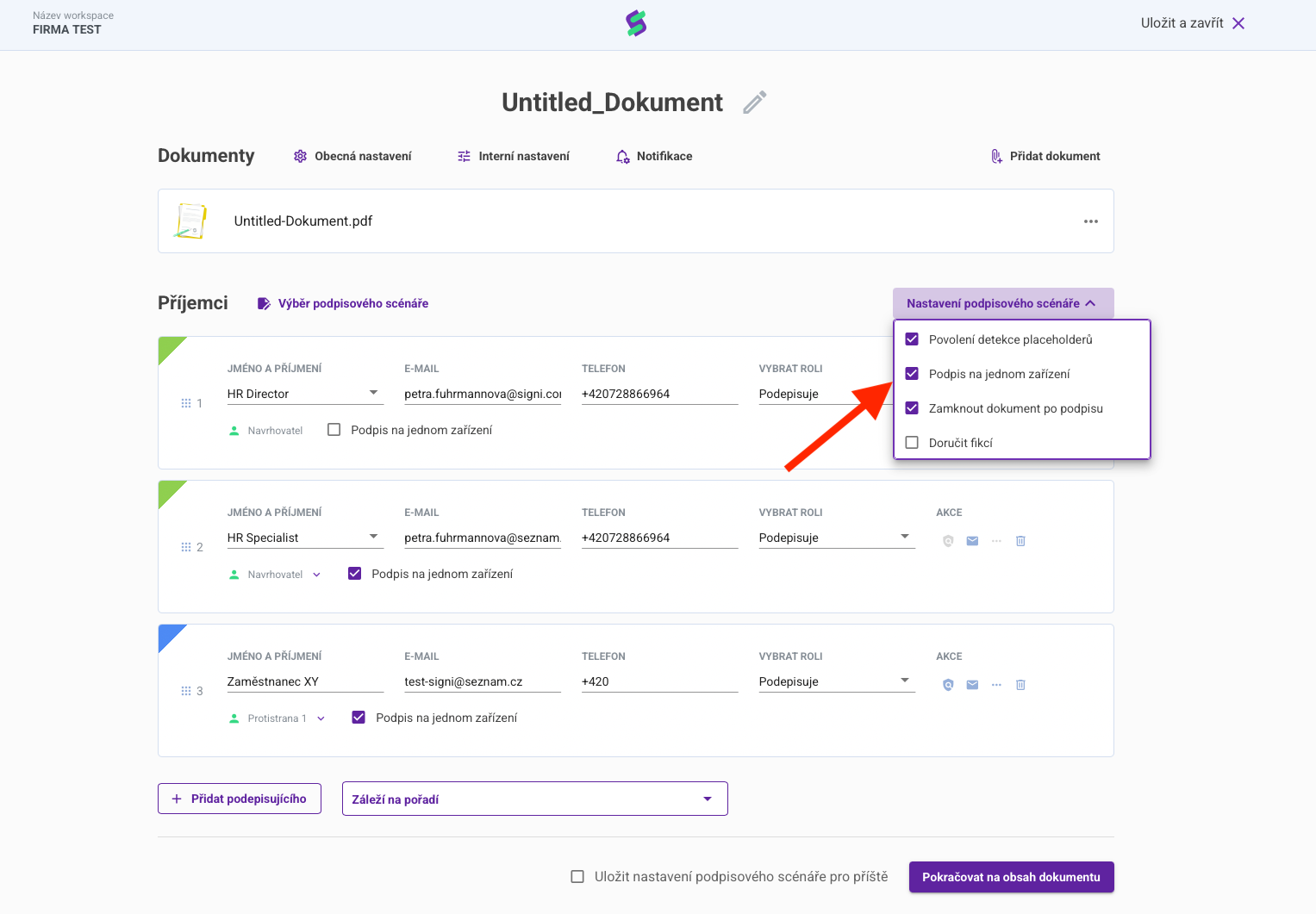
Here is what such a signing scenario set up in Signi looks like:
- The scenario includes two proposers: the HR director and the HR specialist, and one counterparty: the employee.
- The scenario has "Order matters" checked, i.e. signers are invited to sign in the order they are listed in the signing scenario.
- "Signing on a single device" is checked, which makes visible the option to set this attribute for individual signers. The HR director signs the document remotely. The HR specialist and the employee sign on a single device and have this checked in the scenario.
- The first to sign the set of documents is the HR director (proposer), remotely from headquarters.
- The HR specialist receives a notification about the document to sign.
- The employer's representative — the HR Specialist (proposer) — together with Employee XY (1st counterparty) sign the document together at the workplace on a single device.
- After the document is signed, the final signed document arrives in all parties' email inboxes.
- Three signatures are visible on the document.
- In the audit trail in the Control sheet there is a record of document handling. It is clear from it that the first party signed the document remotely and the other two parties signed the document at the same moment on a single device.
Example of approving and signing HR documents at the workplace
Signing on a single device can also be combined with the Approves role. One of the proposers approves, the other signs. The situation can also be set up in reverse, i.e. the HR director signs and the HR Specialist approves.
This is a situation where:
- The draft contract is first approved by the HR director at headquarters,
- Once approved, the document reaches the HR specialist,
- The HR specialist signs the document at the workplace together with the employee on a single device.
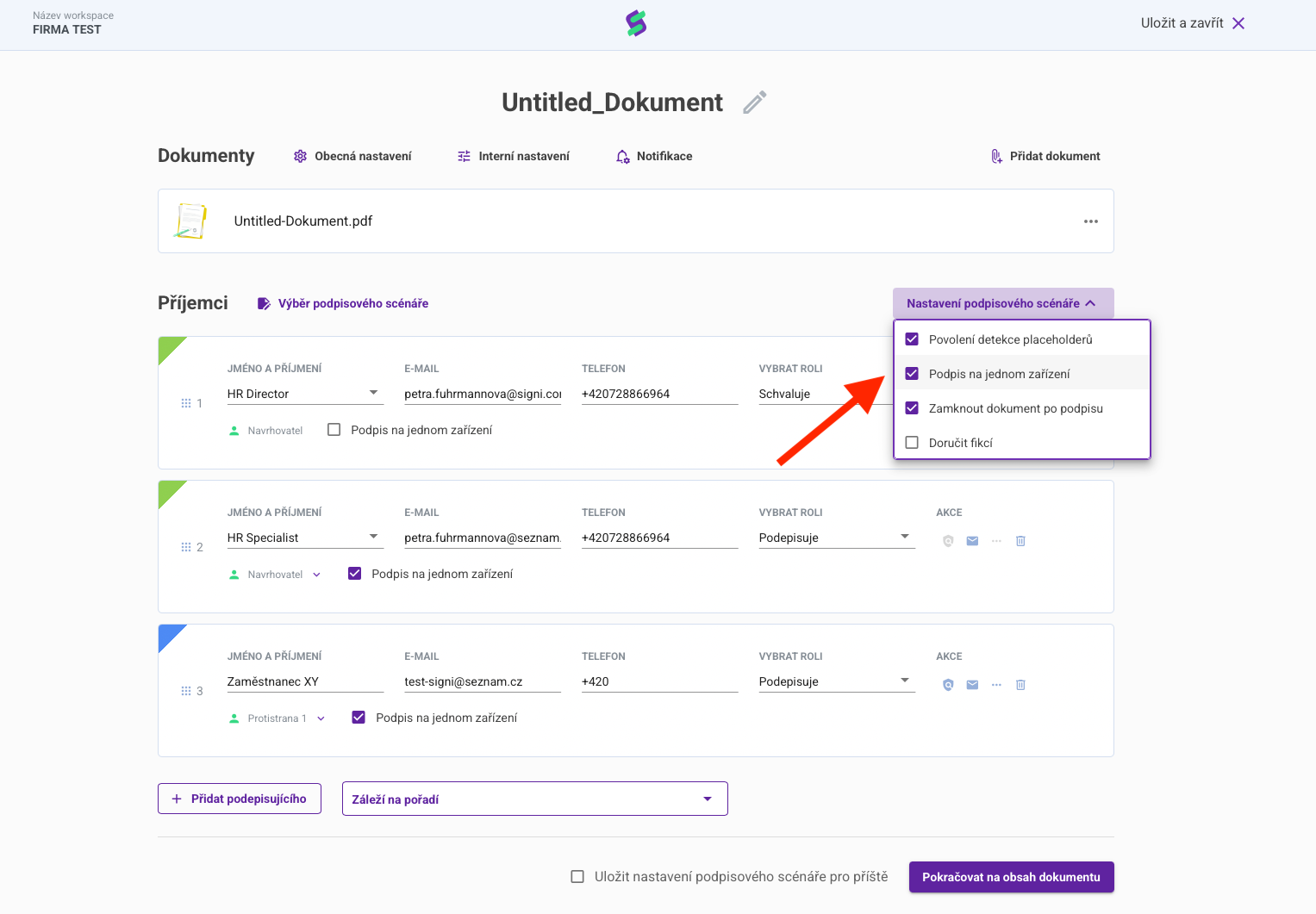
Here is what such a signing scenario set up in Signi looks like:
- The scenario includes two proposers: the HR director and the HR specialist, and one counterparty: the employee.
- The scenario has "Order matters" checked, i.e. signers are invited to sign in the order they are listed in the signing scenario.
- "Signing on a single device" is checked, which makes visible the option to set this attribute for individual signers. The HR director approves remotely. The HR specialist and the employee sign on a single device and have this checked in the scenario.
- The first to approve the set of documents is the HR director (proposer), remotely from headquarters.
- The HR specialist receives a notification about the document to sign.
- The employer's representative — the HR Specialist (proposer) — together with Employee XY (1st counterparty) sign the document together at the workplace on a single device.
- After the document is signed, the final signed document arrives in all parties' email inboxes.
- Two signatures are visible on the document.
- In the audit trail in the Control sheet there is a record of document handling. It is clear from it that the first party approved the document remotely and the other two parties signed the document at the same moment on a single device.
Step-by-step guide
- Log in to your account at app.signi.com.
- Upload the document to be signed into the Signi application.
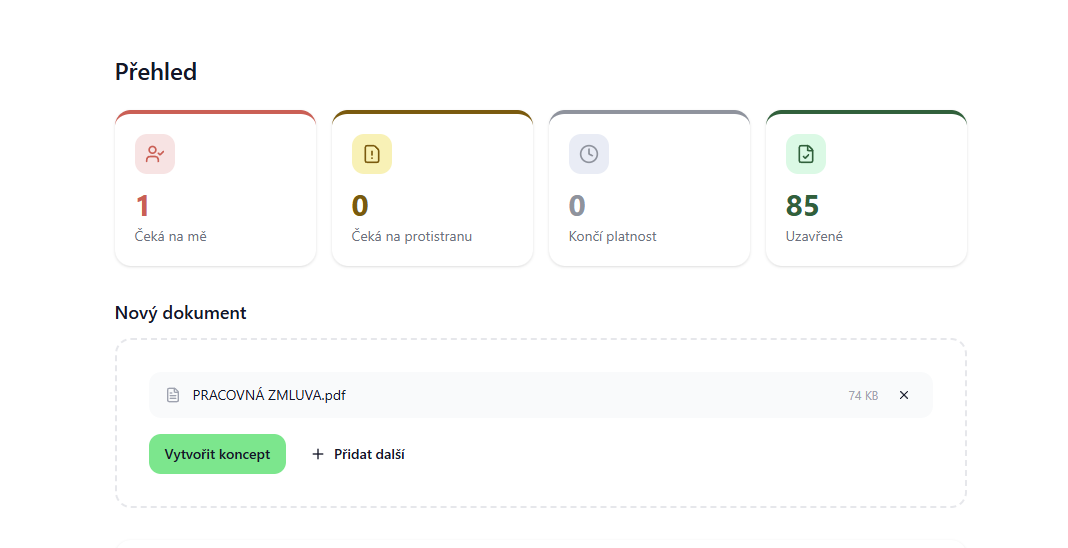
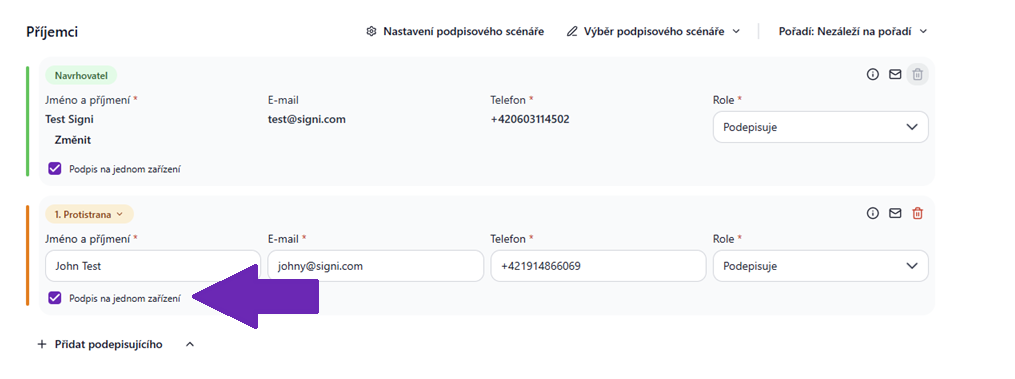
- Set up the signing scenario — enter the signers and in Signing scenario settings select Signing on a single device. For each person you can individually set whether they sign on a single device — e.g. the HR director signs remotely (unchecked) and the HR specialist with the employee sign on-site (checked).
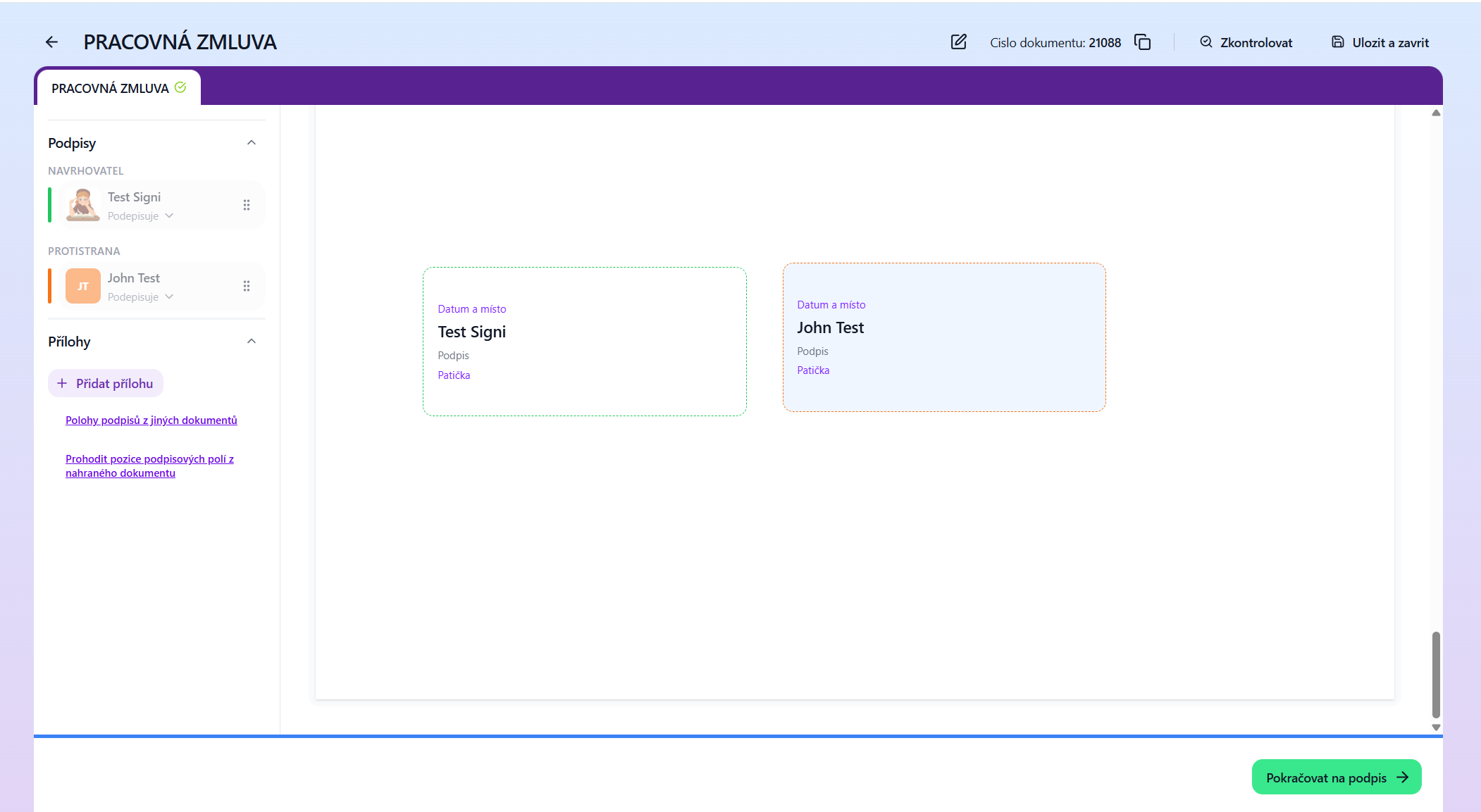
- Place signature fields in the document and click Continue to signing.
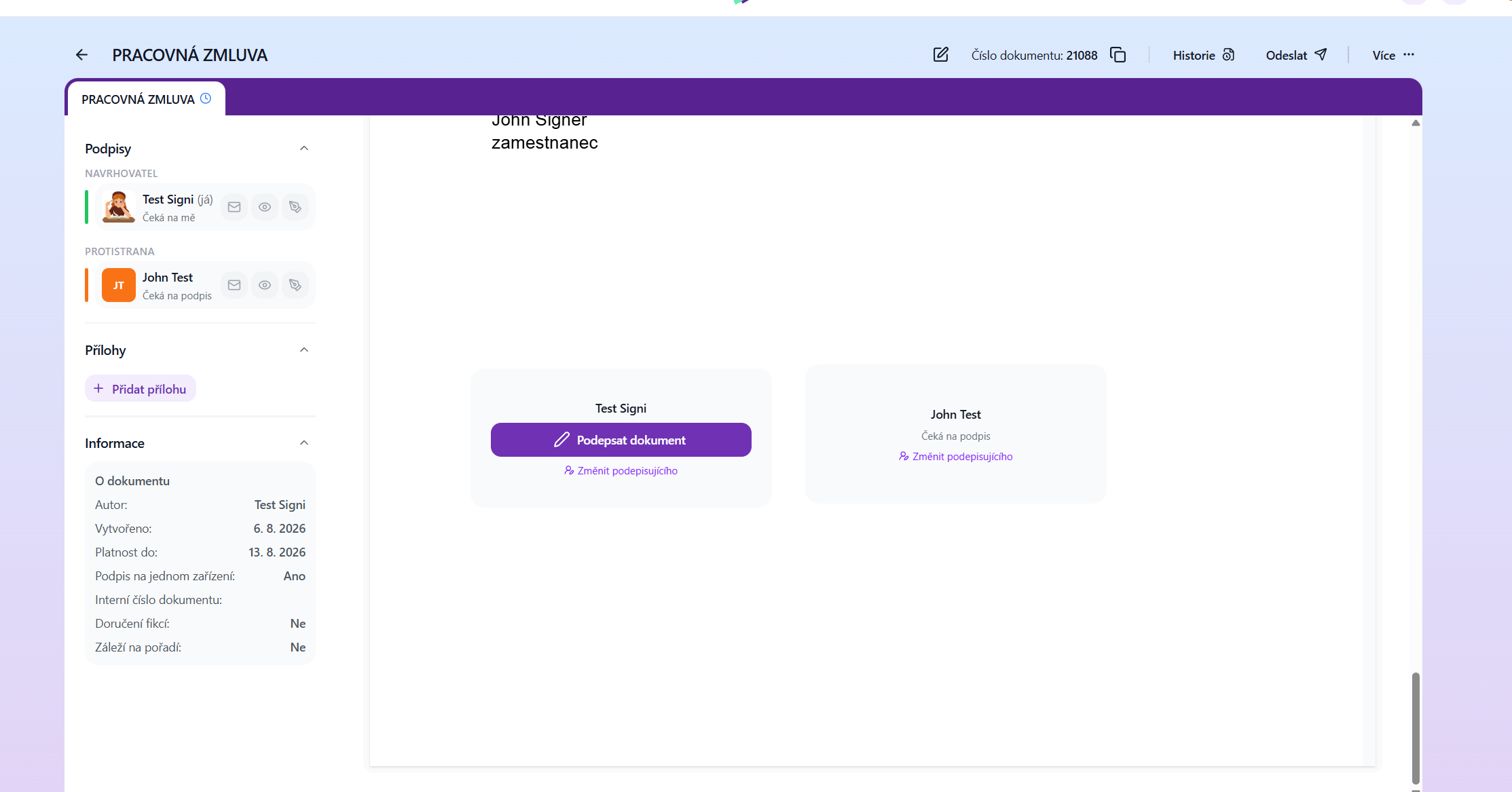
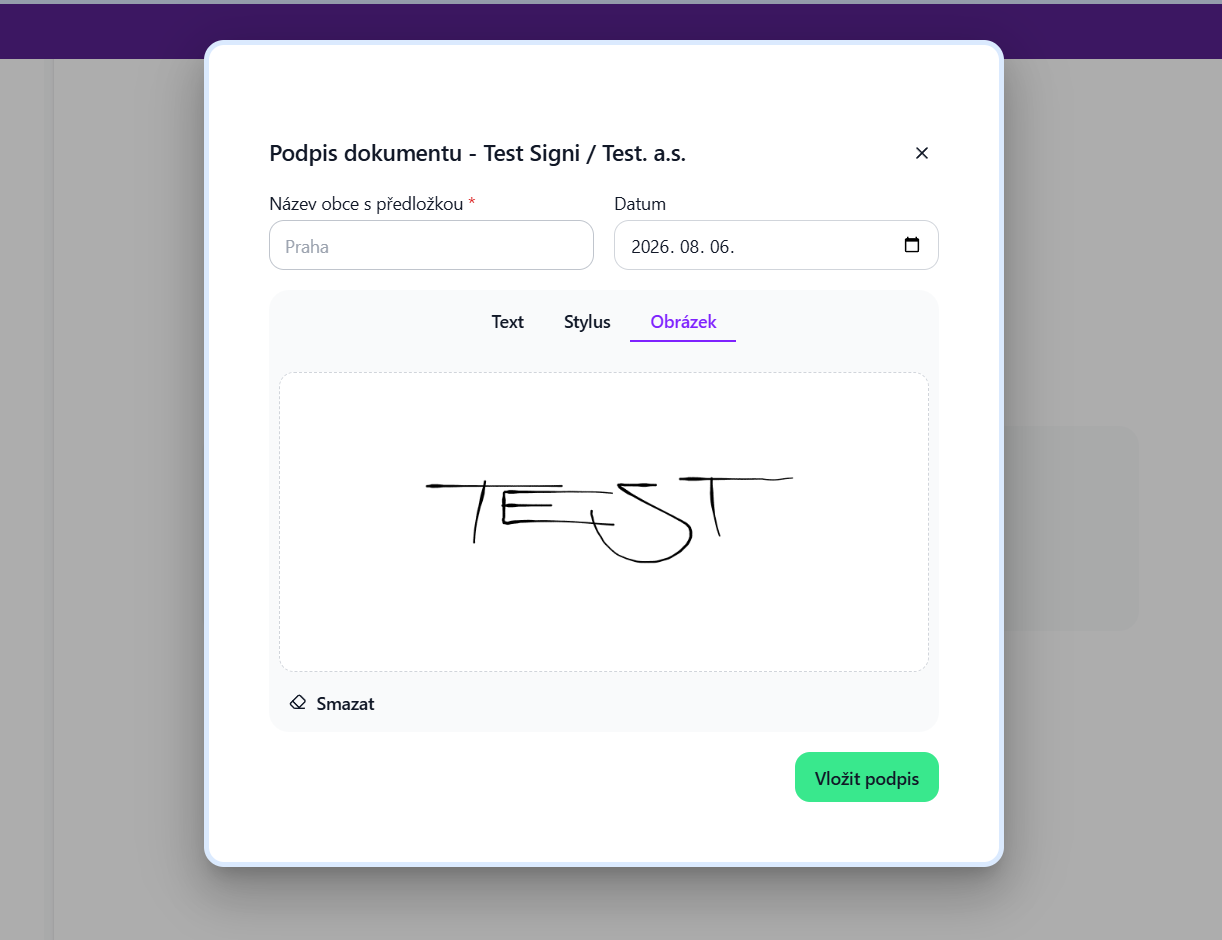
- Sign and hand the device to the counterparty — after your signature, hand the device to the counterparty; they enter the SMS PIN and sign the document.
How signers are identified when signing on a single device
During the standard course of signing with a simple signature, in Signi each signer is verified via their email and phone - this is so-called two-factor verification, 2FA.
In the case of signing on a single device, no electronic delivery of the document takes place. The counterparty (employee) is verified only by phone - the counterparty signs on the proposer's computer, tablet, or mobile. An SMS with a PIN is sent to the counterparty's phone, which must be typed into the proposer's device.
Note: This 2FA verification can be turned off and only a signature required. However, we do not recommend this precisely because of the greater legal certainty about the identity of the signing counterparty.
The specific information about the signer's identity that is recorded in the audit trail (control sheet) and that is then available for a possible dispute depends on the type of signature used:
- for a biometric signature, a visual form or the course of the signature is available in Signi,
- BankID SIGN provides data from the bank; the signature is triggered on the proposer's device, but the confirmation is done by the signer in the mobile app of their bank running on their own phone,
- for qualified signatures, the certification authority that issued the certificate provides sufficient data,
- if the signature in the electronic document is officially verified, the related verification clause is available.
The choice of the level of signer identification is always a compromise between its thoroughness and the ease of performing the signature. The specific method of identifying the signer should be based on the potential risk, which is the challenging of the signer's identity. There is a different risk when signing an employment contract on the first day of starting a job than when applying for a loan or a long-term car rental. It is also necessary to realize that even a handwritten signature on paper is not attributed by forensic experts to a person with 100% certainty, and this risk is commonly accepted.
How to make your work easier by saving a signing scenario
Tip: It is advisable to save more complex signing scenarios for repeated use, see Saved signing scenarios - Shorten sending documents to a few clicks. Then typically only the signing counterparty changes.
Similar functionality with integrated Signi
Similar functionality can also be provided in an application integrated with Signi. Directly in the application, clicking a button, selecting from a menu, or a link opens a Signi page for signing by the relevant signers. More in the API documentation: Signing in an integrated application and Signing on a single device.
Was this article helpful?
That’s Great!
Thank you for your feedback
Sorry! We couldn't be helpful
Thank you for your feedback
Feedback sent
We appreciate your effort and will try to fix the article