When preparing documents for signing, placing signatures in the correct spot in the document is time-consuming. That's why it's possible to predefine signature placement by inserting so-called "signature placement fields" directly into the document.
Signature placement fields:
- make sense especially in cases where you generate documents for signing from some system, or when you prepare a document template that your colleagues will subsequently use repeatedly,
- are currently only possible if you have the ability to change the document content, i.e. for example you have the document in MS Word, Google Docs, etc. You cannot simply add fields to PDF documents.
For example, if you are responsible for managing sales, create templates of your contracts, orders, GDPR, etc. ONCE in MS Office or GDocs with the correct signature placement fields.
How to use signature placement fields
Preparing the document
In your document, you first need to place the signature placement field according to the following rules:
- The fields for placing individual signatures are marked by the texts "signi-signature-0", "signi-signature-1", "signi-signature-2", "signi-signature-3", etc. for the first, second and further signatures. The numbering of signatures should correspond to the order of signing the document. The field for the person who should sign first is "signi-signature-0".
- The text with the name corresponds to the top-left corner of the final inserted signature. It's a good idea to write the name text in white in the document. The text will remain in the resulting PDF but will be covered by the signature.
- When placing signatures, it's assumed that the signature is about ⅓ of the page wide and the height is in a ratio of about 16:9. To place the texts, it's therefore advisable to insert a table with 2 or 3 columns into the document. The table then also needs to be colored white.
- The signature type doesn't matter. - Any type of signature can be inserted into the placement field in the document - biometric, BankIS SIGN or a signature with a certificate such as a qualified signature.
- The signature field can be placed in multiple places in the document. - One signer will then be signed in the document multiple times.
- There can be more signature placement fields in the document than in the signing scenario. - The document can then assume that each party is signed by multiple signers.
If you need to display one signature multiple times in the document, the signi-signature-0 placement field and others are placed multiple times in the document.
The Sign button will then appear in multiple places in the document. In some cases it will be enough for a person to sign only once, sometimes it's not possible, e.g. when using qualified signatures.
The field names use numbering starting from 0. So the first field has the number signi-signature-0.
You can download an example of text with signature placement fields from this document for insertion into your document.

*Example of text with signature placement fields in a document.*
Enabling signature field search
For larger documents, finding all the signature fields may take a while, which slows down uploading the document to Signi. That's why field search can be turned on and off in the workspace settings.
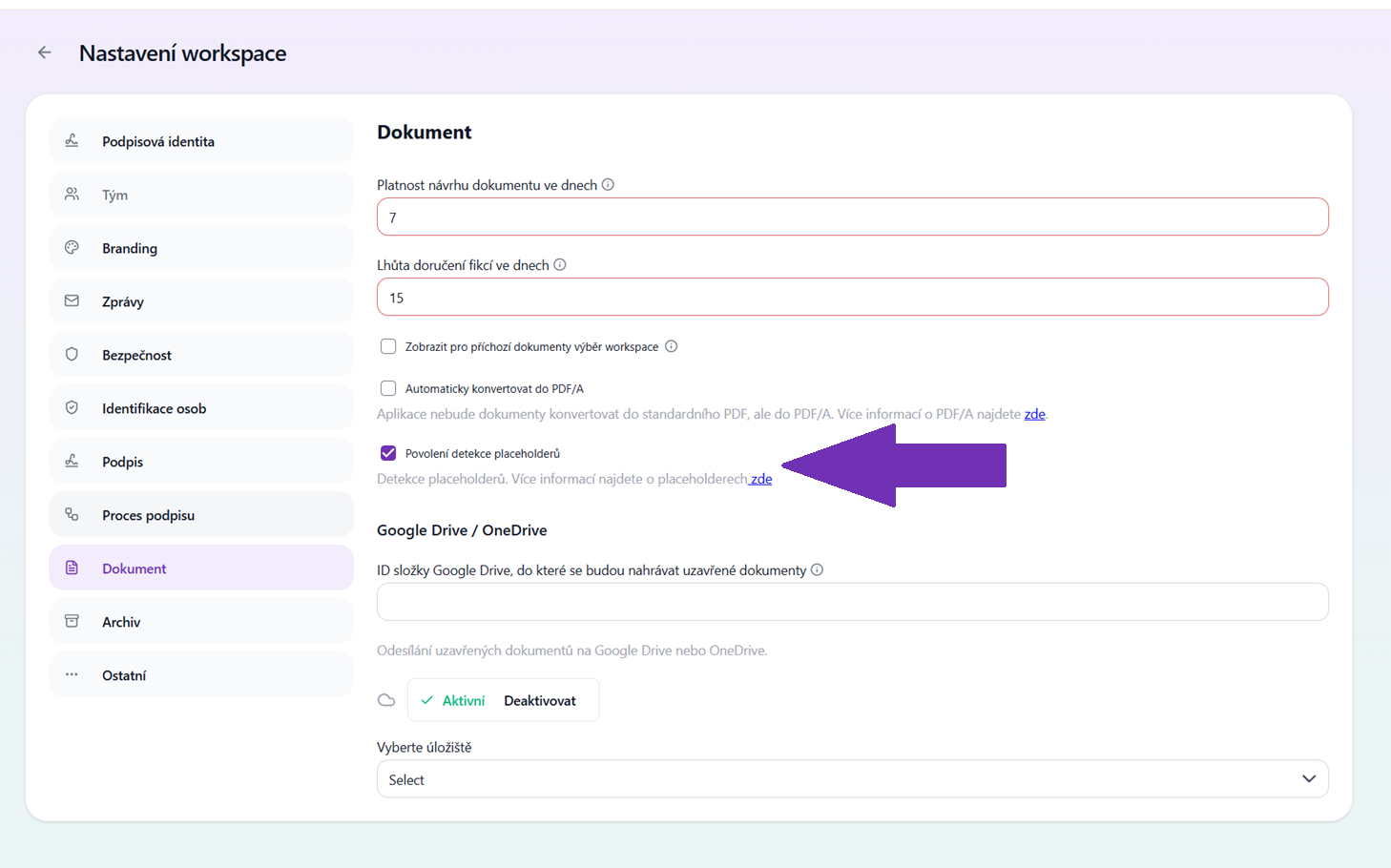 Enabling placeholder detection
Uploading the document and setting the signature position in Signi.
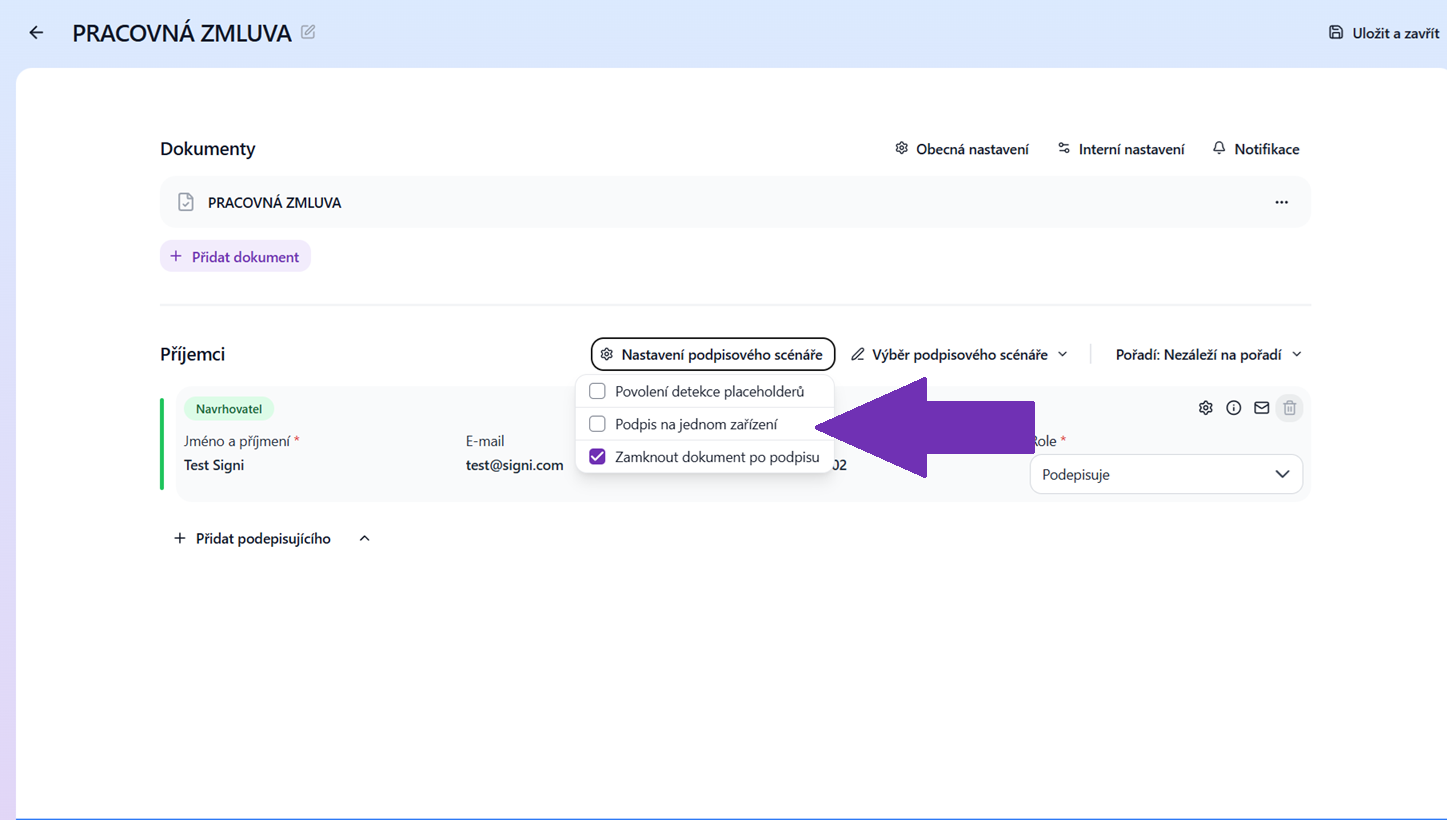
The second step is uploading the document to Signi and setting it up in the signing scenario. Here you leave "Keep signature field positions from the uploaded document" checked and add signers in the expected order.
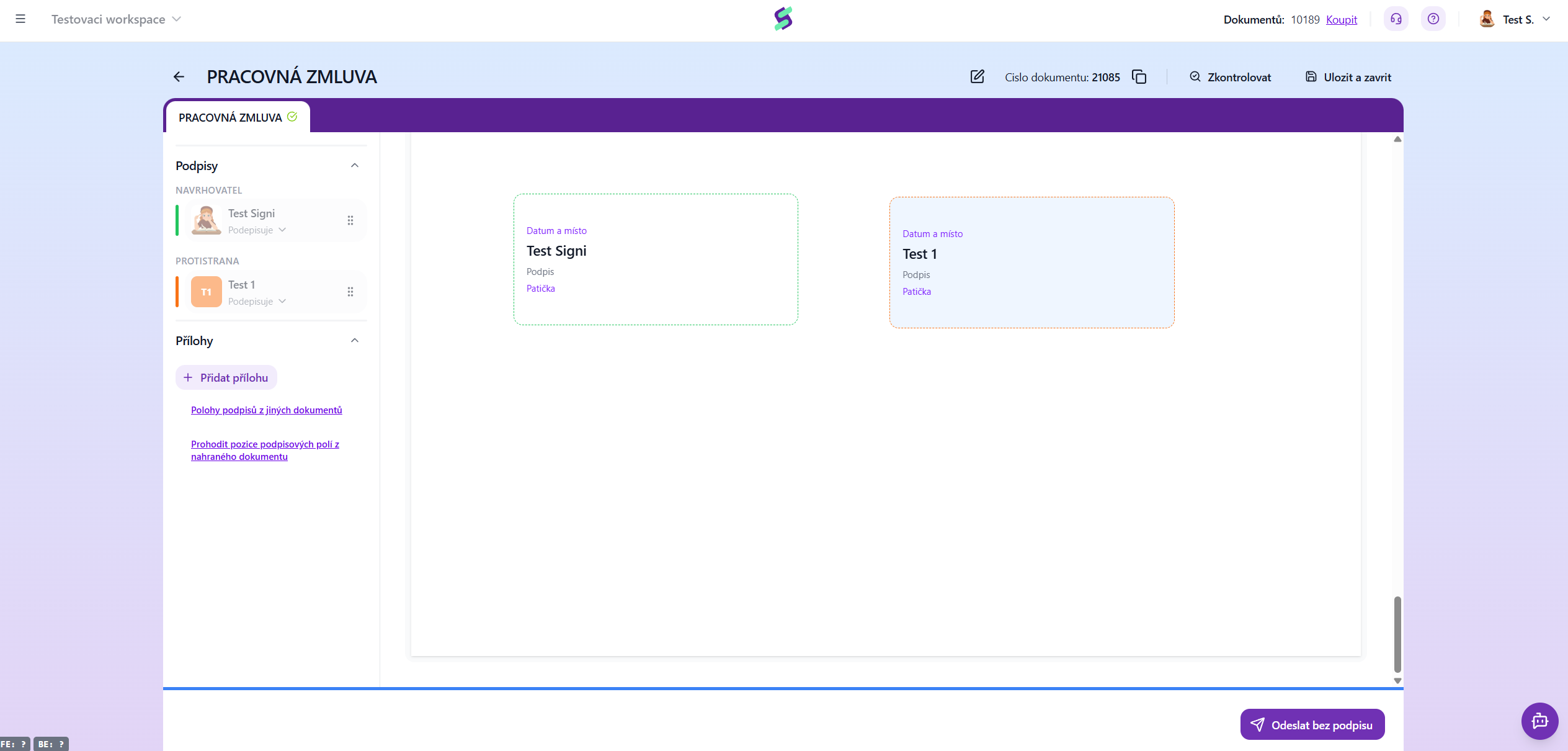
On the subsequent page, you can then only check the signature placement and send the document for signing.
Was this article helpful?
That’s Great!
Thank you for your feedback
Sorry! We couldn't be helpful
Thank you for your feedback
Feedback sent
We appreciate your effort and will try to fix the article