Upload your own PDF and place fillable fields directly on it — text, checkbox, or choice selection. The recipient fills in the fields in the document before signing; the filled values are rendered into the final PDF, and only then is the document signed.
It combines two existing approaches: your own uploaded PDF (a regular document) + fillable fields (as in document templates).
How to do it
- Upload a PDF into a new document.
- From the Tools panel, drag a field onto the document preview and, in its settings, specify who fills it in (proposer / counterparty) and whether it must be filled in.
- Send it. If the counterparty has fields of their own, the document waits for them to be completed and then proceeds to signing.
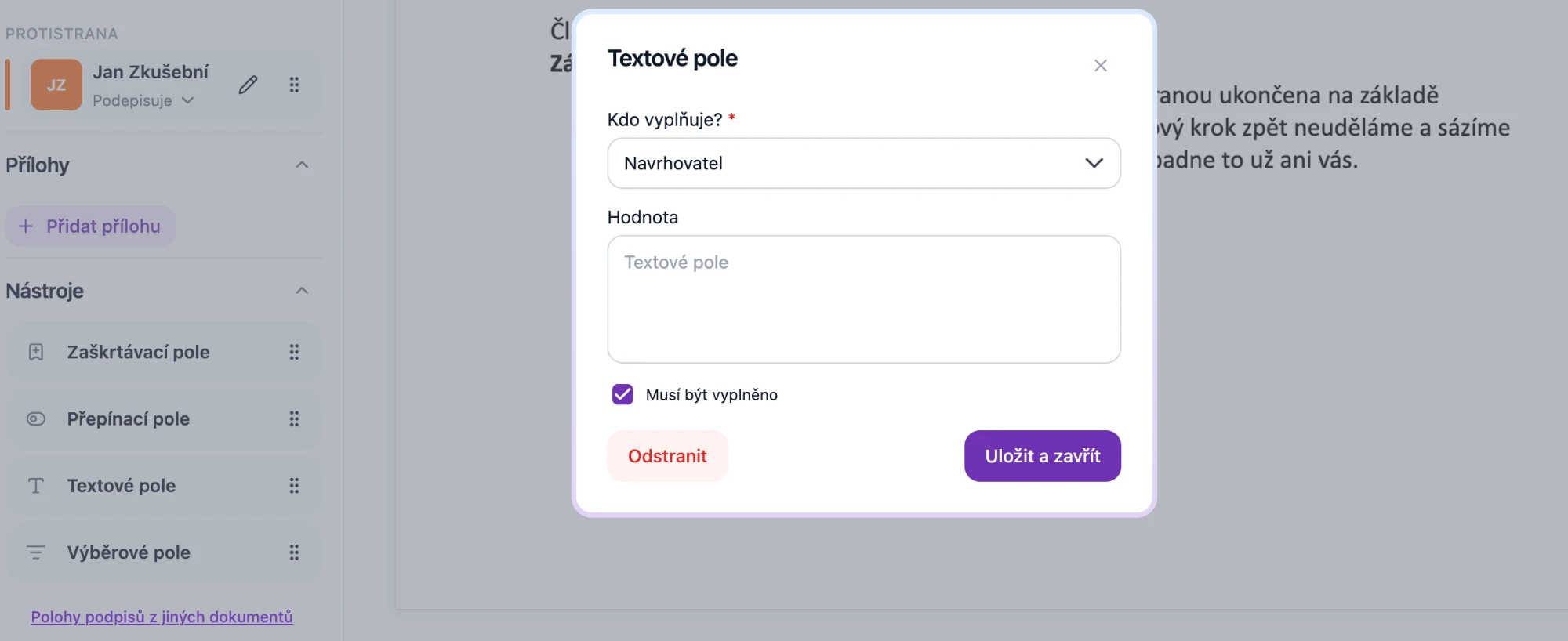
Field types
| Field | For what |
|---|---|
| Text field | name, number, amount, note… |
| Checkbox | consent, yes/no |
| Radio button | choosing one of several options |
| Dropdown field | choosing from predefined options |
Automatic fields from markers in the PDF
If you write a marker {…} into the PDF in advance, Signi automatically creates a field from it after upload — exactly at the marker's location.
| Marker | Result |
|---|---|
{jmeno} |
required text field for the proposer |
{c:email} |
required text field for the counterparty |
{co:telefon} |
optional text field for the counterparty |
{coc:souhlas} |
optional checkbox for the counterparty |
The prefix before the colon controls the behavior: 1st character the party (p proposer / c counterparty), 2nd character r required / o optional, 3rd character t text / c checkbox. Anything missing from the prefix is filled in from the default prt (proposer, required, text).
You can download here a sample PDF with markers.
Good to know
- Fields can only be edited in a draft document and only by its author.
- The counterparty fills in only the fields assigned to them.
- Required fields must be filled in before the document proceeds to signing.
- The price is the same as for a regular document — 1 credit.
- The feature is enabled at the workspace level (license settings) — get in touch with us.
Where to go next
- Form document from a PDF with markers (API) — the same via API
- Document templates
- Fields for placing signatures
Related terms: fillable PDF · fillable field · form PDF
Was this article helpful?
That’s Great!
Thank you for your feedback
Sorry! We couldn't be helpful
Thank you for your feedback
Feedback sent
We appreciate your effort and will try to fix the article