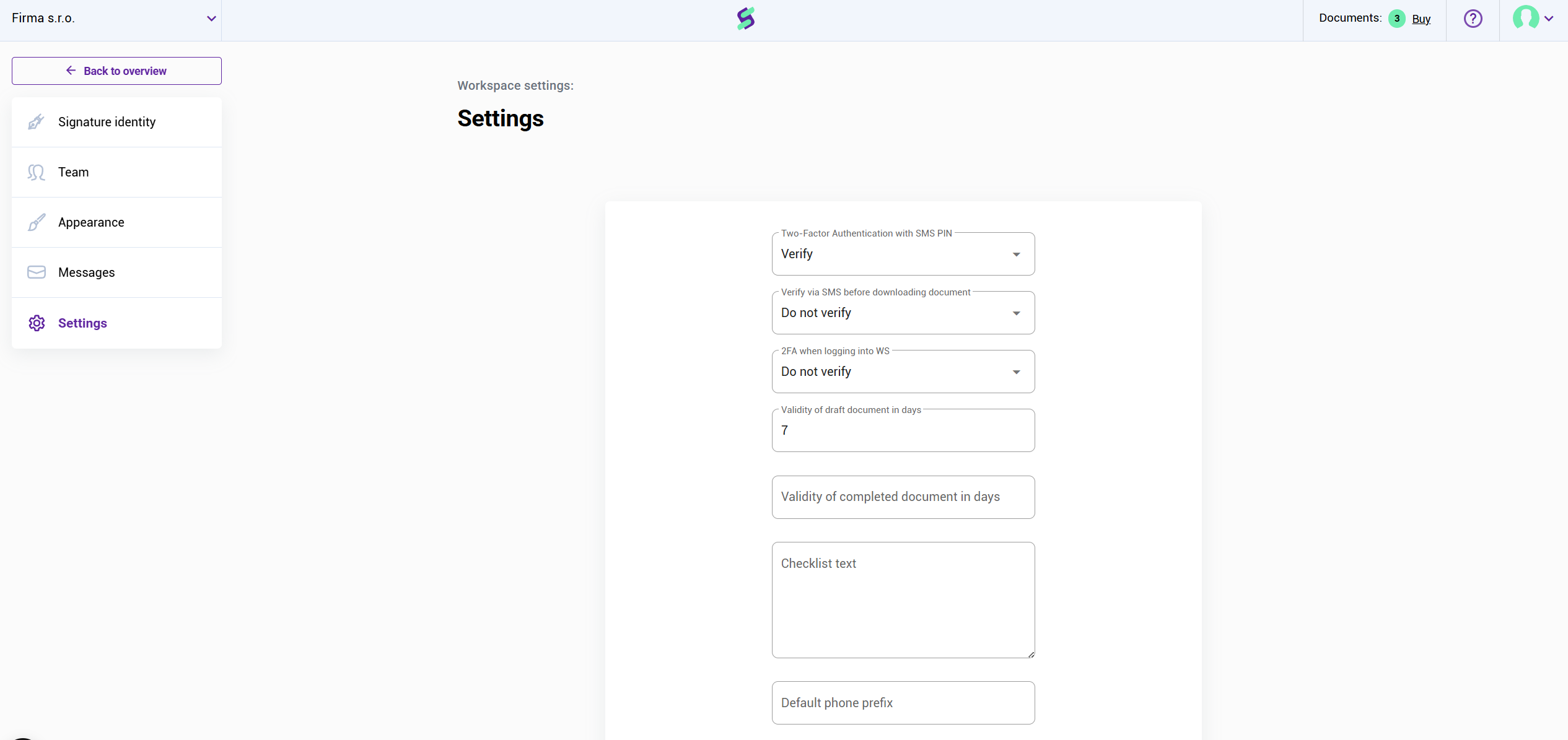
The last tab in workspace settings is settings. Here you can configure various options for users working in this workspace.
Security and authentication
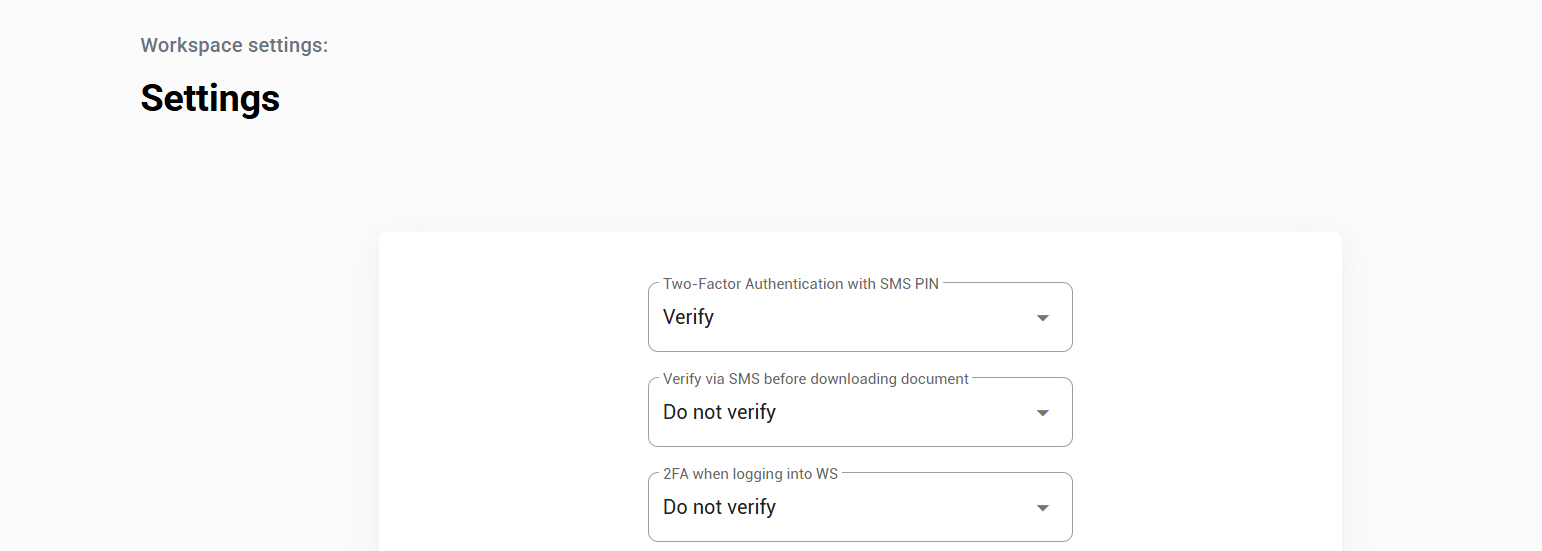
Two-factor authentication with SMS PIN
When enabled, the sender or proposer of a document must confirm with a PIN.
If disabled, the proposer is not required to enter a PIN.
The PIN for counterparties always remains required.
Verify via SMS before downloading document
Counterparties must enter an SMS code before downloading a completed document.
They will receive an email with a link, and the code is required after clicking it.
2FA when logging into workspace
Users must enter an SMS code to access this workspace.
Document validity
Validity of draft document (in days)
Defines how long the signature link is valid.
If the parties do not sign within this period, the draft expires.
Expired documents can be resubmitted without extra credits.
Validity of completed document (in days)
Used for notifications about documents with a specific expiration date (e.g., a lease agreement valid for one year).
Applies to all documents in the workspace by default.
If documents have varying validity periods, this field can be left empty.

Checklist text
After each signed document, a checklist is generated containing IP addresses and metadata about the signers.
You can add a note or disclaimer to be included in every checklist.

Phone and signature settings
Default phone prefix
Pre-fill a phone number prefix for counterparties (e.g., +420).
Insert signature automatically
If you are the author and first signer, your signature can be added automatically when sending the document.
Requires a saved signature in your account settings.
Show workspace selection for incoming documents
If you have multiple workspaces, choose which workspace the document should be signed in before signing.
Record the progress of the signature
Records the original characteristics of a signature (speed, acceleration, pressure, timestamp).
Data is encrypted and stored on SIGNI servers.
Only recorded if the customer’s device supports it.
Convert document to PDF/A automatically
By default, documents are converted to PDF.
PDF/A is a special format for long-term archiving, ensuring the file can be reliably opened in the future.
Counterparty may not change signature date
Prevents the counterparty from modifying the signature date.
Signature placeholder detection
Automatically detects placeholders in uploaded documents and places signature fields in the correct position.
Place for signature
Preset the location or city of the signature if used repeatedly.

Signature types
In SIGNI, signers can choose from three electronic signature options:
Text – type their name; SIGNI generates a signature in a chosen font.
Stylus – draw the signature with a mouse, stylus, or finger on a mobile device.
Insert an image – upload a scanned signature.
? Using the eye icon, you can disable some options for unregistered counterparties.
Proposers and registered counterparties can still use all three options.

Signature footer settings
Configure which information appears below the signatures of counterparties.
Name and surname are auto-generated.
Organization name and position must be filled in in the counterparty’s contact details.

OneDrive integration
Create a destination folder in Microsoft OneDrive where documents from this workspace will be saved automatically.

Was this article helpful?
That’s Great!
Thank you for your feedback
Sorry! We couldn't be helpful
Thank you for your feedback
Feedback sent
We appreciate your effort and will try to fix the article