After creating and sending a document to the counterparty, the system will prompt you to enter your signature. Depending on your account settings, the following options may occur:
- the system first prompts you to enter a PIN and then redirects you to sign the document
- the system redirects you straight to the signing screen (both the signature and the city can be set automatically on the account - the signature in the account settings and the location in the workspace settings),
- if you have two-factor authentication turned off and a preset signature and location, the system sends the document straight to the counterparty.
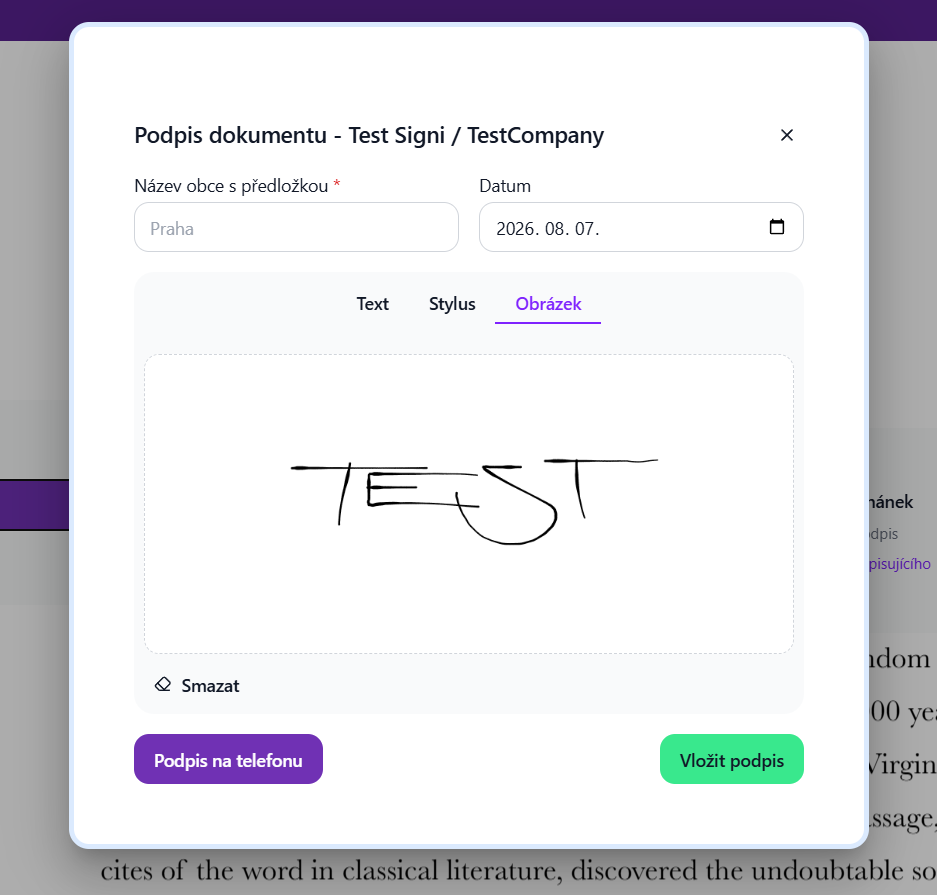
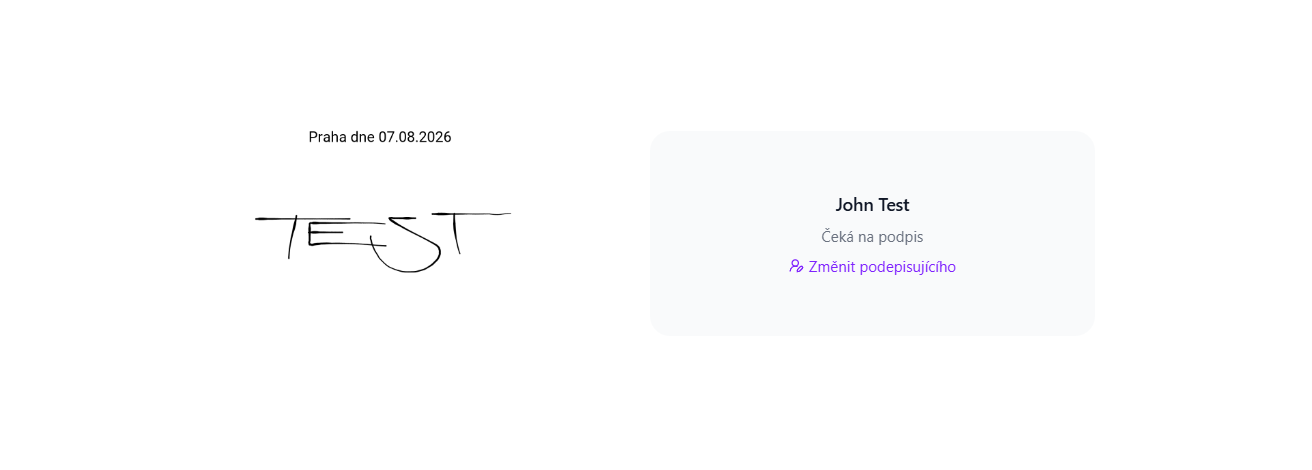
After signing successfully, you will see the signatures like this:
Was this article helpful?
That’s Great!
Thank you for your feedback
Sorry! We couldn't be helpful
Thank you for your feedback
Feedback sent
We appreciate your effort and will try to fix the article