Would you prefer to watch a video tutorial? Click here.
This is what your first encounter with Signi may look like. Someone who already uses our application has simply prepared a document for you to sign as a counterparty.
In such a situation, a message in the following form will be sent to your email address:

If the company that sent you the document to sign uses application branding (a customized appearance), you will see its logo instead of the Signi.com logo. The colors of the buttons may also differ.
Once you click the link under the View document button, you will be redirected to the following screen:

At this point, you can either view the document or reject it. If you want to view the document and possibly also sign it, open it by clicking the View document button.
It is possible that, even before signing and viewing the contract itself, you will be asked to confirm the correctness of the data used in the document, which the proposing counterparty filled into the document header. These are the following details:
- First name
- Last name
- Date of birth
- Street and house number
- City
- Postal code
Once you save the header, you will be redirected to the final preview of the document. Study it carefully.
If you decide to sign the document, the procedure is simple.
Either you click the link in the yellow field, which takes you to the signing spot:

or you select the Sign button directly:

You will be redirected again, this time to 2FA verification. We will ask you to enter your phone number, to which we will then send a verification PIN code. The phone number may already be pre-filled by the document's proposer.

We will send an SMS message to your phone number in the following format:

At the same time, you will be prompted to enter this code. If the code does not arrive, you can have it resent. You can also change the phone number.

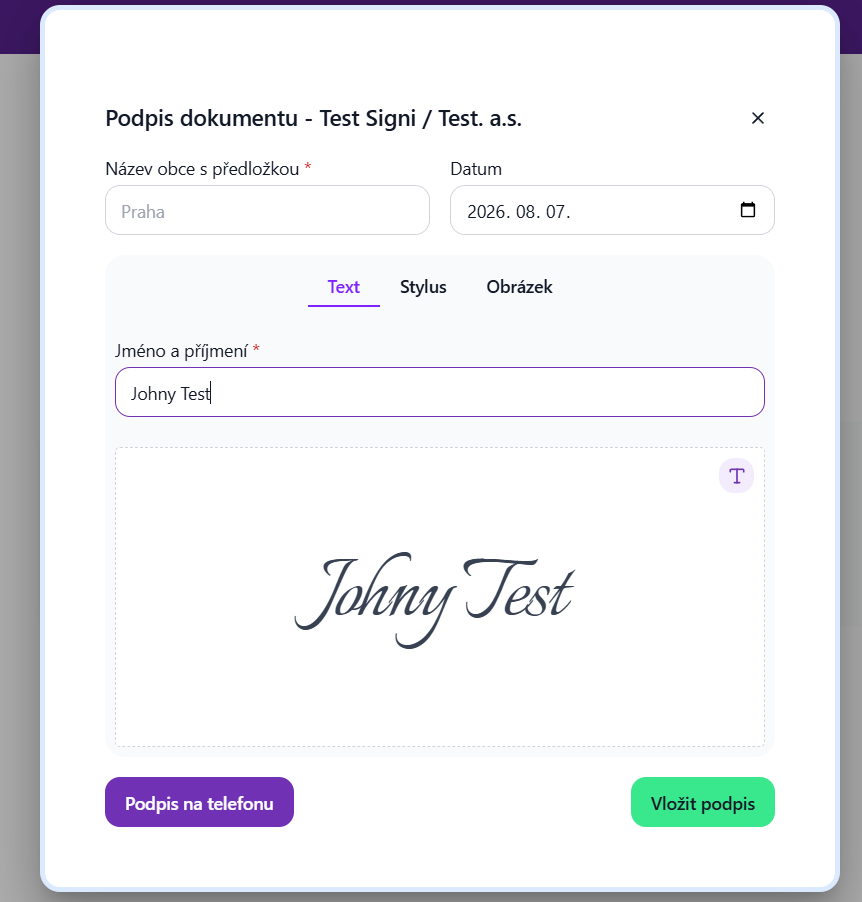
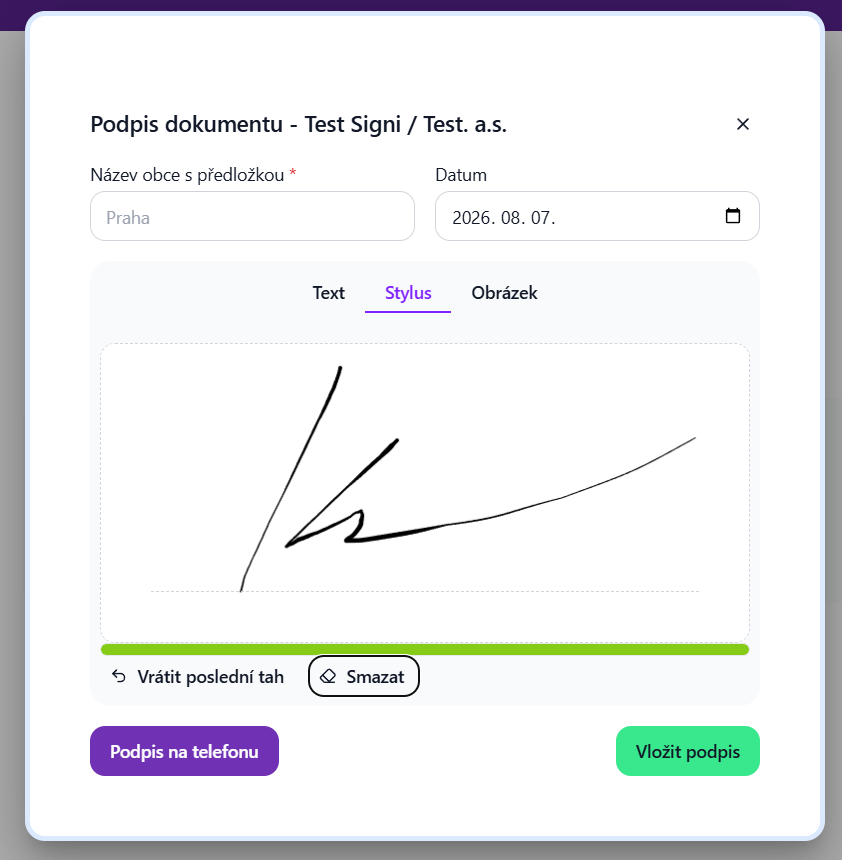
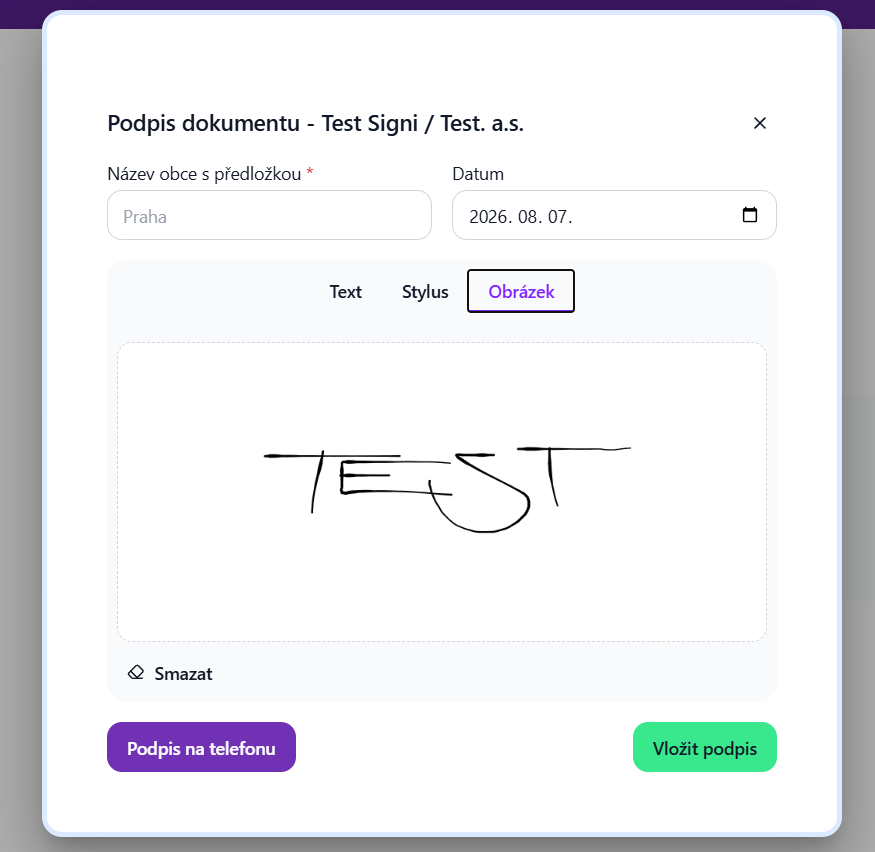
If the PIN code is entered correctly, you will be redirected to the signature field. You can sign with your finger, a stylus, or the touchpad on your laptop. If you do not like the drawn signature, you can select the Text option and type your name on the keyboard, or upload an image of your scanned signature. If you are not satisfied with the resulting signature, you can remove it and start again.
Text:
Stylus:
Insert image:
If the details about the place and date are not pre-filled on the document, you will be asked to enter them when signing as well:
After filling in the place, date, and completing the signature, confirm the insertion by clicking the Insert signature button.
By default, Signi uses a dynamic biometric signature with two-factor verification. However, Signi allows signing with various types of signatures. The signing process then differs slightly depending on the selected signature type
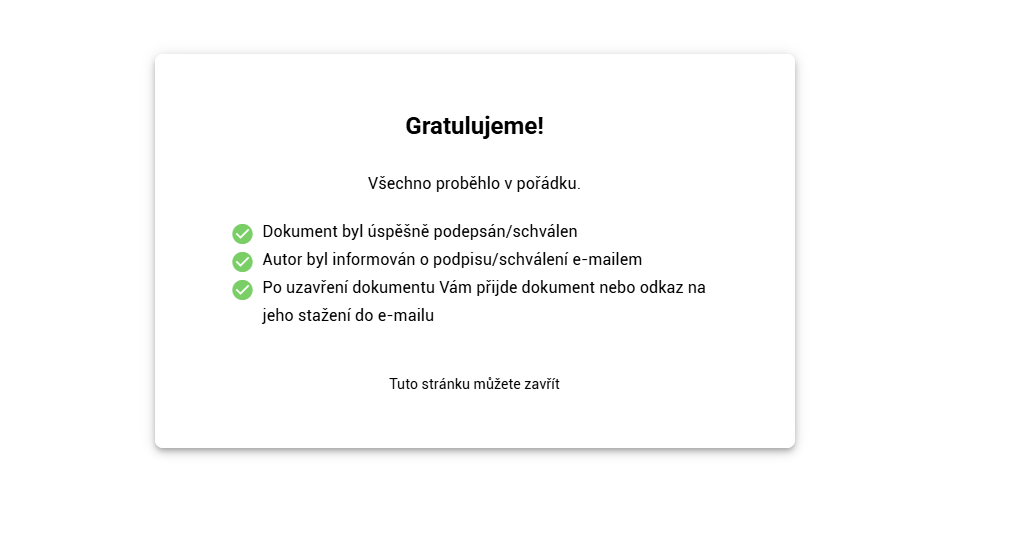
On the final screen, you will be informed that the entire process has been successfully completed. We have sent the document with your signature to the counterparty, and we did not forget a copy for you either; you will find it in your email. You can download it in PDF format. If you would like to continue signing documents electronically, do not hesitate to register in the Signi.com application. Your first three signatures are free.
Was this article helpful?
That’s Great!
Thank you for your feedback
Sorry! We couldn't be helpful
Thank you for your feedback
Feedback sent
We appreciate your effort and will try to fix the article