ℹ️ The new version of Signi verification will be released to production during September 2026. Until then, the screens in the app may differ slightly from the description.
When the verified person completes the checks, the verification moves to the To review status and waits for you. You can review and decide from the contact detail (Verification section → Review) or from the document detail at the relevant counterparty.
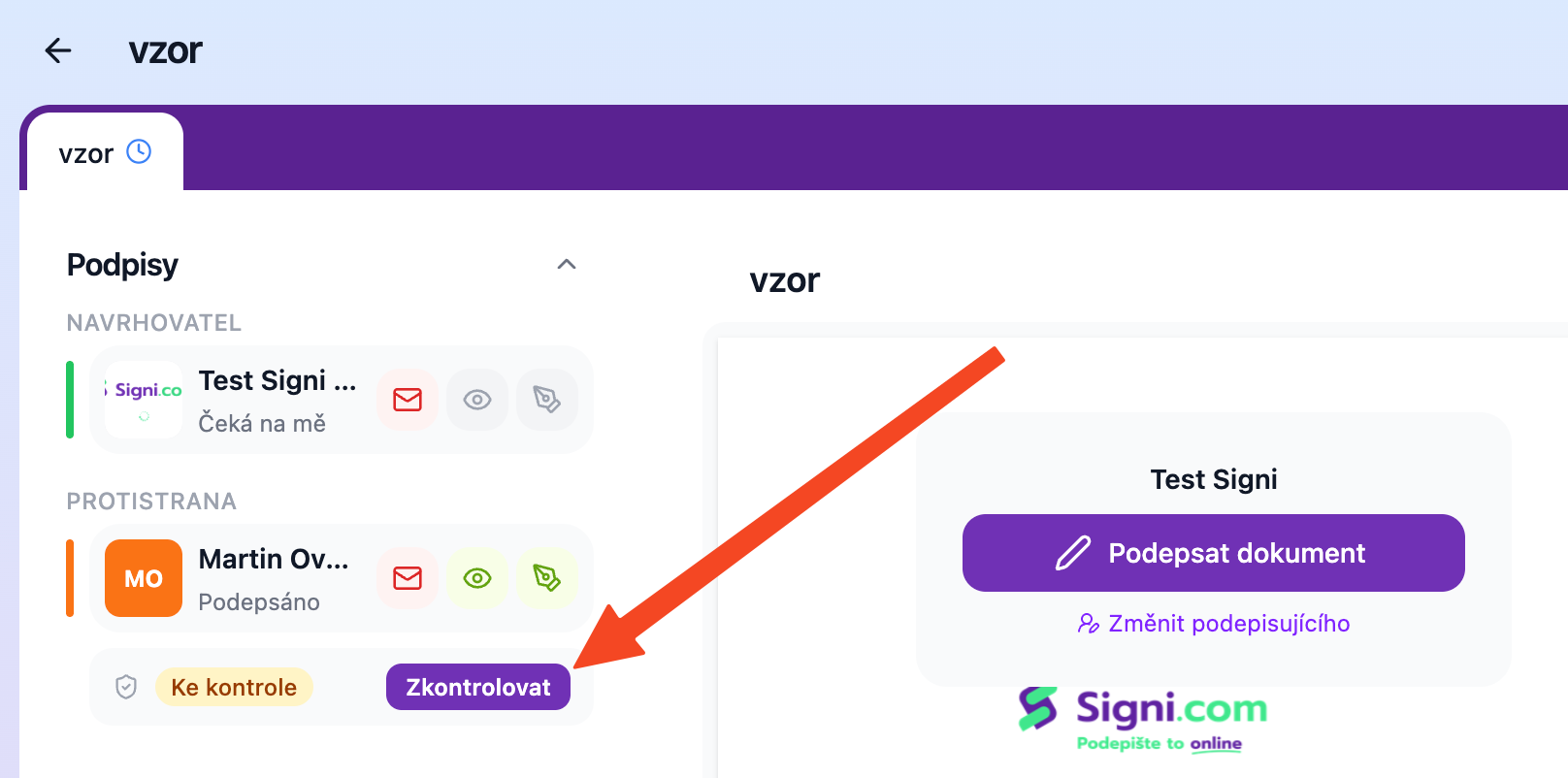
What you'll see in the review
The User verification dialog shows everything Signi found during verification:
- Document data next to the contact data — first and last name, date of birth, gender, document type and number, date of issue and validity, nationality, country of issue, and for Czech documents the personal identification number. When the name on the document doesn't match the name in the contact, Signi highlights it ("Name doesn't match") — typically a typo or a nickname in the contact, but it can also be a reason for rejection.
- Documents — photos of the front and back of the document and a selfie; click to enlarge them.
- Verification components — each check with its result (OK / Failed / Error).
- Verification history — all runs of this contact with the date, group, and status.
Approval
Approve — the verification is valid for the period set for the group; as long as it's valid, it will be reused for further documents. The counterparty doesn't wait for your approval to sign — they can sign as soon as the checks are completed.
Rejection
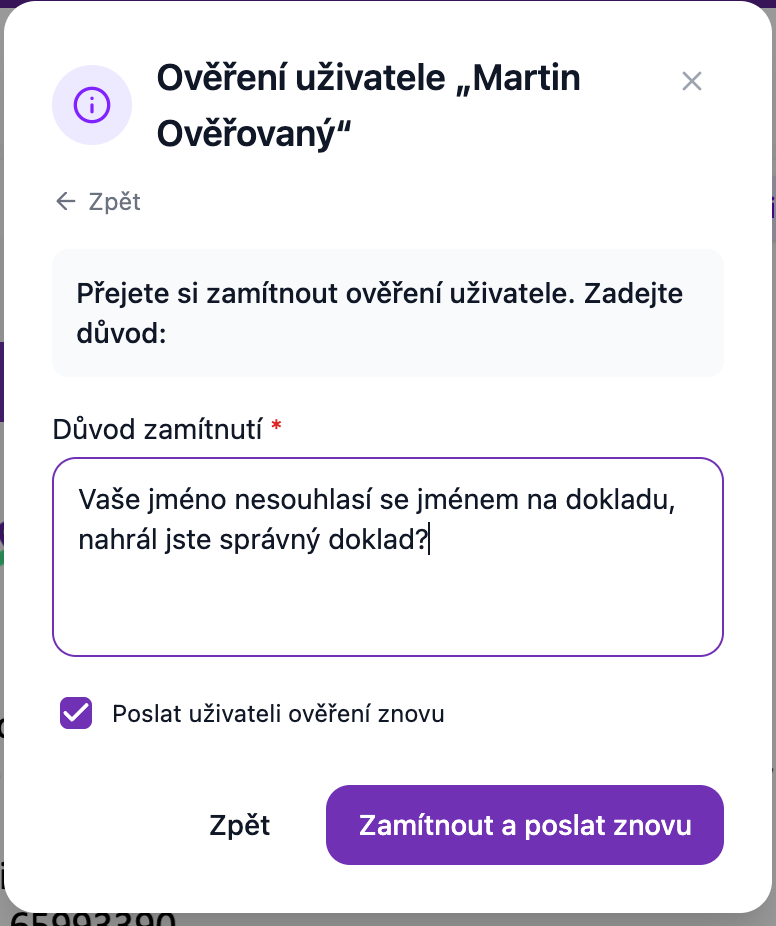
Reject — when the data doesn't match, the photos are illegible, or something is off. You can provide a reason (the verified person will see it) and decide whether to give them a new attempt — Signi then creates a new verification with the same groups, and the verified person receives an e-mail with a link to try again.
Difference: Rejected vs. Declined
Rejected = you decided. Declined = the verified person themselves declined to go through the verification; you'll find their reason in the verification detail.
Who can review
The verification is reviewed and approved by the document proposer, i.e. the workspace user who started the verification. The decision is recorded in the verification sheet.
Where to go next
Was this article helpful?
That’s Great!
Thank you for your feedback
Sorry! We couldn't be helpful
Thank you for your feedback
Feedback sent
We appreciate your effort and will try to fix the article