If you receive a proposal for a new document from the other party as a user of our application, you are notified by email and possibly also by SMS on your phone. In addition, the document will of course also appear in your workspace, in the Waiting for my signature section.
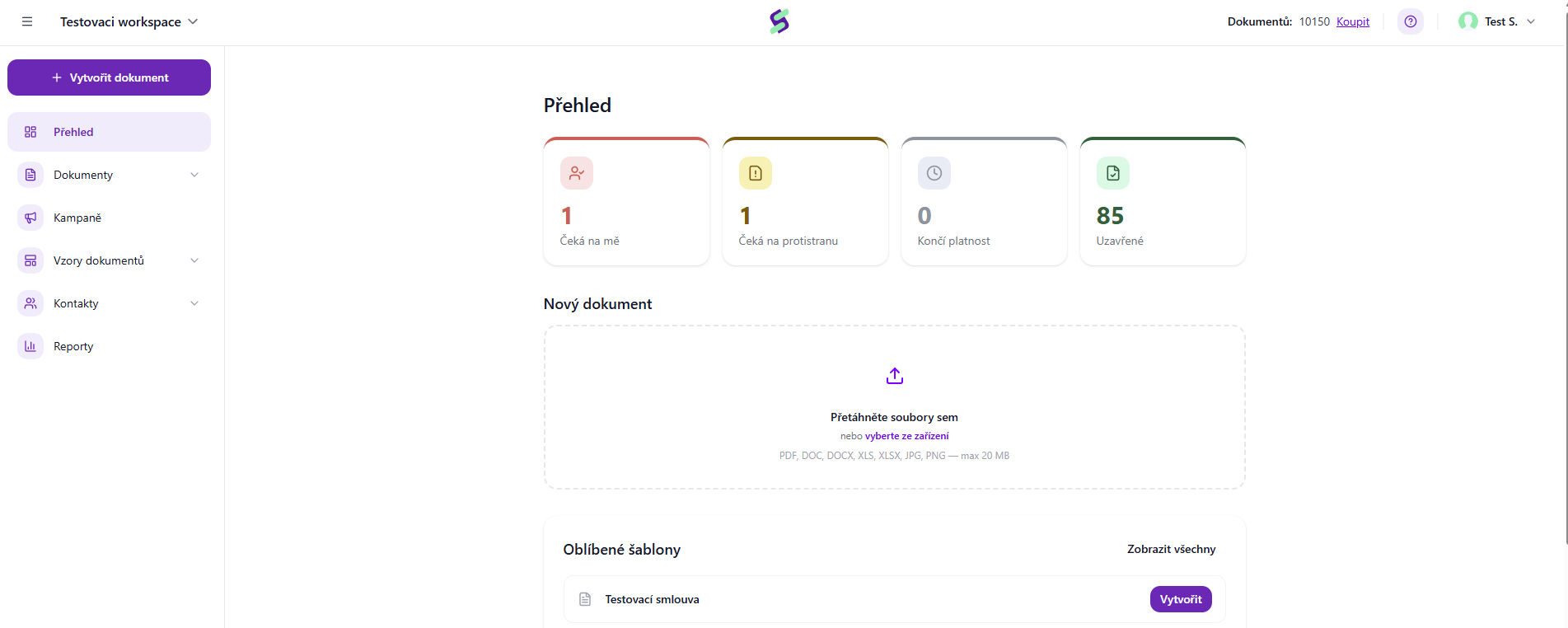
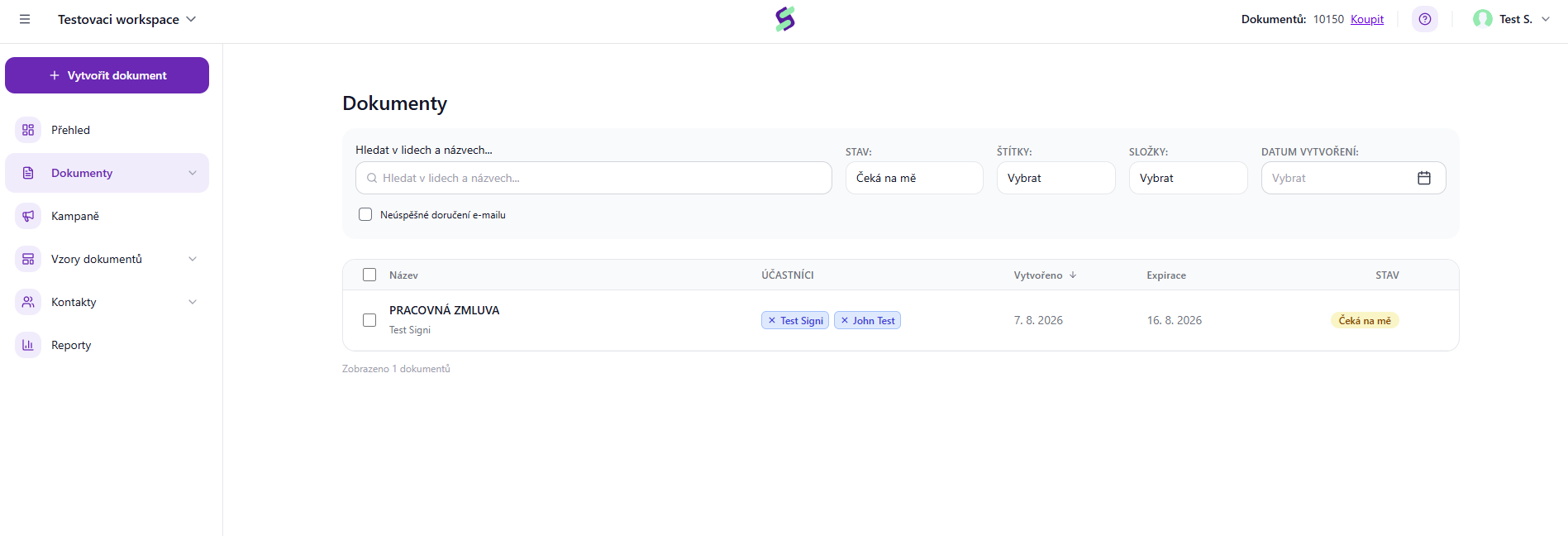
After opening the Waiting for my signature section, a selection of available documents is displayed:
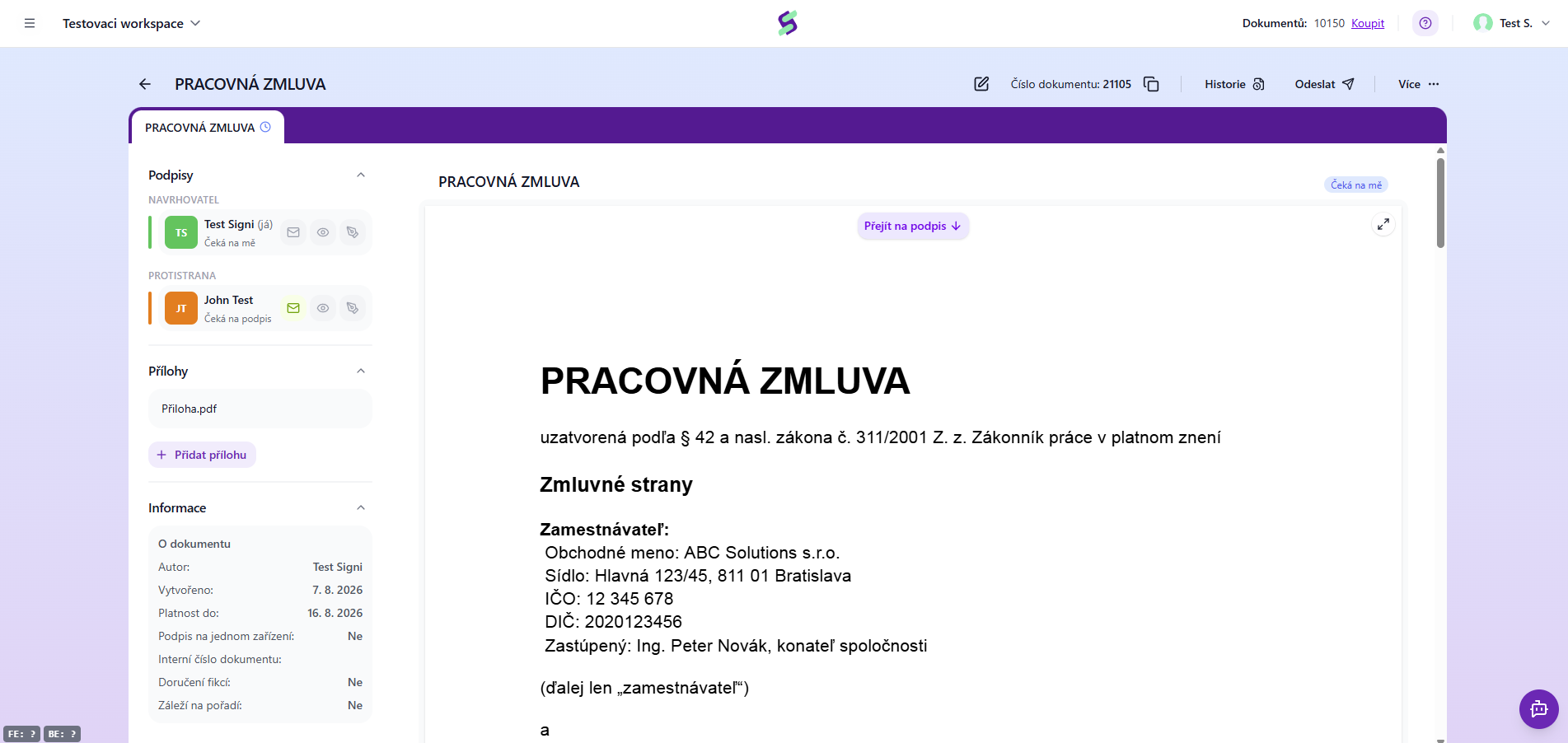
Once you open the document by clicking on it, its preview is displayed. You can then either reject it or proceed directly to signing it.
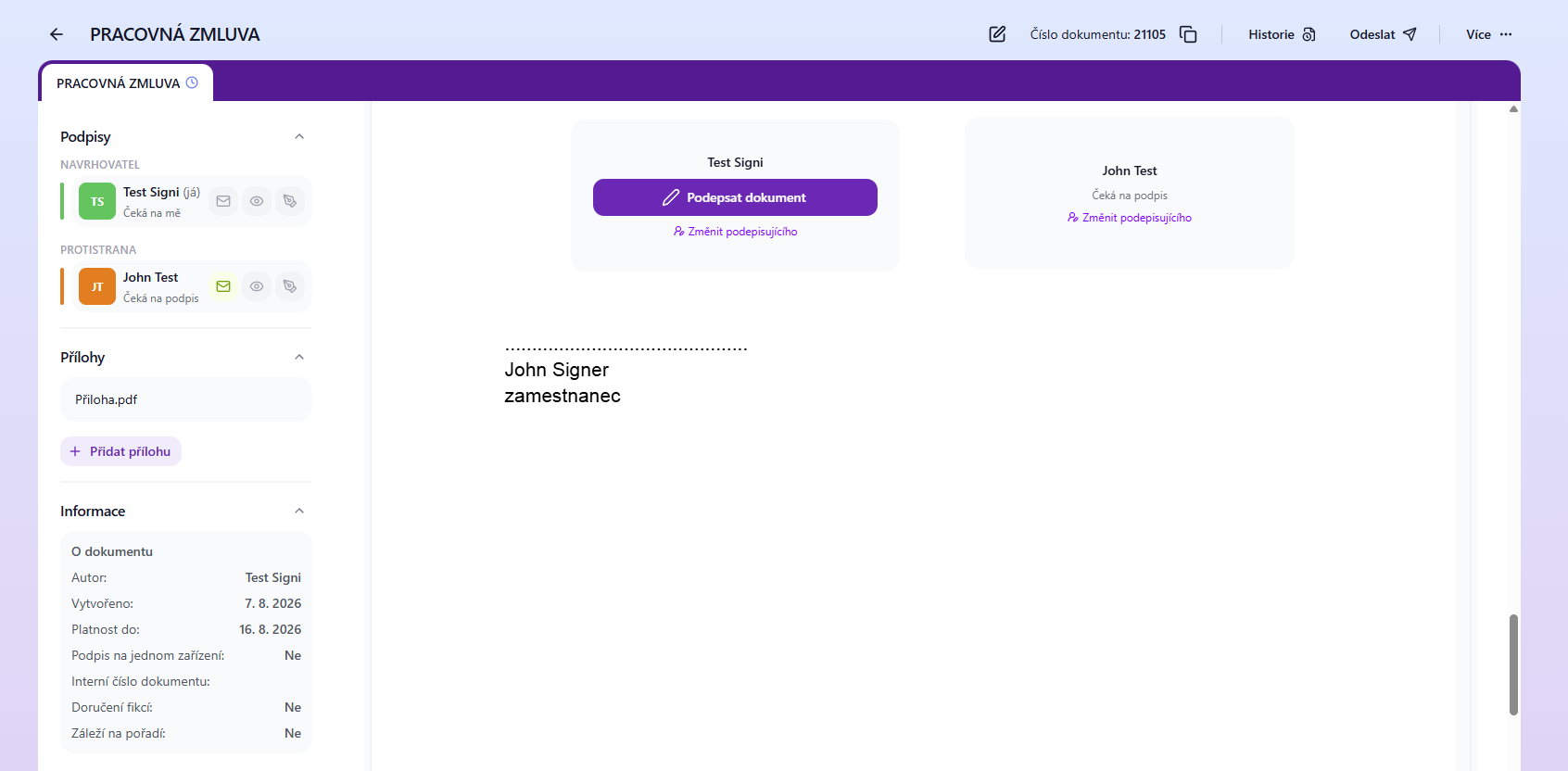
As soon as you click the Sign button, 2FA verification takes place, during which you will be asked to enter a phone number to which we will then send a PIN code (in case you do not have this contact filled in your account settings). In the next step, you will be prompted to enter the PIN code into the application.
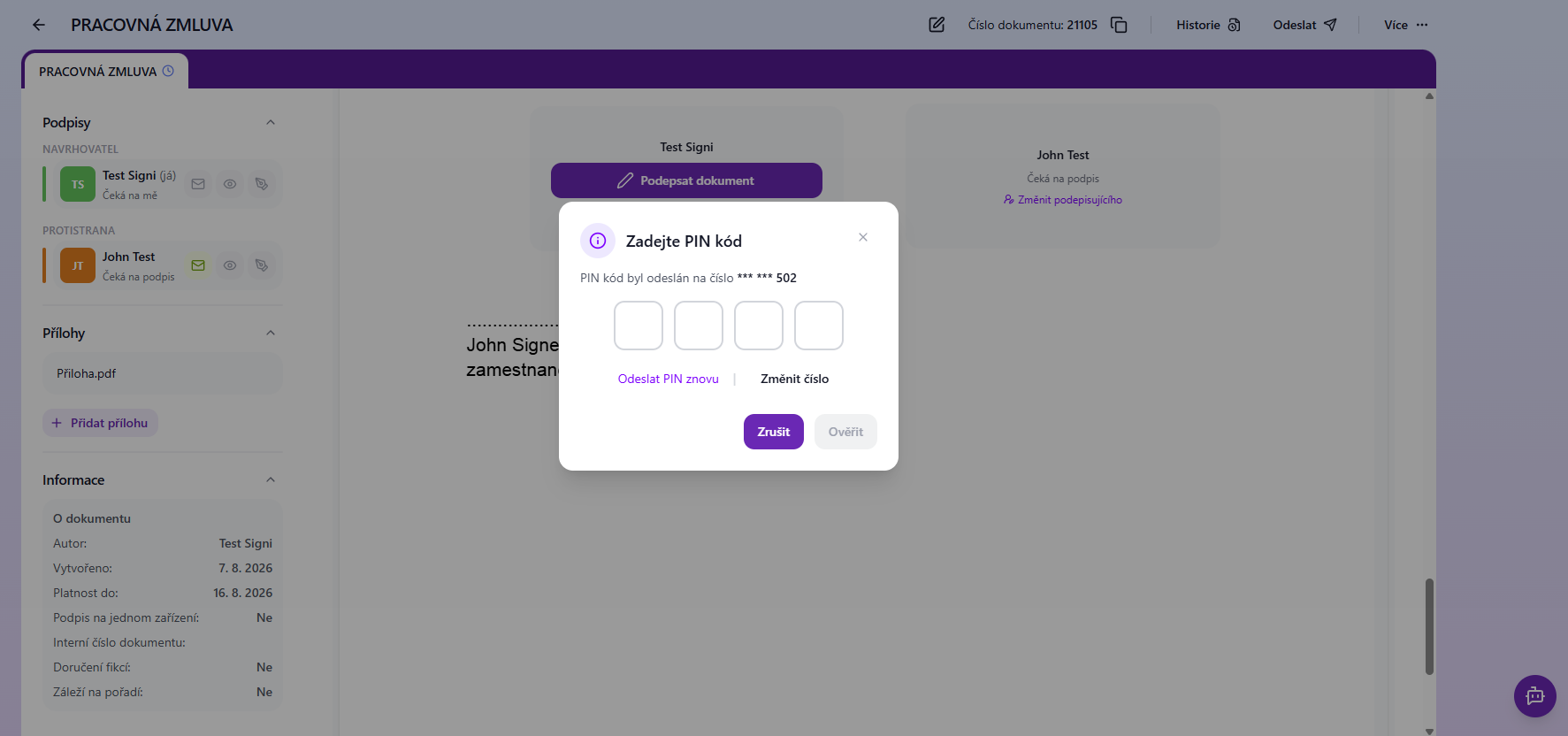
If the PIN code entry is successful, you will be redirected to the signature field. You can sign using your finger or a stylus, or the touchpad on your laptop. If you are not satisfied with the resulting signature, you can remove it and start again.
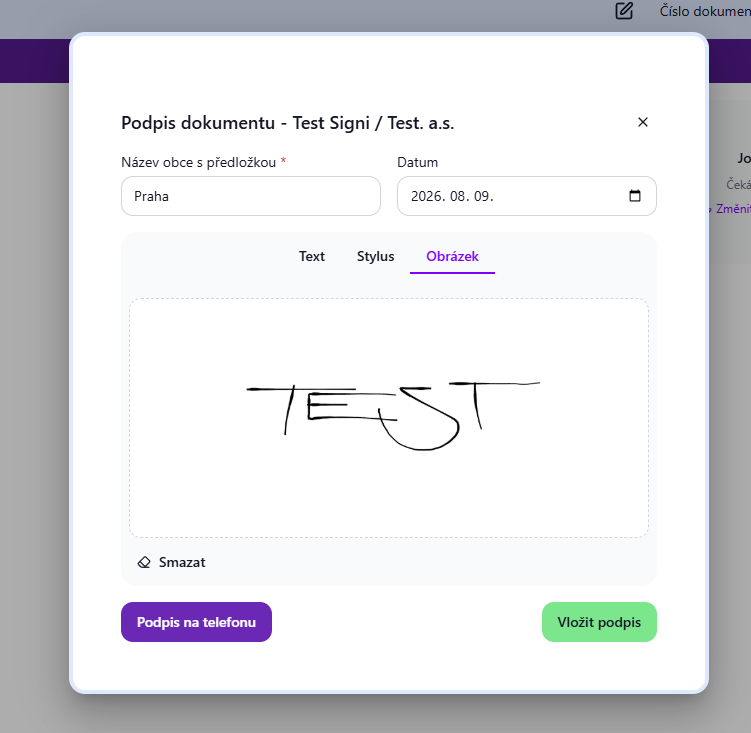
Once you are satisfied, tap the Insert signature button. (If you have already saved a sample signature in your account settings, it will be loaded right away and you only need to fill in the place of signature.)
In the last step, the entire document will be displayed to you once more, this time including your signature. If you agree with everything, click the Finish button.
On the final screen, you will be informed that the whole process has been successfully completed. We have sent the document with your signature to the other party, and we did not forget a copy for you either; you will find it in your email. You can download it in PDF format.
The fully signed document is also saved in the application in the Closed documents section.
Was this article helpful?
That’s Great!
Thank you for your feedback
Sorry! We couldn't be helpful
Thank you for your feedback
Feedback sent
We appreciate your effort and will try to fix the article