What is a workspace
A workspace works as a virtual office in which you manage your documents in the online environment of the SIGNI app.
All settings saved in a workspace are valid for the entire workspace, meaning also for all team members who use this workspace.
Switching between workspaces
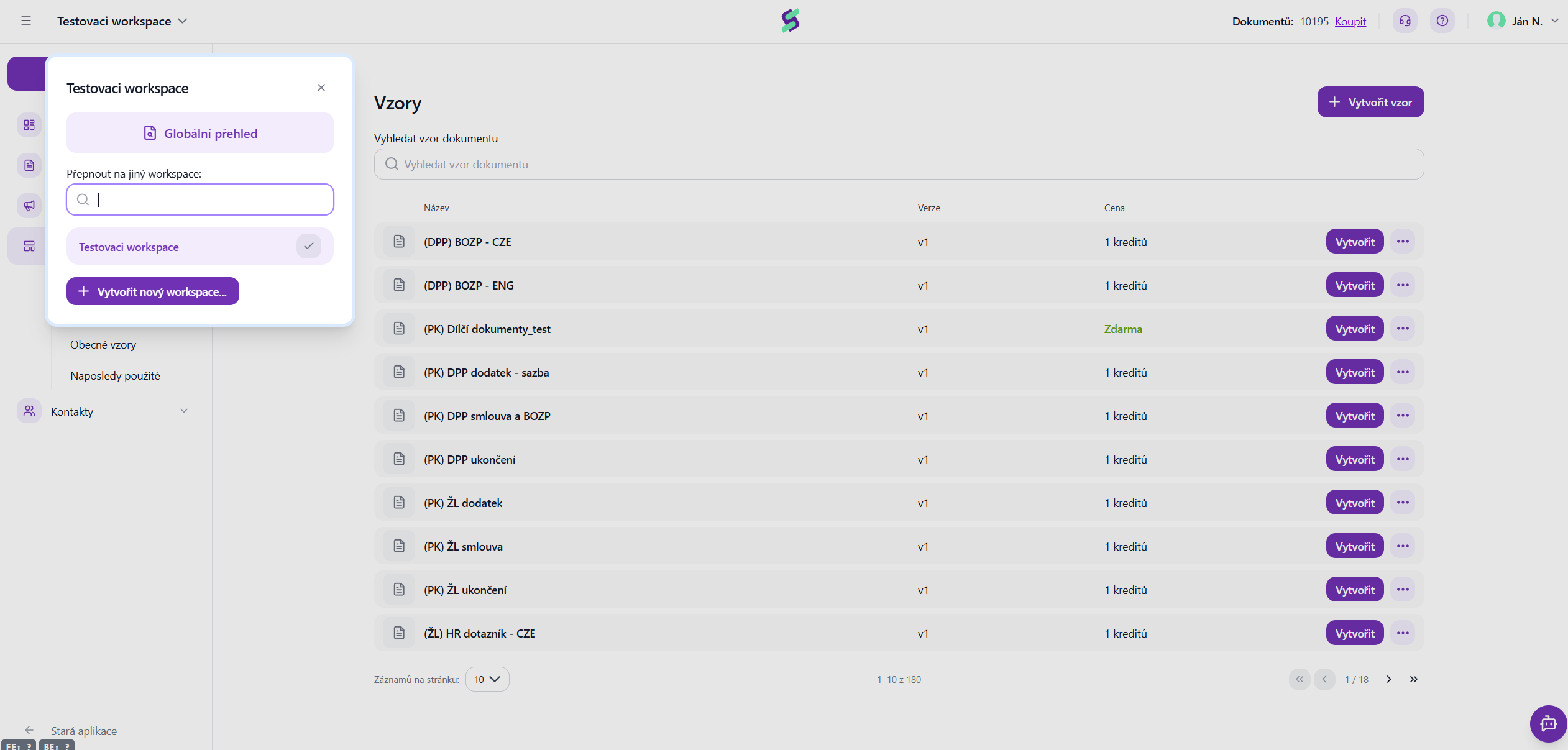
After clicking on the workspace name in the top left corner of the app, a list of all available workspaces is shown. In the list you can, for example, see:
- a personal workspace (e.g. Personal)
- a company workspace (e.g. Company)
Select the workspace you want to work with.
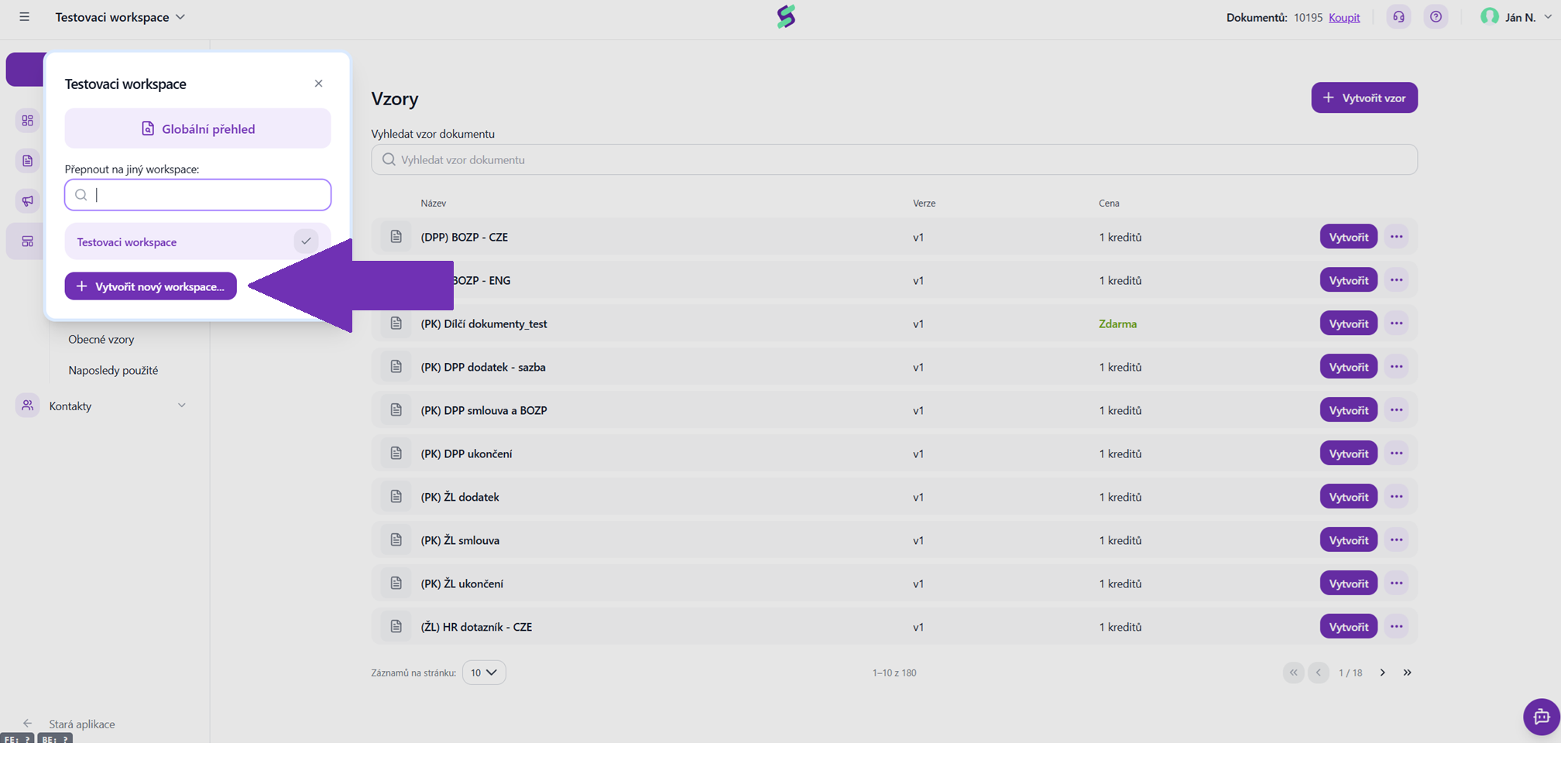
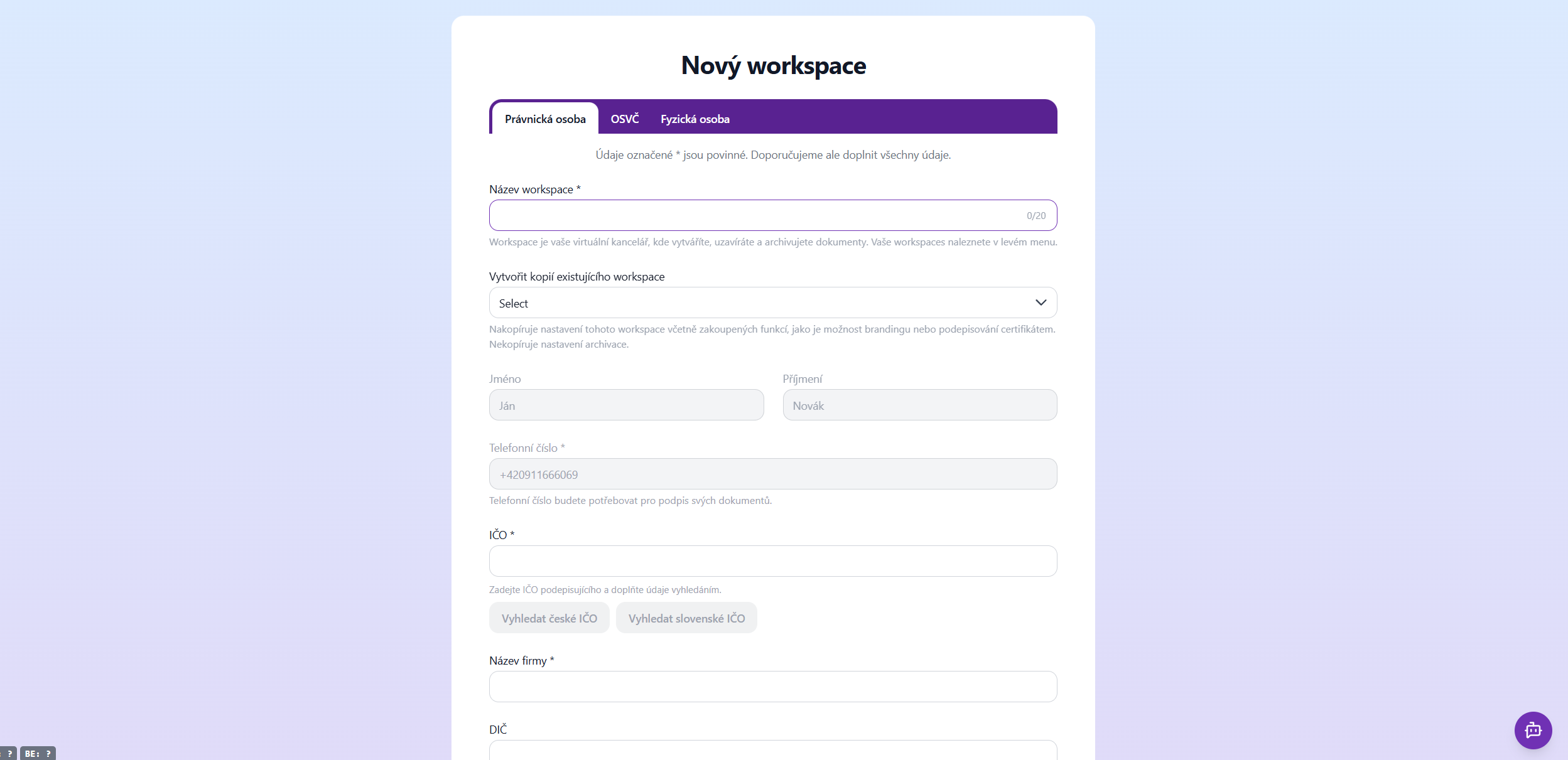
Creating a new workspace If you did not create a workspace during registration or want to create a different, new one, you can do so now by clicking + Create workspace.
If you also want to invite other colleagues to the account as team members, you need to create the workspace as a legal entity.
 Copying settings from an existing workspace
If you want to create a new workspace with the same or similar settings you already have in another workspace, the SIGNI app allows you to copy settings from an existing workspace.
Copying settings from an existing workspace
If you want to create a new workspace with the same or similar settings you already have in another workspace, the SIGNI app allows you to copy settings from an existing workspace.
Procedure:
- When creating a new workspace, enter its name.
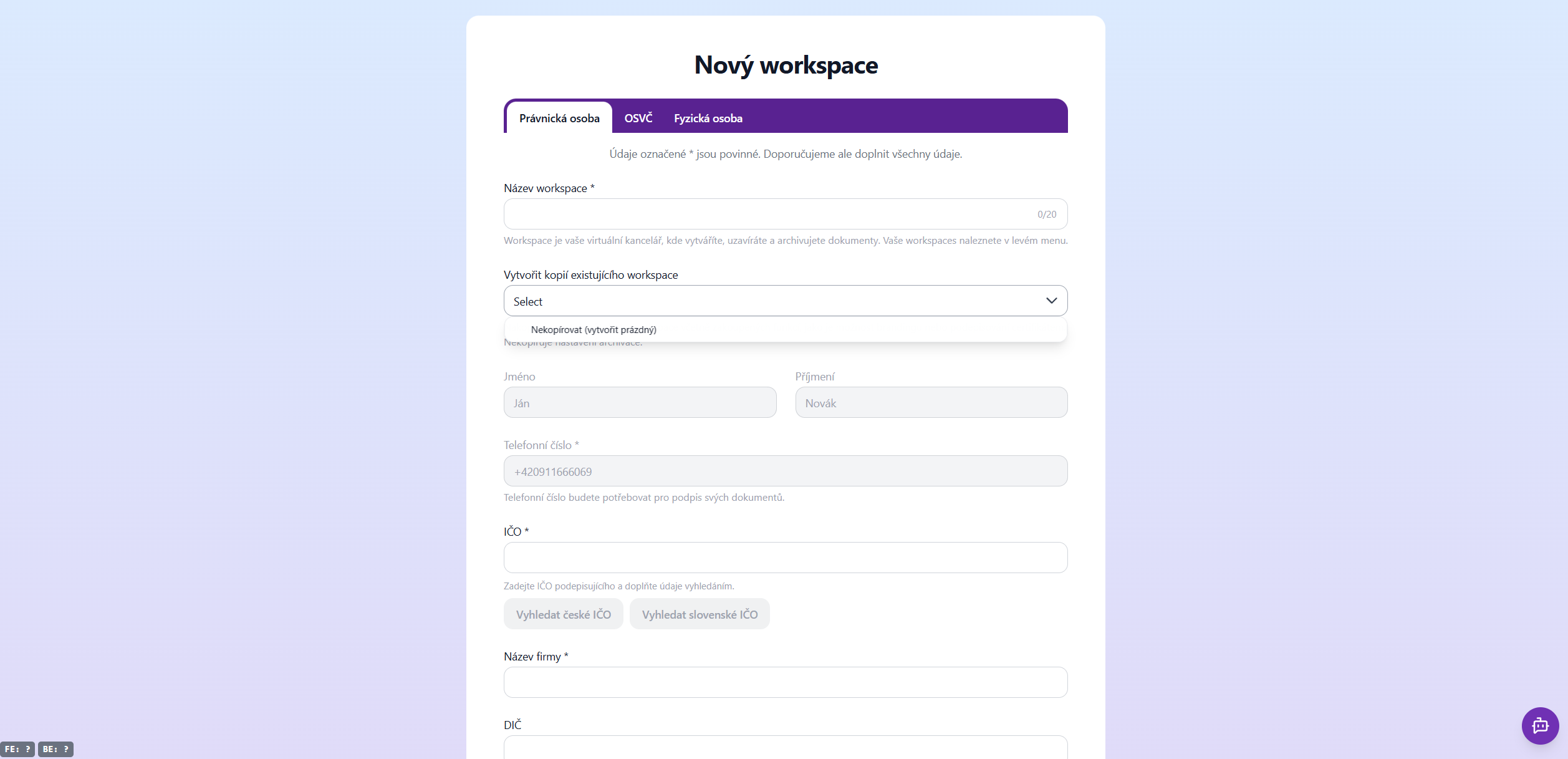
- Below the workspace name field you will find the drop-down menu "Copy settings from workspace".
- Clicking this menu shows the available options:
- Do not copy – the new workspace will be created with default settings.
- Names of existing workspaces (e.g. Company Ltd.) – the settings will be copied from the selected workspace.
⚠️ Warning: The SIGNI Archive is not transferred when copying. If you want to activate the archive in the new workspace, you must contact our support at help@signi.com
 Opening workspace settings
- Click on the workspace name in the top left corner.
- Select the workspace you want to manage.
- Click on the gear icon next to the workspace name.
This opens the settings of the selected workspace.
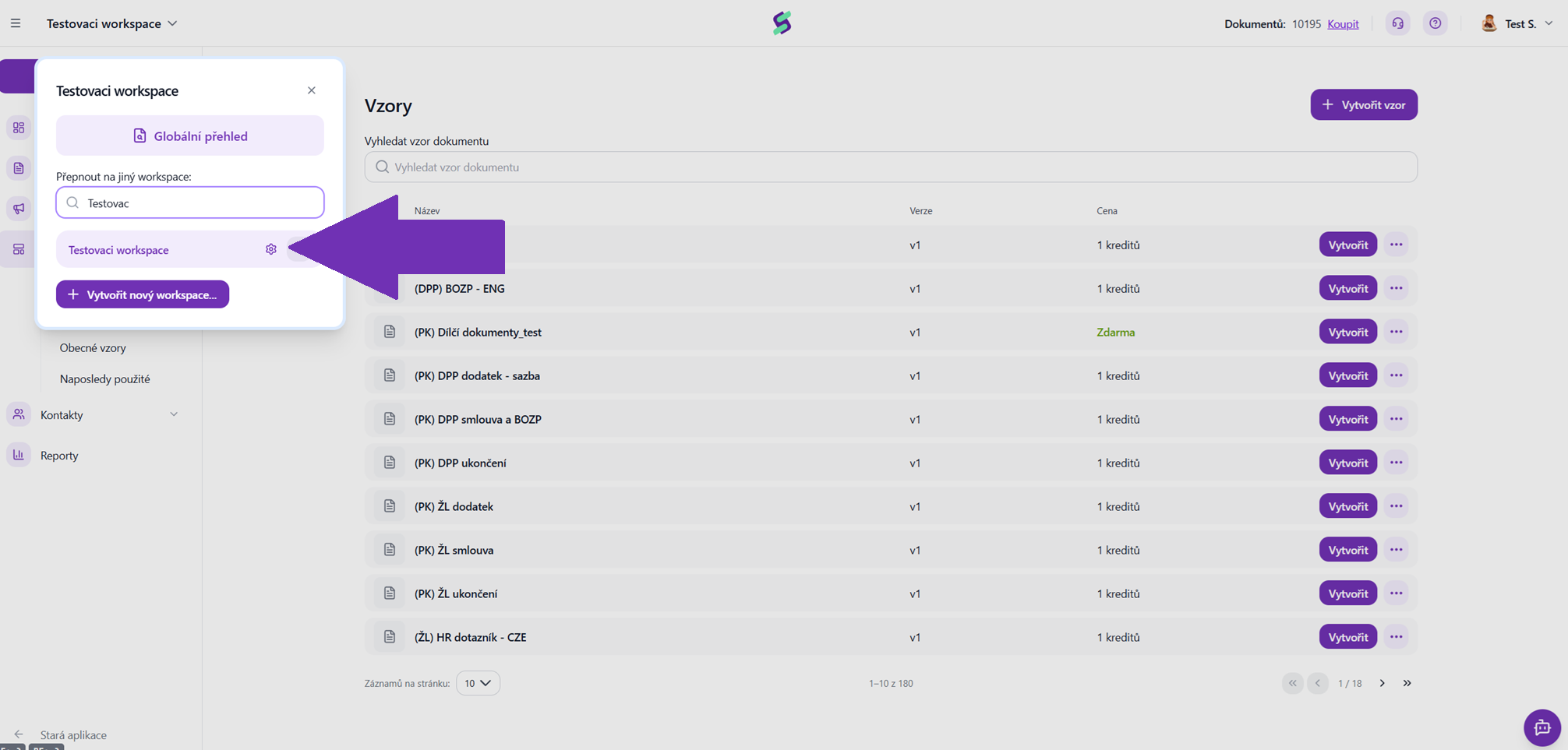 After opening the workspace settings you can manage the following areas:
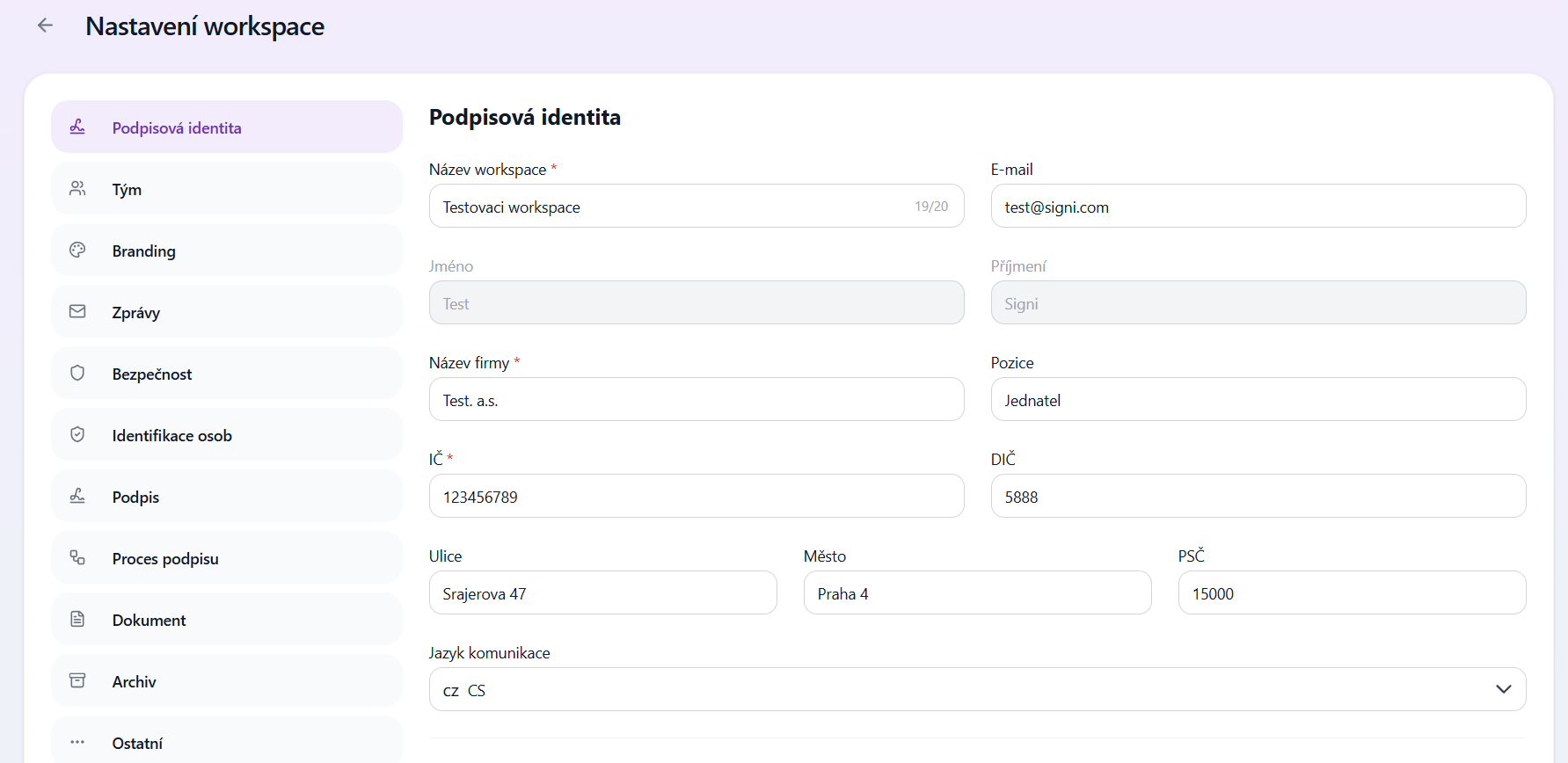 Changes made in these sections apply to the entire workspace.
Deleting a workspace
If you are the workspace owner, you have the option to delete the workspace.
- You will find this option in "Signature identity"
- It is located at the bottom center of the screen
⚠️ Deleting a workspace is irreversible and all data contained in it will be lost.
Was this article helpful?
That’s Great!
Thank you for your feedback
Sorry! We couldn't be helpful
Thank you for your feedback
Feedback sent
We appreciate your effort and will try to fix the article