Note: The attachment upload feature is part of a paid add-on module and may not be available on all account tiers.
Sometimes you may be required to upload supplementary documents—such as an ID card, proof of address, or business register excerpt—before signing a document in Signi. Below is a step-by-step guide on how this process works for counterparties.
Instructions
1. Open the Email Link
Click the access link provided in the e-mail notification you received from Signi.
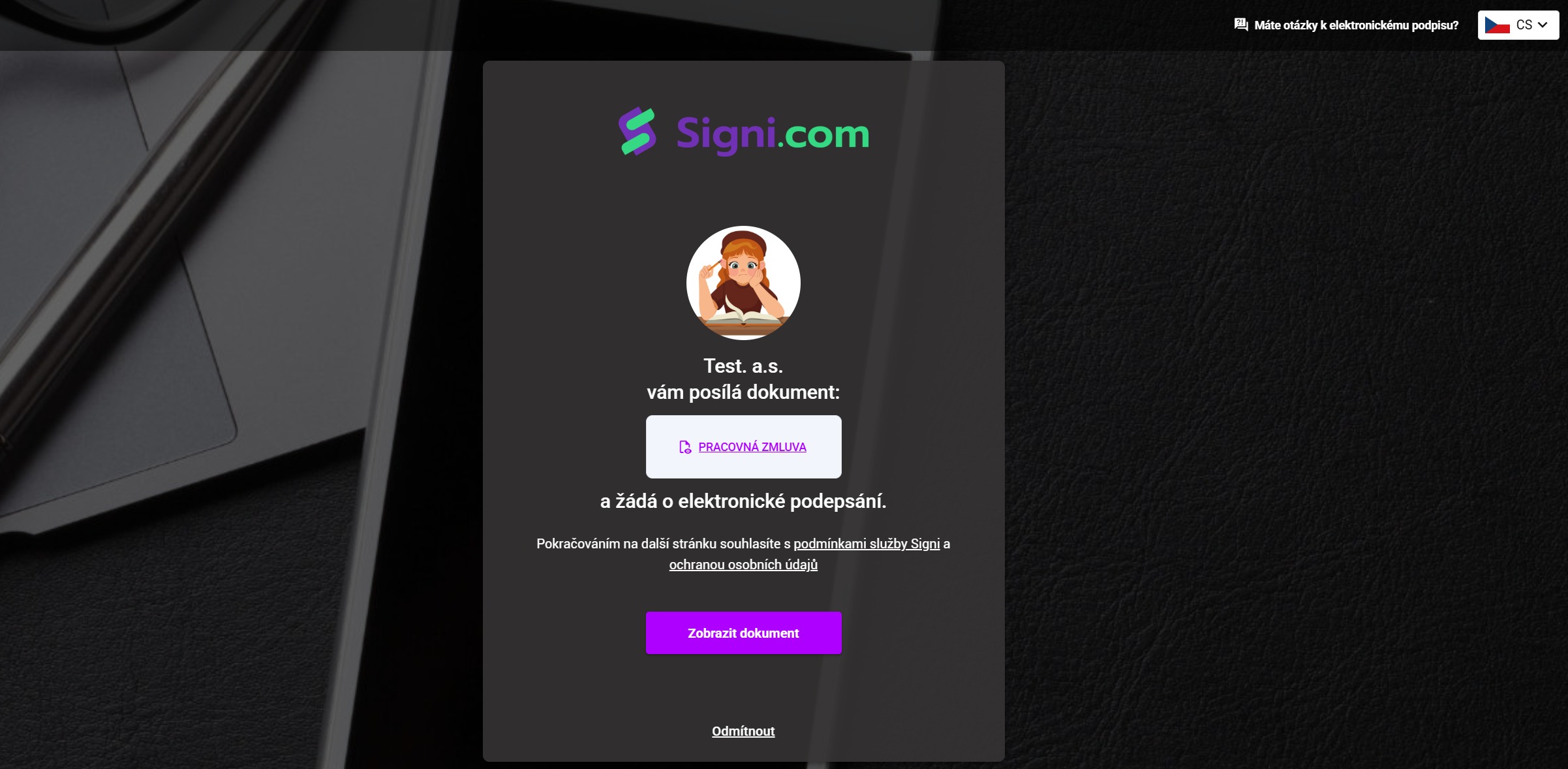
2. Navigate to the Document
Review the contents of the document on the screen.
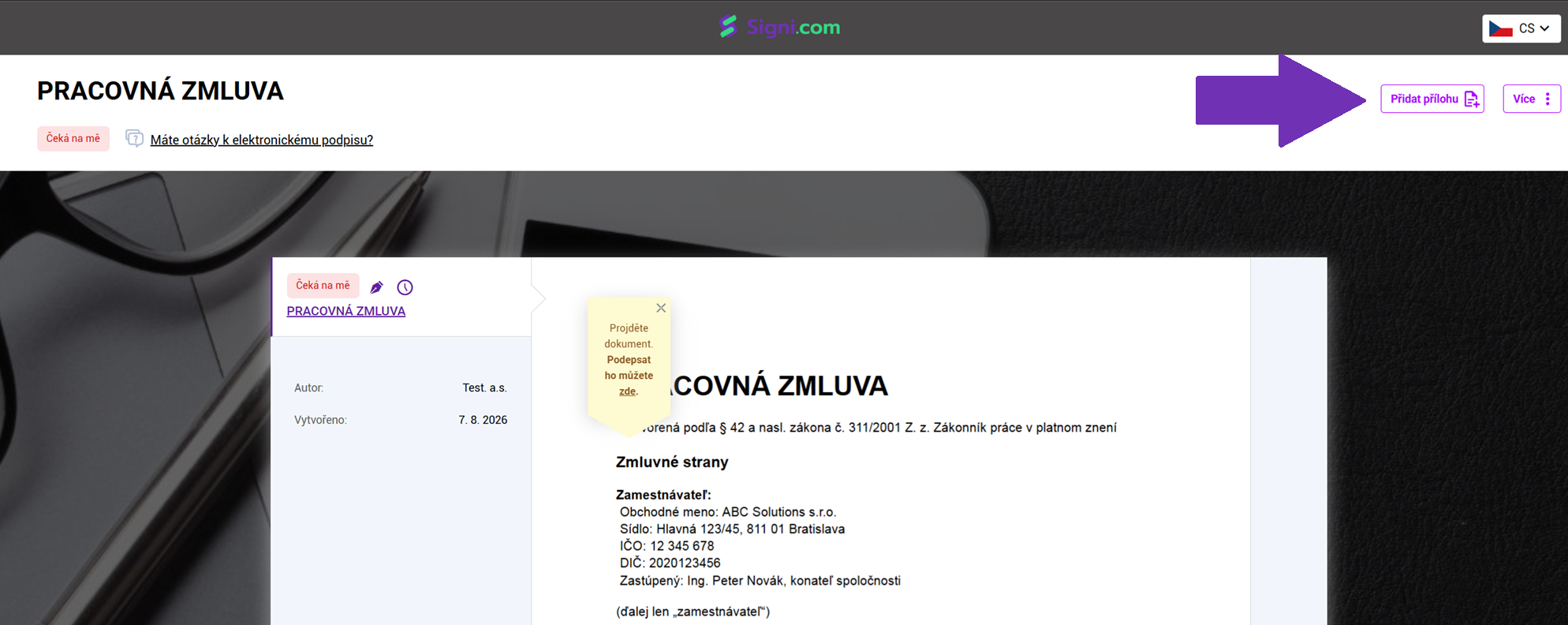
3. Upload Attachments
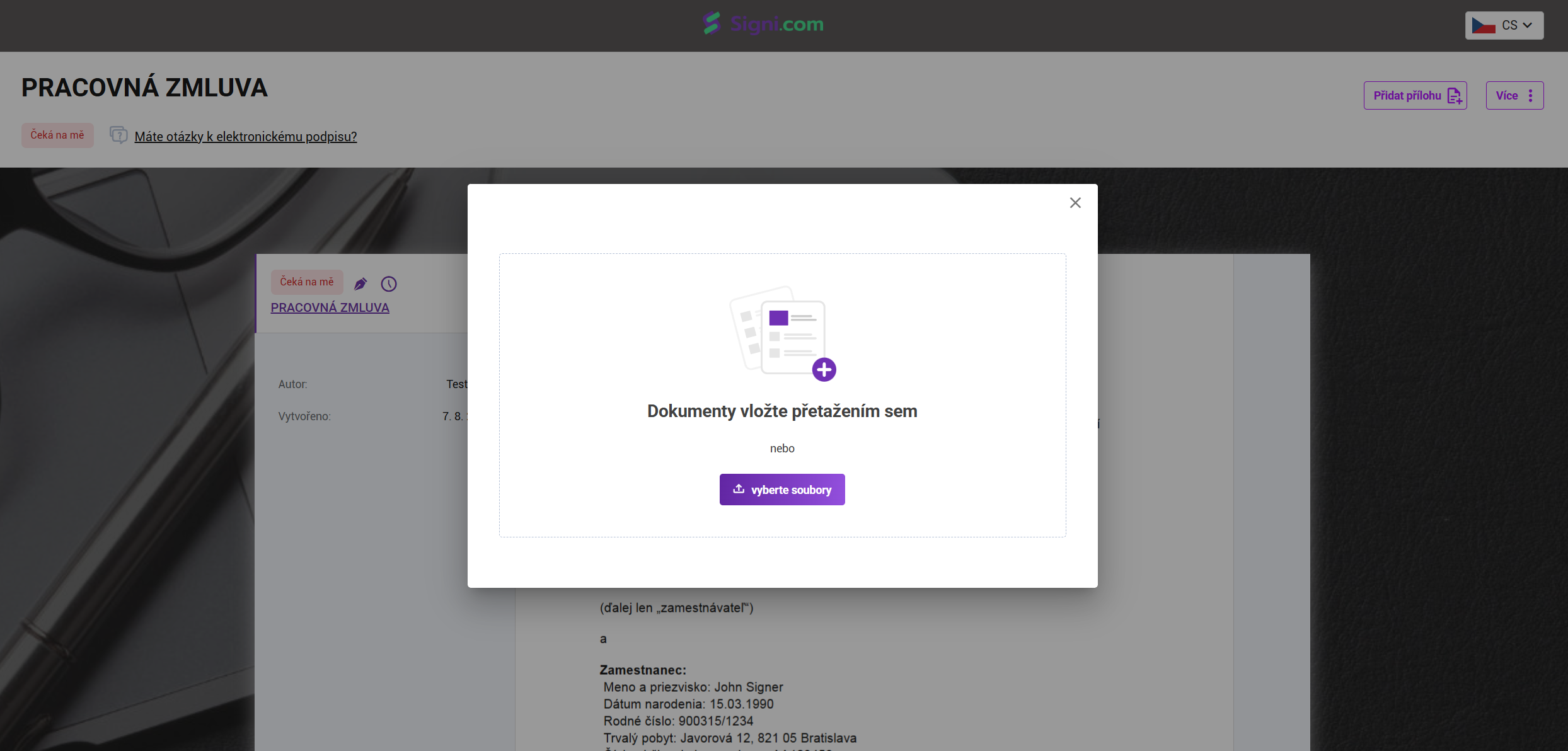
Click the Add attachments button located in the top-right corner of the interface and select the file(s) from your device.
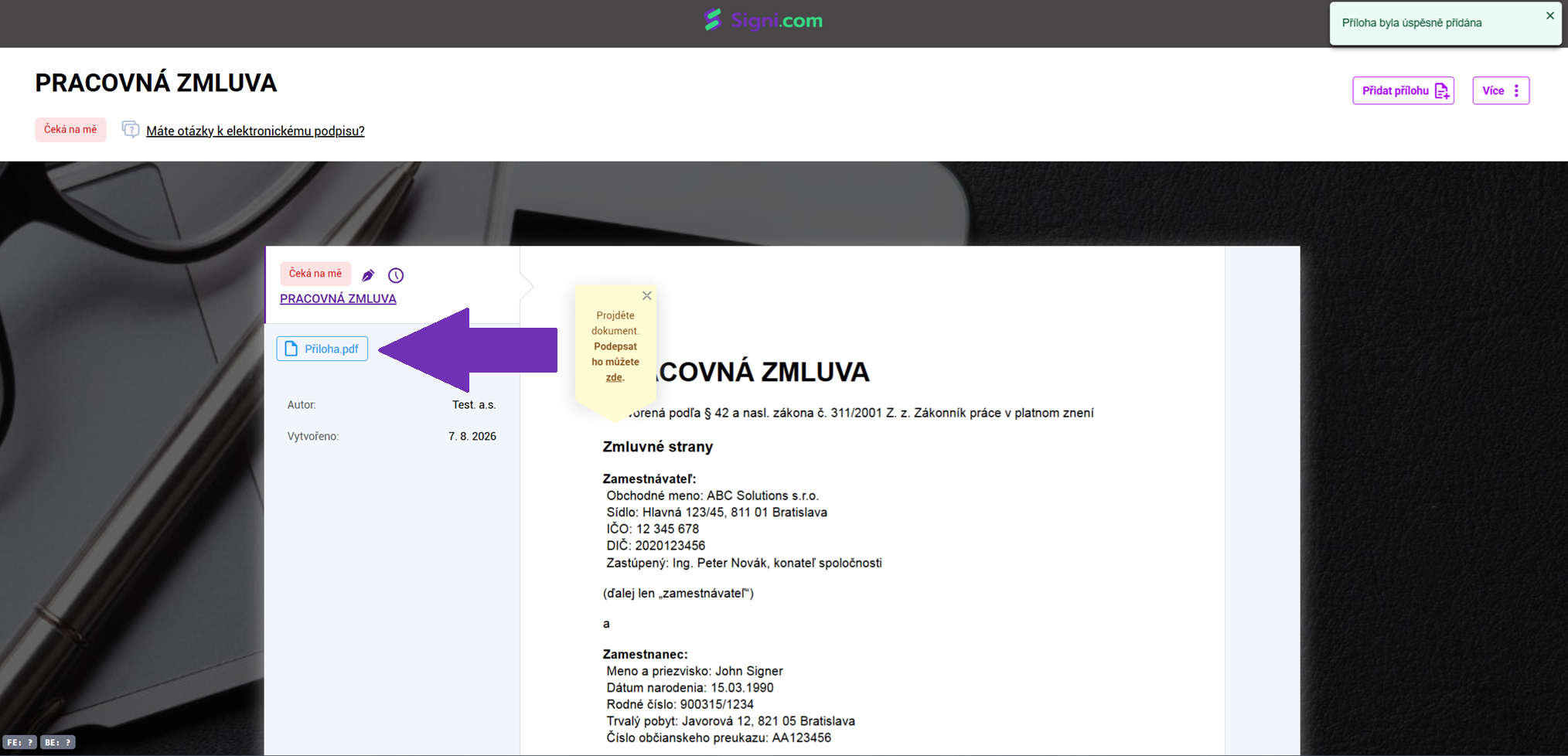
Once uploaded, the file is saved as an attachment to the contract. Attachments are non-signable files, but they will be permanently visible to all parties whenever the document is opened in Signi.
Was this article helpful?
That’s Great!
Thank you for your feedback
Sorry! We couldn't be helpful
Thank you for your feedback
Feedback sent
We appreciate your effort and will try to fix the article