You can create your user account from any device (PC, smartphone, tablet…) at the URL: https://app.signi.com/register.
You create an account by entering the following details:
- First and last name
- E-mail address – you will use it to log in to the application
- Password - you choose it yourself
- Agreement with the terms of service and personal data protection – is required to successfully create an account
In the first step, you enter your e-mail and password that you want to use to log in to the application.
We will then send a message to the e-mail address you entered with a link to verify your e-mail address. The e-mail address is therefore very important, because signed documents and notifications will be sent to it, and it serves as your username for logging in to the application.
We make sure your password is strong enough to protect your documents and sensitive data. Therefore, the password must contain at least 10 characters, 1 uppercase letter, and 1 number. We show you the password strength online.
You can also choose the application language.
By clicking the "Continue" button, you agree to the terms of service and personal data protection.

If you are creating an account for a company, in the next step you enter your name and the name of the given company / business.
From the main company account on Signi, you will be able to set various functions, handle orders and payments, and for business customers invite new team members to workspaces.
Therefore, we recommend choosing as the e-mail for the main account on Signi (the admin account for the company) e.g. the address info@firma.cz, faktury@firma.cz or signi@firma.cz, which are not tied to a specific person. Smaller companies often use the manager's e-mail.
If you want to use the account only for personal purposes, or if a main account for your company already exists and you are "just" a team member, create an account only as a natural person. **In that case, click this option under the Company name field:

In this mode, it is then sufficient to provide only your first and last name, without the need to enter a company name:

After completing / submitting the form, a message will be sent to your e-mail to verify the e-mail address you entered.
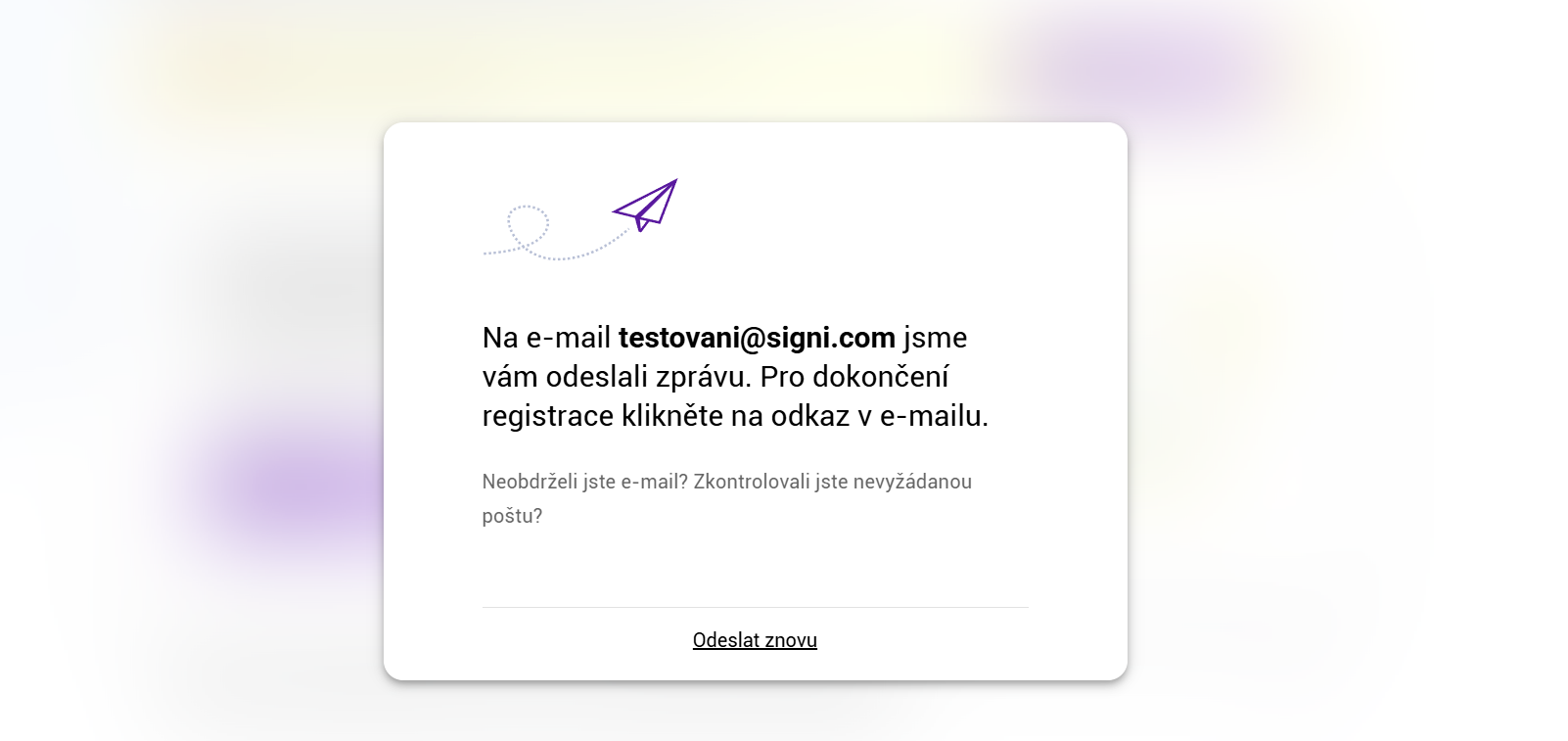
In the e-mail message you received from us, click the link / button "Verify e-mail". After verifying your e-mail, your account is successfully created. You will then be redirected to the login screen of the application. You log in by entering the e-mail address and password you chose when creating the account.
Your account is now ready to use.
Was this article helpful?
That’s Great!
Thank you for your feedback
Sorry! We couldn't be helpful
Thank you for your feedback
Feedback sent
We appreciate your effort and will try to fix the article