What is Remote Sign
Remote Sign is a way to sign documents in Signi using a qualified electronic signature (QES), issued on your behalf by the external certification service ICA (I.CA – První certifikační autorita / First Certification Authority).
The signature itself is not created directly in Signi – Signi only initiates the signing session and hands the document over to the ICA service. The signer then verifies their identity in the ICA mobile app, and the service inserts the qualified signature into the document. Signi then automatically retrieves and stores the signed PDF.
Requirements for use
To be able to sign a document via Remote Sign, the following conditions must be met:
- The Remote Sign feature must be enabled for your workspace. If it's not available to you, contact Signi support.
- The signer must have the I.CA RemoteSign service set up — you can order the certificate from the First Certification Authority at www.ica.cz/ica-remotesign.
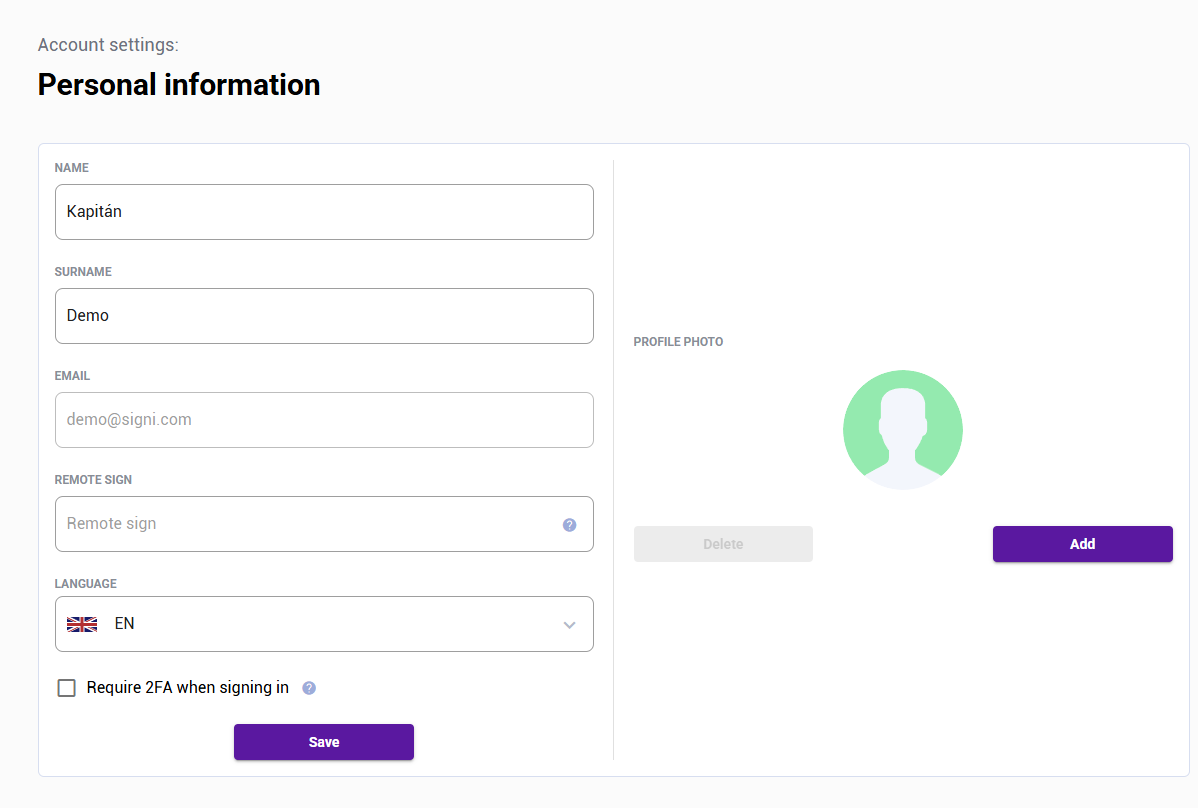
- The signer must have their ICA ID filled in their profile (the user identifier for the ICA service). You'll find this field (Remote Sign) in Account settings → Personal details. It only appears when your workspace has the Remote Sign feature enabled.
- The signer must have the ICA mobile app installed and set up, where they confirm the signature. You'll find your User ID (ICA ID) in it under Settings → User information → User ID:
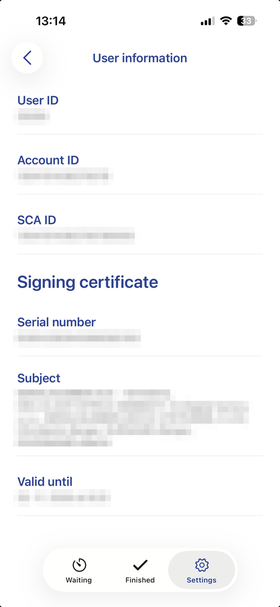
Tip: If you don't have your ICA ID filled in your profile, the signature will fail and Signi will alert you about the missing identifier. So first fill in the Remote Sign field in your account settings.
How signing via Remote Sign works
- Open the document you're supposed to sign and start the signing using the relevant button.
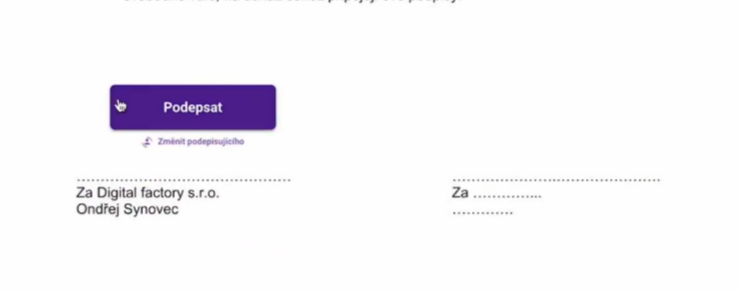
- Signi initiates the signing session and hands the document over to the ICA service.
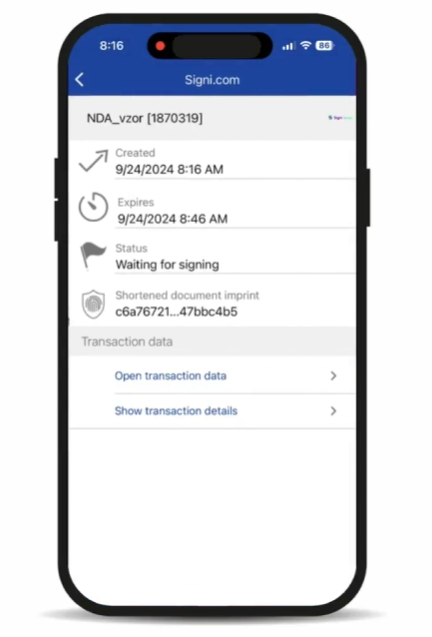
- In the ICA mobile app you verify your identity and confirm the signature.
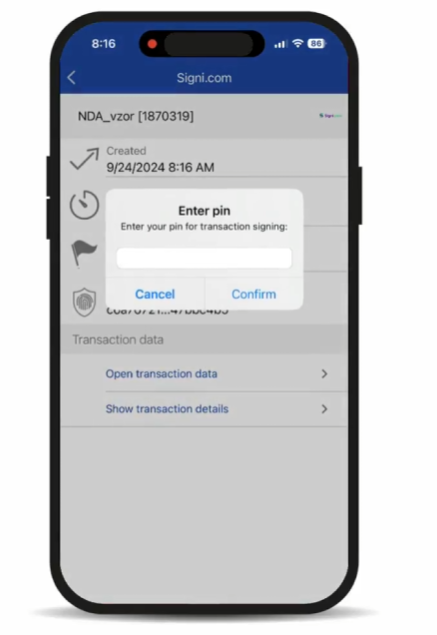
- While waiting for completion, Signi displays a notice that it's waiting for the signature in the app. There's no need to refresh the page – the status updates automatically.
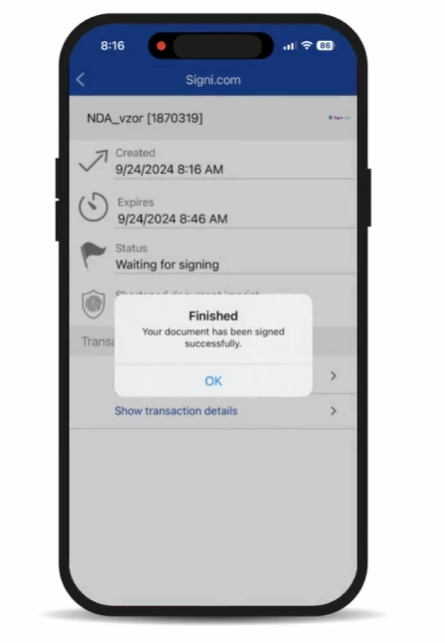
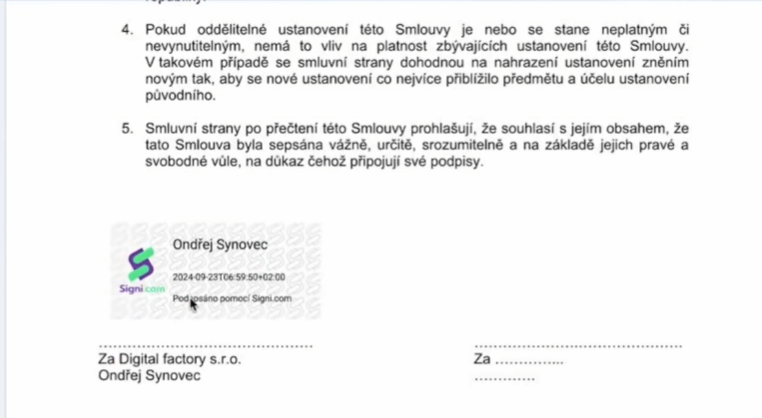
- Once ICA inserts the signature, Signi retrieves the signed PDF, stores it, and marks the signature as completed.
Troubleshooting
| Situation | What to do |
|---|---|
| The signature won't start and Signi reports a missing ICA ID | Fill in the Remote Sign field in Account settings → Personal details. |
| The signature takes a long time to complete | Check whether you confirmed the signature in the ICA mobile app. Once the session expires, start the signing again. |
| You don't see the Remote Sign feature in settings | The feature is not enabled for your workspace – contact Signi support. |
Where to go next
Was this article helpful?
That’s Great!
Thank you for your feedback
Sorry! We couldn't be helpful
Thank you for your feedback
Feedback sent
We appreciate your effort and will try to fix the article