If someone has already sent you a document signed on paper and you want to save it into the Signi app, follow the steps below.
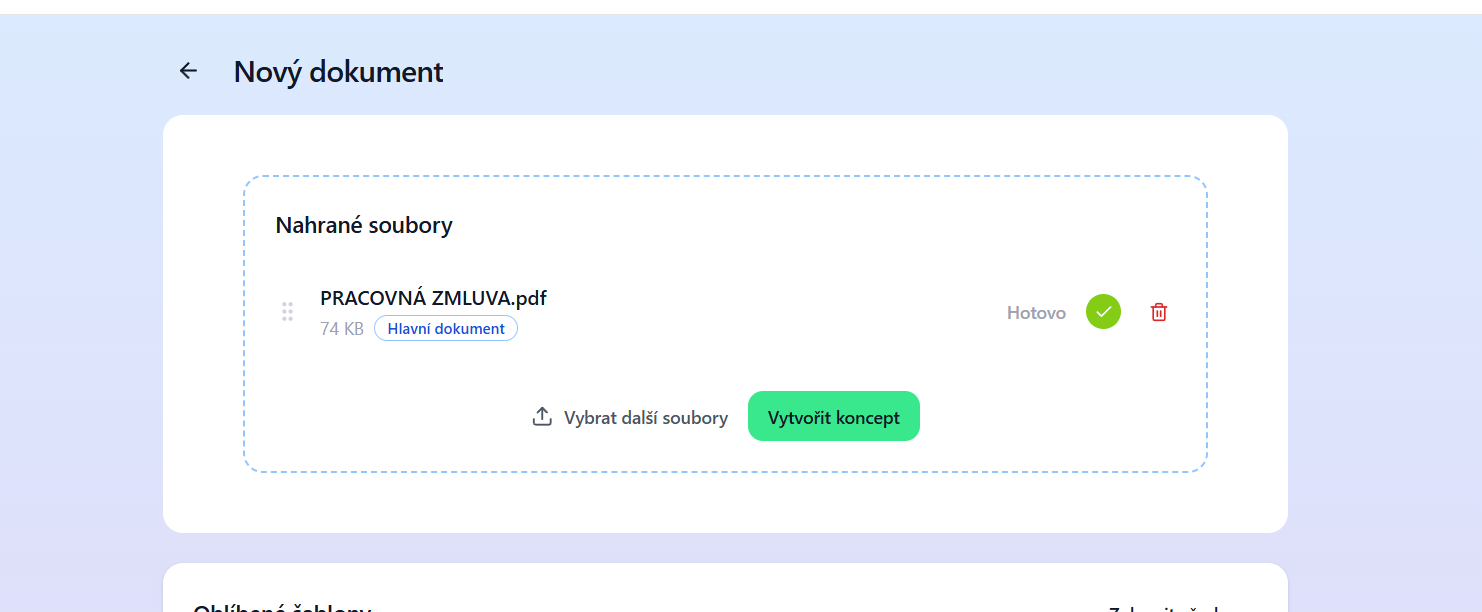
Step 1: Upload the file(s) to Signi
Select the documents you want to save to Signi and upload them to the app.
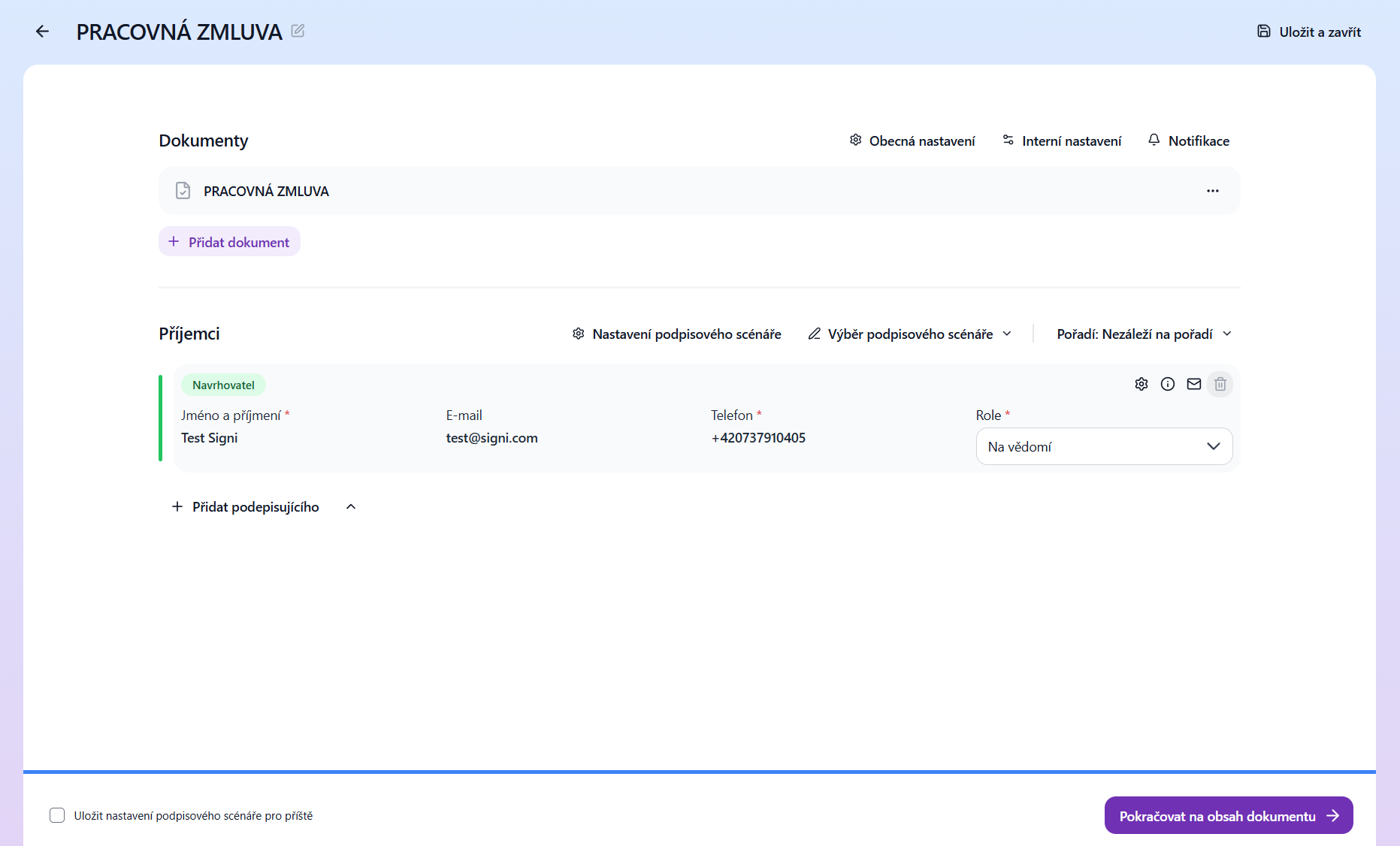
Step 2: Set up the signing scenario
In the signing scenario, add any signer with the For information role and continue to the document content.
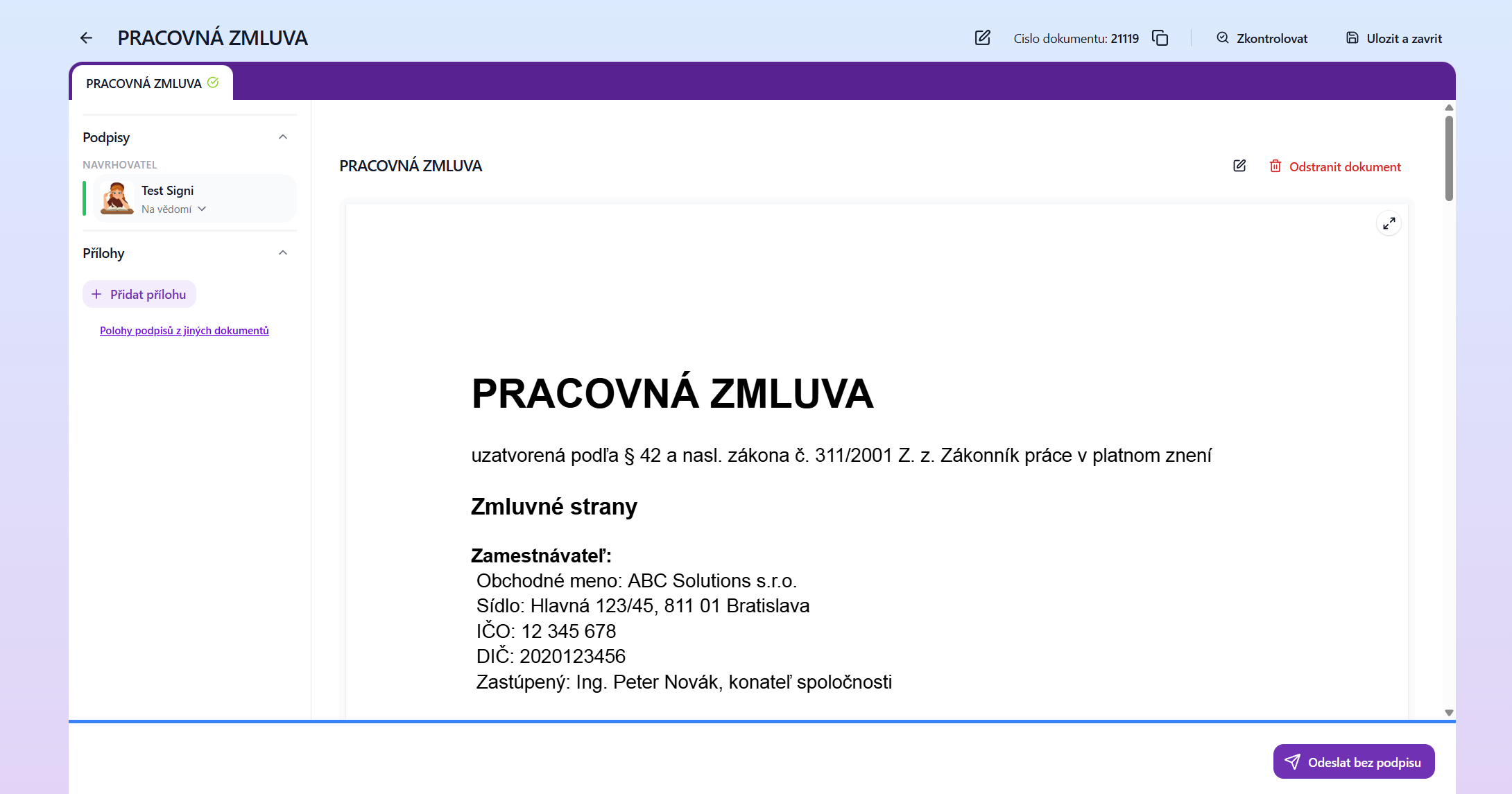
Step 3: Complete the process
Send the document using the Send button and you're done!
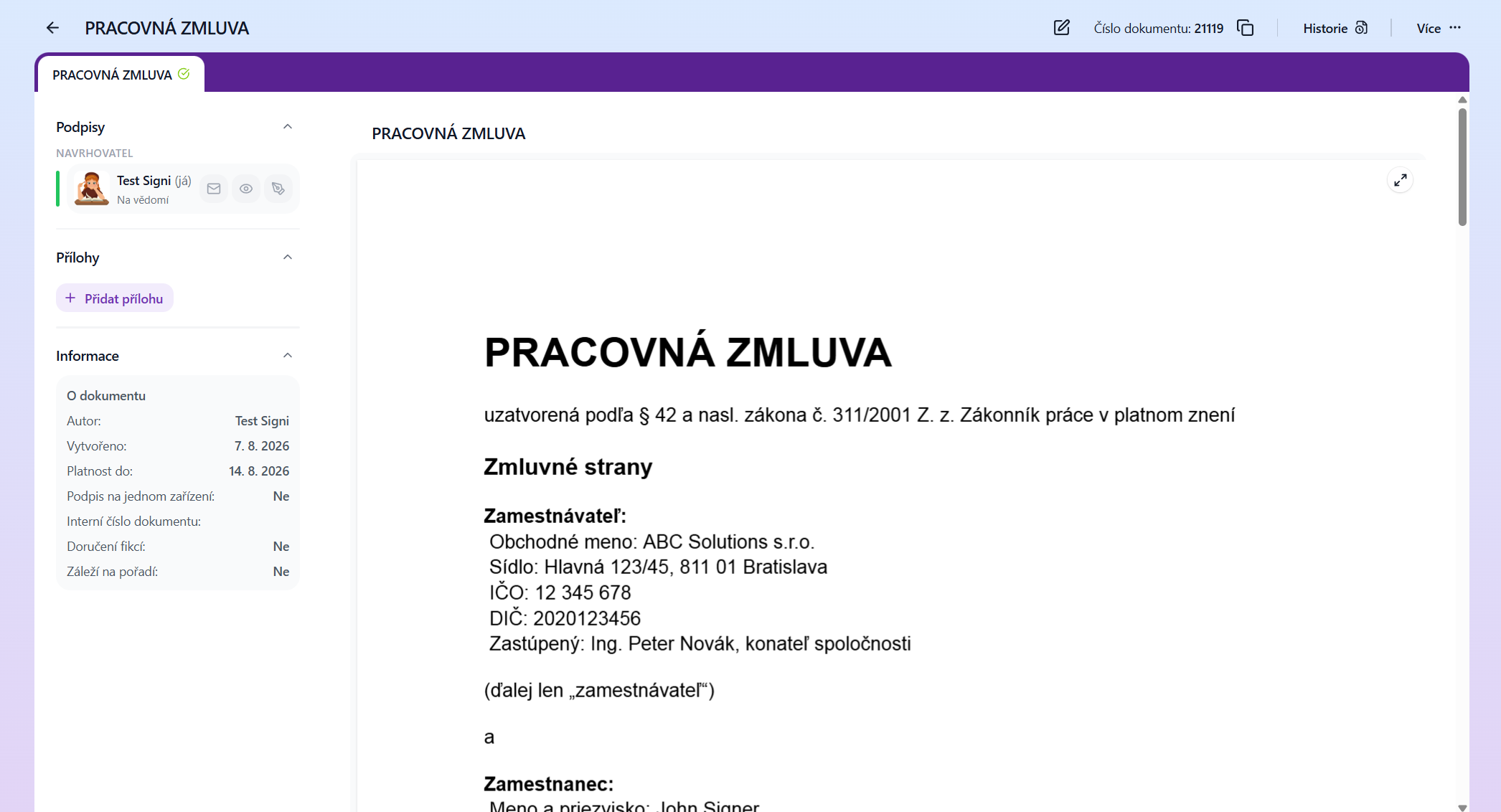
The uploaded document is saved into the Signi app.
If you upload a document signed on paper into the Signi app, it means you will need to keep 2 copies. One in the Signi app and the other on paper.
Was this article helpful?
That’s Great!
Thank you for your feedback
Sorry! We couldn't be helpful
Thank you for your feedback
Feedback sent
We appreciate your effort and will try to fix the article