Copying a response directly from the browser console can be useful when troubleshooting unknown errors. Below you will find the steps on how to proceed.
Step 1: Open the browser console
Start by opening the browser console. You can do this by pressing the F12 key or by right-clicking on the page and selecting "Inspect", then go to the "Network" tab.
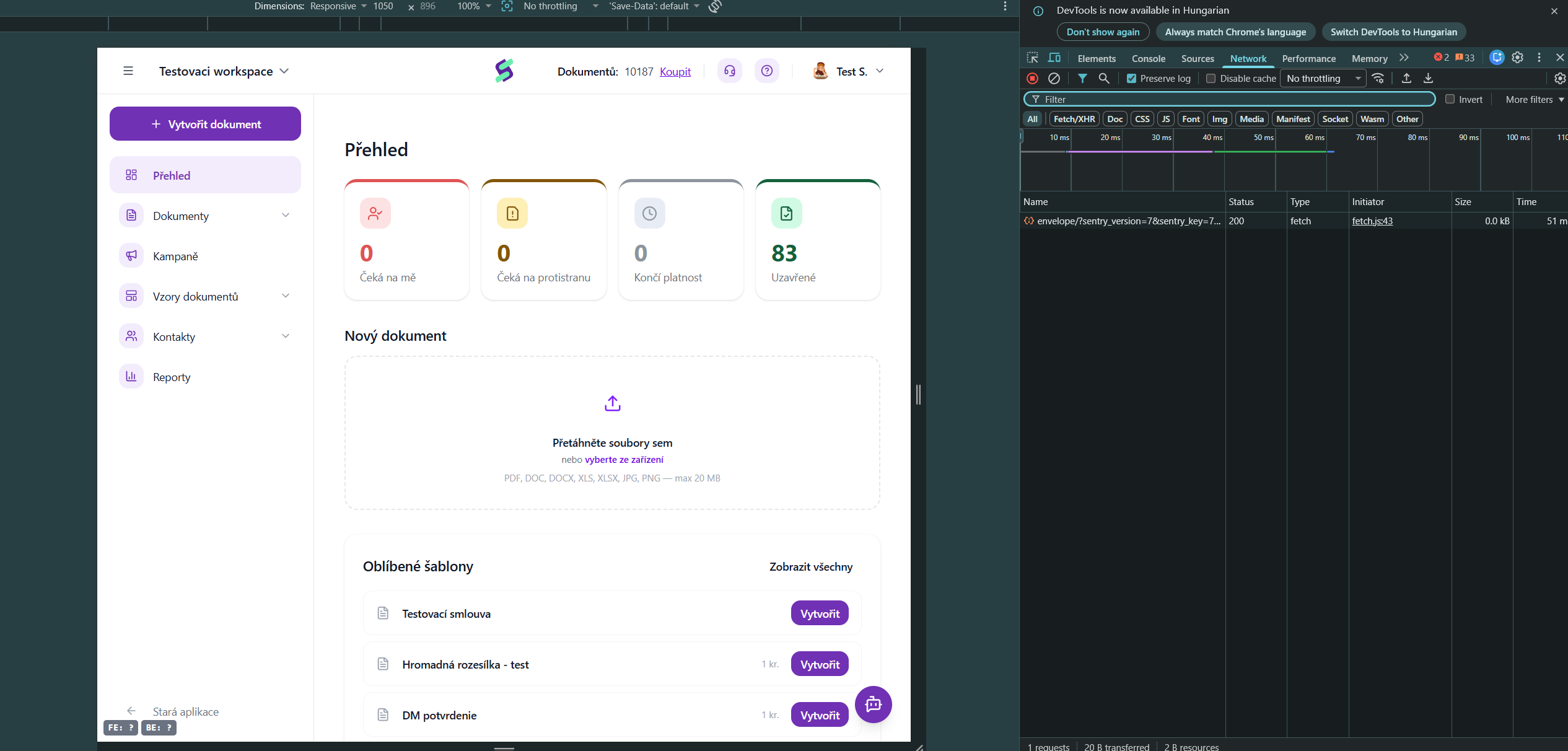
Step 2: Click the button that triggered the error message.
Browse the page or perform the action that triggered the error message. The request and response will appear in the "Network" tab.

Step 3: Find the response
In the Network tab, locate the request you want to get the response for (it will be highlighted in red). Click on it and select the Response option on the right.

Step 4: Copy the response
The "Response" section will contain the exact error message. Right-click on the response content, copy it, and send it to us at help@signi.com.
If the article is not enough for you, you can watch our video tutorial:
Was this article helpful?
That’s Great!
Thank you for your feedback
Sorry! We couldn't be helpful
Thank you for your feedback
Feedback sent
We appreciate your effort and will try to fix the article